

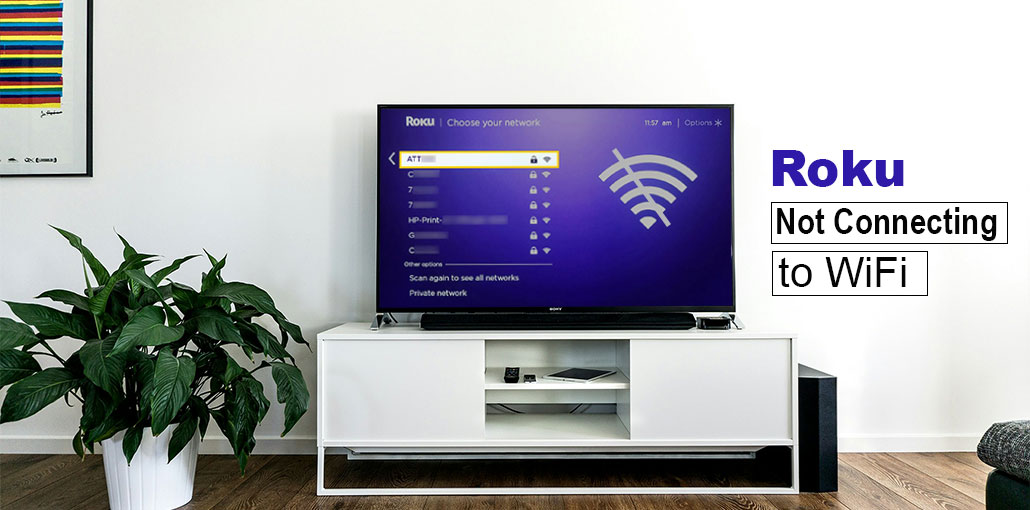
Are you experiencing issues with your Roku not connecting to WiFi? We explore a few troubleshooting steps to fix the problem within a few minutes.
The Roku device is amazing for watching your favourite TV shows, movies, documentaries, and music videos. However, you have to be connected to the internet for this. You need to resolve the Roku not connecting to WiFi issue and stream your favorite content.
Don’t worry about it. However, you can quickly resolve the Roku not connecting to wifi issue. This guide outlines several solutions to help you resolve the Roku WiFi problems and get streaming on Roku TV in just a few minutes.
Roku Not Connecting to WiFi: Common Issues
Roku not connecting to WiFi issues could result from a variety of causes and can trigger various warnings.
Unable To Connect To Wireless Network
If you experience the Roku not connecting to WiFi issue, the problem is your network connection, not your Internet connection. The error usually occurs when you type an incorrect password to connect your device.
Verifying the Connection Loop
Roku typically examines your connection for a few seconds after entering your network credentials. It starts with the network connection, and goes to the internet. However, Roku can get stuck in the next step, successfully checking your internet connection. This is commonly called the Roku checking connection loop in troubleshooting forums.
Not Connected To the Internet
The Roku not connecting to WiFi is a common error, and it’s typically caused by an issue with the internet connection, not the device itself. The error can be seen if a streaming service does not connect to the internet when launching.
Loading, Please Wait Error
This Roku “loading, please wait” error is similar to Roku not being connected to the internet. The error typically occurs when your device loses an internet connection during program playback. There’s an option to close the program and create the connection, but you’re not likely to require it unless you’re connected to an additional wired or wireless.
Also read: How to Fix AirPlay Not Working on Roku: 9 Easy Tips
7 Ways to Fix Roku Not Connecting To WiFi
There are several options to fix the above Roku TV not connecting to WiFi error.
1. Check Your Internet Connection
This should be your first step whenever you encounter any Roku connectivity issues. This is because Roku’s local networks are typically stable for most of the time. However, it could be a poor internet connection or issues with your Internet Service Provider (ISP). To determine whether this is the case. You can:
- Go to the Settings using the directional arrows on your remote.
- Select Network, then Network page.
- On the networks page, you’ll have two choices. One checks if you have a connection to the network or not, while the other checks the connection quality of your device.
About page: This page displays details about your network connection. It gives information on your connection, including your IP address, signal strength, and download speeds. It is necessary to test your connection in case this information is not available, since Roku is not connected.
Test Connection: When the page displays the details of your internet connection, you can verify the strength of your connection.
Another way to verify your Internet connection is to use a different device to connect to Wi-Fi. Turn off your mobile’s network data connection and check if you can access the web. If not, the network is down, and you’ll have to be patient until your Internet provider resolves the issue. You can check other Roku not connecting to WiFi troubleshooting tips below.
2. Verify WiFi Credentials
If your About page on Roku does not display your network credentials, or if you’re getting errors like “Unable To Connect To Wireless Network” or “Not Connected To the Internet,” the issue could be in your Wi-Fi passwords.
The Service Set Identifier (SSID), also known as the Network ID, is accurate and uses the same passwords for your network. If you have any of these wrong, your network will not connect. Follow the steps below to change your credentials to connect to the network.
- Click “Home” on your remote
- Scroll down and choose Settings
- Select Network
- Choose Set up connection
- Choose Wiredor Wireless
- If you choose Wired, then your Roku TV or streaming stick will connect automatically to your network and internet. If you choose Wireless, proceed with the following step.
- Choose your network from the list of networks. If you don’t see your network, click scan to check all networks.
- Enter your network password. To view the password as you type, click the option to show you the password.
- Select Connect
- Then, allow you to connect the Roku TV or stick to the network, and it should appear on the About page, under Roku network settings.
3. Disable or Check VPN Settings
You can set up a VPN on Roku using your PC or router to get access to a wide range of geo-restricted content. If using the VPN hotspot connected to your PC, there is a chance that you will encounter issues with your connection if the kill switch is activated. If there is a break in your VPN connection, the kill switch can slow down your internet connection, which may cause a Roku not connecting to WiFi problem. Verify that your VPN is on, then turn it off, and disable the kill switch. After that, you can connect to the VPN to watch films on Roku.
4. Restart Your Roku Device
The simplest remedies for Roku not connecting to WiFi errors and various other issues are to restart Roku. This allows the Roku streaming device, Stick, or TV, to remove any error that might occur during boot-up or be caused by other applications.
To start Roku:
- On the home screen, go to the Settings page by using the remote’s left button.
- Scroll towards Systems and then select the System Menu.
- From the options, Select System Restart.
- Highlight and restart using the left arrow, then hit “OK.
- Once the device has restarted, it will join the network.
5. Move Roku Closer to the Router
In some cases, the problem could be a weak wireless signal reaching the Roku TV. This could be due to physical interferences or network over-congestion. To fix the Roku not connecting to WiFi issue, relocate your modem or router closer to the Roku device or place them in a way avoid physical obstacles. This will improve the internet speed.
Also read: Roku Remote Not Working? 7 Easy Fixes to Try Today
6. Connect an Ethernet Cable to Roku (If Supported)
Another way to combat weak signals is to use an Ethernet cable. This is a good alternative if your Roku device is compatible with it, as physical cables offer an even more secure and reliable connectivity than WiFi networks, providing the smoothest streaming. Additionally, cable networks are invulnerable to physical obstacles and can help to solve network congestion issues.
When you connect your router to the Roku device via the Ethernet port:
- Press the Home button on the Roku remote
- Scroll and click on the settings menu option.
- Select Network.
- Choose Set up connection.
- Choose Wired.
- This connection is set up by itself.
7. Power Cycle Wi-Fi Router and Modem
If Roku not connecting to WiFi, it may be a problem with your router or modem. Rokus are computer systems that include the motherboard and CPU, memory, and software, just like every other computer system. Sometimes, restarting them could resolve a variety of problems.
To fix any errors, you can use power cycles on your router to clean the cache. Power cycling is quite straightforward:
- Unplug the modem and the wireless router from the power outlet. At least 15 seconds.
- Connect the modem to the power outlet for a few minutes, then switch on the router.
- Watch for the panel lights on your cable modem to turn green before testing the Internet connection.
- A few minutes of waiting after disconnecting the router will allow any battery energy stored in the power capacitors evaporate.
Contact Roku Support
You can contact Roku support if you don’t solve the Roku won’t connect to WiFi issue. Start by checking out the Roku’s Knowledge Base and then examining the troubleshooting guides. They are very detailed and relevant to your specific issue. You can also contact Roku customer support via chat or the social media channels available on the website.
Conclusion
Roku not connecting to WiFi is frustrating issues that you may encounter on the device, as there’s not much else you can do without internet access. But it’s also one of the simplest issues to resolve. This guide helps you get it fixed. After you have solved the problem, keep in mind…
FAQs: Roku Not Connecting to WiFi
Why is my Roku not connecting to WiFi?
Your Roku may not connect due to a weak signal, incorrect WiFi password, router issues, network interference, or outdated Roku software.
Why does my Roku keep disconnecting from WiFi?
Frequent disconnections are usually caused by weak signal strength, router interference, too many connected devices, or network congestion.
What internet speed is required for Roku streaming?
Roku recommends at least 3 Mbps for SD, 5 Mbps for HD, and 25 Mbps for 4K streaming for smooth performance.
How do I reconnect my Roku to WiFi?
Go to Settings > Network > Set Up Connection > Wireless, select your network, and enter the correct password.









Leave a comment