

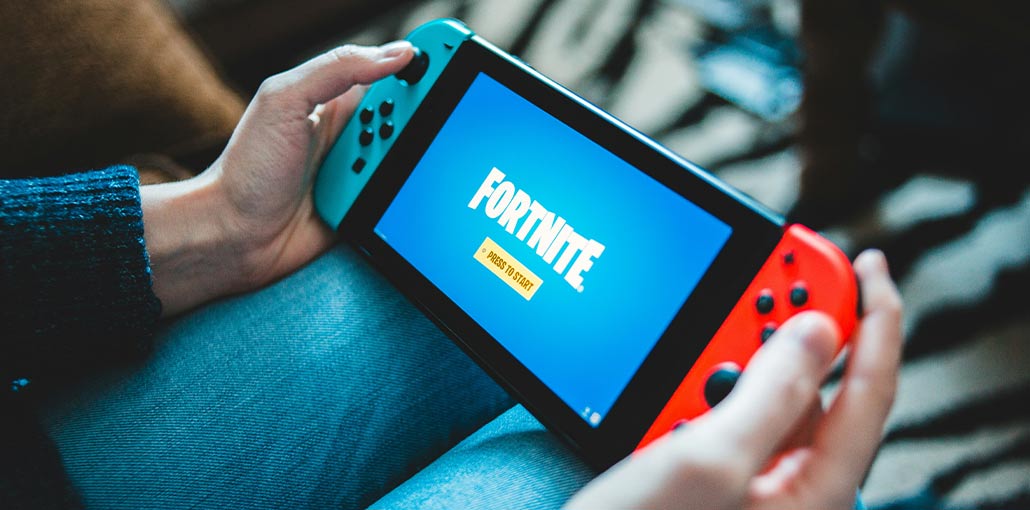
Many players might be asking, “Why are Fortnite servers not responding?” and “When will Fortnite servers come back online?” This post explains how you can solve the Fortnite servers not responding issue.
Players may receive a message when the update is complete, or they may see a “Fortnite server is not responding” message when they attempt to log in. This is a common issue with major updates, because Epic Games performs necessary maintenance and then releases new content. But some players are experiencing Fortnite servers not responding after the update.
What “Servers Not Responding” Actually Means
Fortnite shows one message for various failures. Sometimes, matchmaking or authentication ends go dark during maintenance. In other instances, your path can not fully handshake due to strict NAT blocking UDP, stale caches, and DNS confusion. Understanding which side was handshake is only half the solution.
In reality, if your other players across the globe experience the same Fortnite servers not responding issue at the same time, take into account server-side turbulence to reduce your effort. If they can play, but you can’t, treat it as a local. Server-side events cause widespread log-in timeouts. Local issues occur when you swap networks, reboot the device, or get close to the router.
Why are Fortnite Servers Not Responding
Before fixing the issue, understand the main causes of Fortnite servers not responding:
- Server downtime due to maintenance or updates
- High traffic or server overload
- Slow or unstable internet connection
- Outdated game version
- Platform network issues (PS, Xbox, PC)
- Matchmaking or login service errors
- Firewall or antivirus is blocking the game
Also read: Steam Games Not Launching? 6 Fixes to Solve the Problem
Check Official Status Before Changing Anything
A brief status check can prevent unnecessary effort. If the Fortnite server is under maintenance, tweaks to the local network are not helpful. If everything appears to be “operational,” the solution will be at your side. Keep these references saved to your phone or console to verify the status in a few seconds.
If Servers Are Up, Try These Fast Fixes
When the server’s status is green, focus on clearing stale data and noise. Begin with gentle touches and escalate if necessary. The majority of players solve “Fortnite servers not responding” by taking one or two steps, particularly following updates or when connected to a busy home Wi-Fi.
- Close Fortnite. Restart your device, and then power cycle the router or modem (unplug for 30 seconds).
- Swap networks. Wi-Fi, Cellular, or another Wi-Fi. If one of the paths works, it means you’ve solved the problem.
- Install pending system and game updates on PC/PS5/Xbox/Switch/iPhone/Android.
- Choose 5 GHz Wi-Fi to lessen interference. Also, pause large streams and downloads on your network.
- For consoles, you can perform a true shutdown (not rest Mode) to update the state of the cache.
- On your PC, make sure your firewall/AV permits Epic Launcher and Fortnite traffic Test again.
Quick Steps to Fix Fortnite Servers Not Responding
If you get “Fortnite servers not responding today,” this short sequence helps you get back to your game quicker. It’s deliberately short; you can go through it in mid-match by holding a controller or while connected to your mobile.
- Find on the Official Fortnite Server state (plus @FortniteStatus).
- Down? Wait. Operational? Continue.
- Restart your device and game. Switch to Wi-Fi – Cellular or use a different Wi-Fi.
- Install game or system updates; reboot router.
- Computer: flush DNS and check the firewall rules.
- Console: verify that NAT/open is active and then perform a complete shutdown.
- Mobile: Use the VPN only if Wi-Fi is blocked or the routes appear unstable.
- Still stuck: check the UPnP/ports DNS selection, double NAT, and QoS.
Platform Notes: PS5, Xbox, Switch, PC
Fix PS5 network
Different platforms show the Fortnite login error, but with different triggers. Find the most frequent causes first, and then move — if required–to more extensive network changes. Maintaining the current software and NAT open/moderate is the best solution for PS5. Completely shut down (not rest mode) to install games and system updates, and then check Settings and go to Network, then Connection Status to determine the type of NAT. NAT Type 3 often breaks the rules of lobbies and parties. UPnP can be enabled or allow strict rules. You should choose 5 GHz Wi-Fi with an easy frequency.
Fix Xbox network
Power-cycle the console and router, and then test the network/NAT under Settings – Network. If an alternative MAC was previously set, then clear it and reboot. Check if UPnP is on and that you are not using aggressive QoS to block unidentified traffic.
Fix Nintendo Switch network
The switch is sensitive to interference and distance. Get closer to routers, use 5 GHz if available, update the system and game, and then run a Connection Test to confirm link quality.
Fix PC network
PC (Windows). Heavy pause applications (downloaders, cloud sync). Let Epic Launcher and Fortnite through the firewall. Update NIC drivers and Windows. If your login fails to work after the patch, Refresh DNS and refresh your IP lease
ipconfig /flushdns
ipconfig /renew
Advanced Network Checks: NAT, DNS, and Ports
If these fixes don’t resolve “Fortnite servers not responding” or “unable to log in to Fortnite servers,” take a look at the network you use at home. The objective is to ensure that outbound traffic isn’t blocked and your device has an uninterrupted, low-latency connection to Fortnite.
- NAT Type: Open or Moderate NAT is typically suitable for matchmaking. Strict NAT often breaks party lobbying or joining. Enable the UPnP protocol for your router, or utilize port forwarding when UPnP isn’t working.
- DNS service providers. If logins and pages fail, try using a public DNS or gaming DNS. If you don’t notice any improvement.
- Firewall rules: Check your router and pc firewall to allow normal Web traffic (HTTP/HTTPS) and don’t stop outbound UDP, which is typically used by games.
- Double NAT issues: If you use an ISP gateway and your own router, you could be in the middle of two layers of NAT. The bridge is the ISP device, or put your router in the DMZ gateway (or reverse) to make it easier.
- QoS and congestion: Some routers throttle unidentified traffic when they are under load. You can disable aggressive QoS temporarily or create a rule that gives your console or PC top priority.
Also read: DNS Server Not Responding: 11 Simple Solutions Anyone Can Try
Why Fortnite Servers Not Responding After Update or Patches:
After the major patch, you could notice “Fortnite servers not responding” even if services show green. Two things happen simultaneously: servers take in login spikes as millions of players download games, straining the network. Add that to device caches, partial updates, and you’ll experience temporary issues. A clean reboot, which ensures the patch is complete, and your login time is usually by a few minutes, is usually sufficient.
- Patch Checklist: confirm the update was successful, reboot the device, then launch Fortnite again.
- Cache Isuse. Consoles can hold the stale data for restarts. Make sure you do a complete power-off.
- Regional patience: If one area is overwhelmed, try in a few hours or move to a nearby matchmaking area.
Use a VPN (Only If Needed)
Mobile problems are often attributed to environments that block or modify traffic, such as wireless networks, public wifi, campus networks, office guest portals, or even a shaky ISP route. A VPN can help create a clear, encrypted tunnel that allows the login process and matchmaking to proceed normally. You can not bypass official downtimes; use them only when your route is affected by Fortnite server issues.
- Public Wi-Fi. Captive or filtered networks allow browsing, but may restrict or throttle UDP. Connecting an iPhone and Android to the nearest VPN network can stabilize the connection and keep low latency.
- Wi-Fi or Cellular data. If cellular works but WiFi does not work, you can resolve the WiFi (router channel and firmware, strict rules).
- Inconsistent routing situation. If evenings are okay, but afternoons don’t work, using a VPN will help you avoid a troublesome connection between Epic and Epic.
Final Words
Are you annoyed by facing the “Fortnite servers not responding” problem? Don’t fret, as you can fix the problem. Follow these Fortnite servers not responding fixes in this article, and you’ll be able to take part in Fortnite again. If none of the steps are working, you can get in touch with Epic Games Support for further assistance.
FAQs: Fortnite Servers Not Responding
Why does Fortnite say “servers not responding”?
This usually means your game can’t connect to Fortnite’s servers. It can happen due to server downtime, internet issues, or network restrictions on your device.
Are Fortnite servers down right now?
You can check the official Epic Games Server Status page or Fortnite’s social accounts. If servers are down, everyone may be affected.
How long does Fortnite downtime last?
It can range from 30 minutes to several hours depending on updates or server problems.
How do I fix Fortnite servers not responding?
Try steps like restarting the game/device, checking your internet connection, switching networks, updating Fortnite, and flushing DNS to fix it.









Leave a comment