

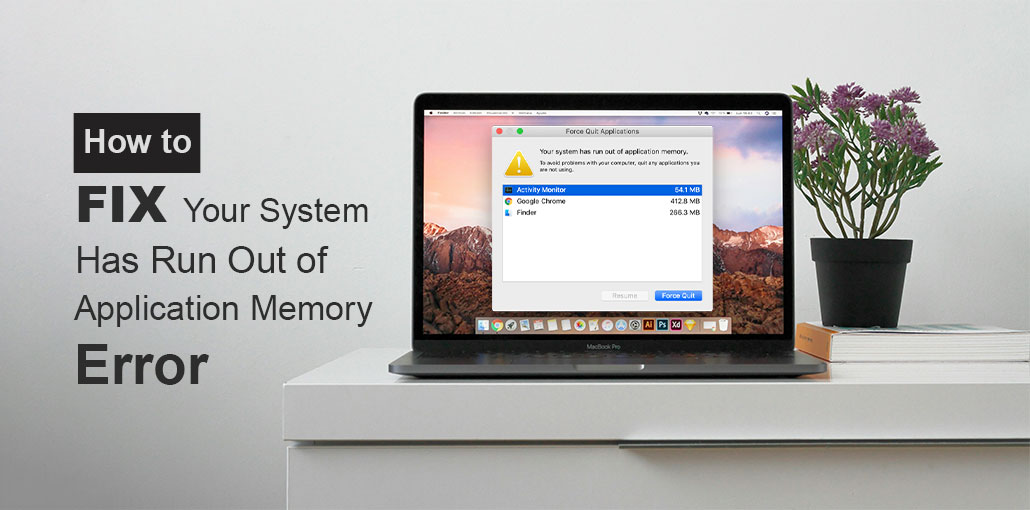
Perhaps you’ve recently experienced an error message that reads “Your system has run out of application memory” displayed in your Mac. Any error message is stressful, especially when you can’t figure out how to solve the problem.
You’re on the right track. Let’s discuss the best way to resolve “Your system has run out of application memory” on macOS, with a breakdown of the available options.
What Causes “Your System Has Run Out of Application Memory”?
MacOS is always recording data for running activities in RAM. “Your system has run out of application memory” signifies that your RAM is full.
RAM is utilized to store anything open on your computer. It is also used to keep frequently used files readily available, so your computer can provide faster response times. The most recent Mac computers come with 8GB of RAM. This will usually suffice, based on the activities you perform on your computer.
When RAM space is low, macOS will start storing information on your primary boot drive and exchanging it between the drive and RAM as needed. This is known as virtual memory. It’s a reason you must ensure that you have sufficient storage space in your boot drive. You should aim for 10% generally, but a greater percentage is preferable. You can determine how much remaining RAM by clicking the “Apple Logo” > “About this Mac” > “Storage”.
If you don’t have enough space in there, you’ll get an error: your system has run out of application memory. It could also be due to you having a lot of applications or browsing tabs open at the same time, or running an application that has been “hogging” memory.
Also read: 10 Ways to Fix Error Code Out of Memory in Chrome or Edge
How to Fix Your System Mac Run Out of Application Memory Error
1. Close Unused Browser Tabs and Windows
In the present, particularly when many people work at home, it’s common to have many browser windows or tabs open simultaneously. But, this might be the reason why the “Your system has run out of application memory” message appears on your desktop. Shut down all tabs and windows you don’t use and check if it can help.
2. Check Browser Extensions
There are many extensions available on the Chrome Web Store to this day. Old or broken browser extensions may be the reason your system has run out of application memory. Check all the extensions installed on all of your various browsers, and then try to remove any extensions you don’t often use.
- In Safari, you’ll find your extensions installed under Preferences >Extensions.
- In Chrome, you can open these extensions by typing extensions.chrome:// into your address bar.
3. Force Quit Unused Applications
If you have apps you do not use running in the background, you’re using up lots of virtual memory. It is advisable to close any apps that you do not use when your system runs out of application memory. If you require a quick solution, press the Option key and then select Esc to open the Force Quit menu. Close everything you can.
4. Remove Login Items
The app you have scheduled to start automatically whenever you boot up your computer might be using a substantial amount of RAM. It could also be the cause for “Your system has run out of application memory” error. Examine these and eliminate them from your login options by:
When you’re on the desktop close to the left-hand side, click to open the Apple symbol.
- Select System Preferences.
- Select Users and Groups.
- Log in to your account as a user.
- Select the Login items on the left.
- Select the item you want to remove and click the “Remove” icon. If you’re dealing with more than one item, you can select all at once, then click on the button to remove them all.
5. Restart Your Mac
After you’ve removed anything that isn’t needed, you can restart your Mac to clean the cache or delete any other temporary files. This will restore the disk space that was used as virtual memory. This could solve the “Your system has run out of application memory” error.
6. Use Activity Monitor
If you’ve tried everything mentioned above but you’re still getting the same error, you need to find the root cause by using the tools you already have on your PC. Activity Monitor is exactly that. It lets you observe everything running on your Mac and also shows you the resources it consumes, which includes RAM. To locate Activity Monitor:
- Press the command button and then the A key at the same time, then press the Up arrow keys.
- Enter Activity Monitor into the search bar. After that, you’ll be able to double-click on the Activity Monitor icon. You can see the Memory utilization in the pop-up window.
- Choose a process or an application, and click the “X” symbol to end it.
7. Clear Cache Files
Cached files can accumulate in your browser, your system, and your applications. It can take up RAM, which triggers an “Your system has run out of application memory” error. Clear your cache by following these steps:
- Open your Finder. In your menu, choose the Folder option.
- Enter “/Library/Caches/” in the box that’s opened, then press to go.
- The caches you have created will show up. You will be able to choose which you’d like to remove.
- Go through each folder and clear cache files you don’t require by dropping them in the trash.
8. Uninstall Apps You Don’t Need
Be careful with the apps you install. Applications that aren’t used often take up large amounts of space, so you should not keep any apps you don’t use since they’ll be taking up memory in the background. Then, verify if the “your system has run out of application memory” error message is gone.
9. Update macOS
The best guideline for any issues you have with your computer is to upgrade your software. To do so:
- Click on the Apple menu and then select More about This Mac.
- Click Software Update.
- If an update is made available, you must follow these steps to install it.
Also read: MacBook Won’t Turn On? 7 Powerful Methods to Start It Again
10. Upgrade RAM (If Possible)
There’s also the option to increase the RAM available on your PC. Follow the directions from the Apple Support page to learn the steps. Be aware that this will require only a few steps to be completed – you can visit the nearby Apple Store or Genius bar to have it done for you.
11. Use an External Hard Drive
Since big files consume memory on the computer system, if you have any you don’t wish to dispose of, move them to external hard drives to conserve RAM. The video files with the highest volume may consume far more RAM, and even if you have storage space, the files may be causing your computer to slow down substantially. Transfer the files to an external hard drive to fix the “your system has run out of application memory” error.
Contact Apple Support
If you’re unable to resolve the error message you received following these steps, it is the best time to call Apple support. Be assured that system memory issues are quite common and, in the majority of cases, can be fixed easily. Simply contact Apple, and they’ll find solutions to your issue.
Conclusion
There are many solutions to fix the ” your system has run out of application memory issue discussed within this piece. The issue can be due to many reasons; you can apply troubleshooting based on your specific situation. I’m sure you can resolve the issue. If you have any ideas, please feel free to post a comment here.
FAQ: Your System Has Run Out of Application Memory
What does “Your System Has Run Out of Application Memory” mean on Mac?
This error means your Mac has used up all available RAM and virtual memory. As a result, it cannot run additional applications or processes efficiently, which may cause slow performance or crashes.
Can low storage cause “Your System Has Run Out of Application Memory”?
Yes. macOS uses your disk as virtual memory when RAM is full. If your storage is nearly full, the system cannot manage memory properly, leading to this error.
How much RAM do I need to avoid this error?
8GB RAM: Basic usage 16GB RAM: Recommended for multitasking 32GB+: Heavy professional work More RAM helps prevent memory-related errors.
How do I find which app is causing the memory problem on my Mac?
Open Activity Monitor, go to the Memory tab, and check which app is using the most RAM. You can then quit or uninstall that app.








Leave a comment