

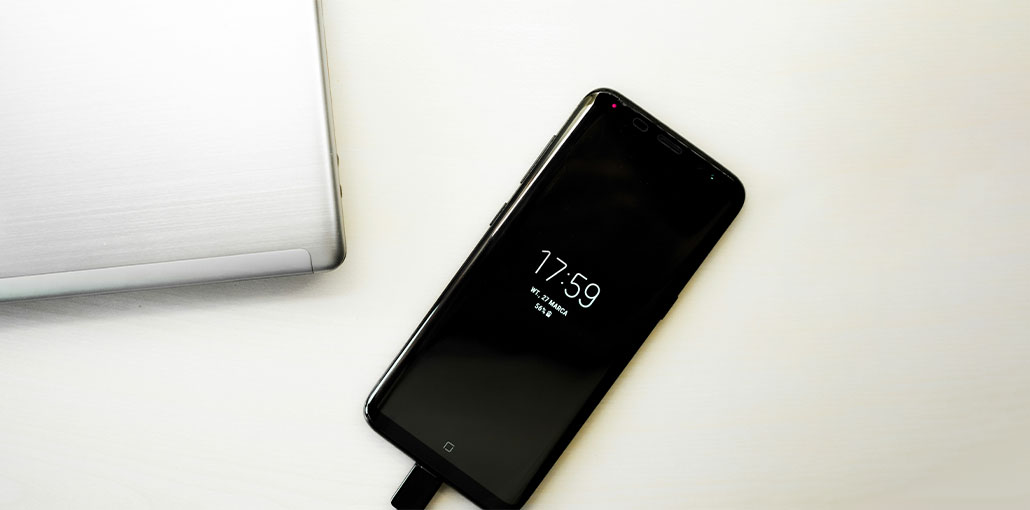
Batteries are disposable, particularly in smartphones, which consume batteries quickly. After an Android phone has been used for one or two years, battery health will decline, resulting in the Android battery draining too quickly or the Android phone not charging properly.
If you’re wondering how to fix slow charging issue, you’re not alone. This is a common issue, but it does not hinder the charging process. Perhaps if your Android device is new but charging slowly, that could be a problem with your Android phone that must be fixed.
Why Is My Phone Charging Slowly?
Before learning how to fix slow charging on Android, it’s important to understand the reasons:
- The data cable or charger is not connected properly
- A dirty or damaged charging port
- High temperature is causing overheating
- Using the phone while charging
- Android system or software issues
Also read: Android Black Screen of Death: How to Fix It in 7 Simple Steps
How to Fix Slow Charging on an Android Phone
In addition to normal Android phone batteries, our poor charging habits can accelerate or trigger slow charging. To fix this issue, we have provided several solutions on how to fix slow charging issue.
1. Check the Charging Port and Connection
Sometimes, in a rush, we plug the data cable into our mobile phone and don’t check if it’s a good connection when we see an incoming charging prompt. The charging process is prone to issues because the cable can’t be inserted into the phone, and the fast charging mode changes to normal charging mode, resulting in slow charging.
Always ensure:
- The cable is firmly connected
- The adapter is working properly
- The charging port is not loose or damaged
2. Clean the Charging Port Regularly
It is a fact that an Android phone is used for a long period in a smog-filled environment, which causes dust to get into its charging port. If you frequently place it in a pocket with the charger facing, it is very easy for the charging port on your phone to become clogged. Once dust gets into an Android handset, it can block the charging port and slow down charging.
To clean it:
- Use a soft brush or toothpick
- Gently remove dust or lint
- Avoid damaging internal connectors
3. Avoid Using the Phone While Charging
If you use your Android phone while it’s charging, some of the power is consumed by the screen and other functions. This reduces the power going to the battery, which slows down the charging speed.
Additionally, using the phone during charging can increase temperature, and charging speeds will further slow down due to the phone’s thermal security mechanism.
- Avoid using your phone while charging, especially for gaming or videos.
- Keep it away from heat and direct sunlight.
- For faster charging, switch off your device.
4. Turn Off Connectivity Features
Cellular data, Wi-Fi, GPS, Bluetooth, and NFC are referred to as connectivity options on an Android phone. They use the hardware on your phone for their work, which results in increased battery usage and lowers the amount of charging your phone.
So, you can try turning off these connections when charging your phone to speed up the charging process.
5. Enable Airplane Mode or Power Saving Mode
The airplane mode is used to avoid harassment. However, it can accelerate charging.
When the phone is in its power-saving mode, it will stop background activity and stop synchronization processes, and reduce the screen brightness to ensure the charging speed is a bit quicker. Of course, it’s easier to switch off the phone.
Turning this process not solve the issue if you’re trying to figure out how to fix slow charging problem.
Also read: Why Is My Phone Hot? How to Cool It Down Fast
6. Use the Right Charger and Cable
Incorrect chargers or adapters can slow down speed charging. If used for a prolonged duration, they can damage your mobile phone battery.
- Use the original charger. Additionally, you could use a branded third-party charger.
- Choose a branded adapter
- Use a cable around 1 meter long
Bottom Line
Now that you know how to fix slow charging issue, you can apply these tips and keep your Android device performing efficiently. If you have other queries concerning Android phones, you can share a note in the comments section.
FAQs: How to Fix Slow Charging Phone
Does fast charging damage the battery?
No, modern smartphones are designed to handle fast charging safely without major battery damage.
Why does charging slow down after 50%?
This is normal. Phones reduce charging speed after 50–80% to protect battery health.
Can software updates fix slow charging issues?
Yes, updates can fix bugs or optimize battery performance, improving charging speed.
Why does my phone heat up while charging?
Heat is caused by fast charging, background apps, or using the phone while charging, which can slow down charging speed.
How to fix slow charging quickly?
To fix slow charging quickly, use the original charger, turn on airplane mode, avoid using your phone while charging, and keep it cool.








Leave a comment