

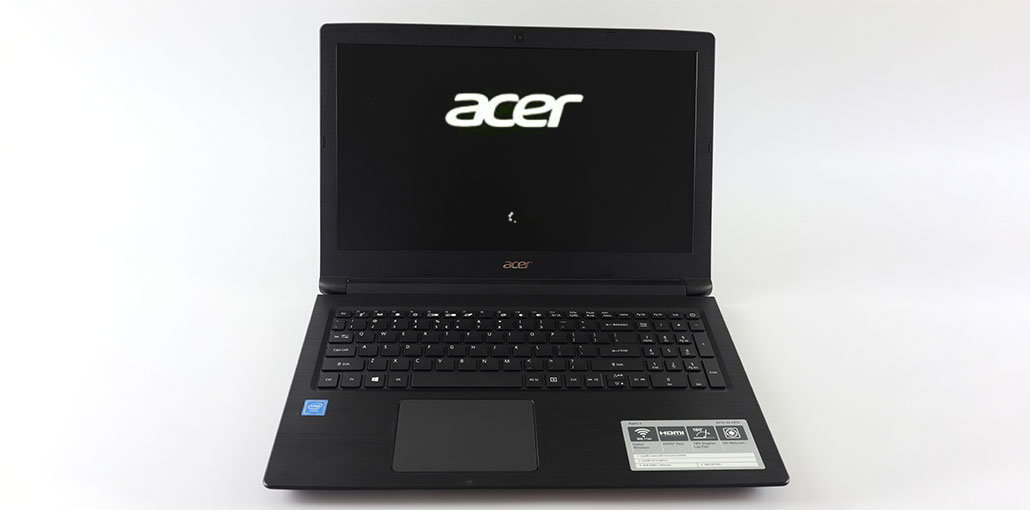
Acer laptops have been an excellent companion for users. But even the strongest devices may encounter problems, such as an Acer laptop stuck on loading screen. The Acer loading screen stuck issue can disrupt your work efficiency, forcing users to seek out efficient solutions.
Understanding the importance of Acer stuck on loading screen issues, this article will provide the top six ways to resolve the Acer loading screen stuck problem. From the basics of troubleshooting to more advanced methods, this comprehensive guide will provide sophisticated knowledge and tools needed to solve this problem.
Why is My Acer Laptop Stuck on Loading Screen?
Acer laptops frequently get stuck on loading screens. Let’s look at the reasons why your Acer laptop stuck on the logo screen:
- Corrupted system files
- Failed Windows updates
- Faulty drivers
- Hard drive issues
- External devices are interfering with the boot
- BIOS misconfiguration
Also read: Acer Laptop Won’t Turn On? 9 Easy Fixes Try at Home
How to Fix Acer Loading Screen Stuck Issue
1. Remove All External Devices
Follow the steps below to solve my Acer laptop that is stuck on loading screens:
- When you turn off your PC, you must remove all external storage devices, like SD cards, phones, cameras, optical drives, USB flash drives, external hard disks, and so on.
- After removing the battery from its compartment, press the Power button down for at least 15 to 30 seconds.
- After the battery has been replaced, you can release the Power button and then press it once more to verify whether your device can boot up normally.
2. Check the Battery and Power Supply
An additional reason Acer stuck on startup screen is a battery issue. The built-in protection, which keeps an Acer loading screen in place even when power is insufficient, will stop further battery loss. Therefore, you can boot up your computer when you leave it connected to charge all night. Replace the battery if it’s broken.
3. Use Automatic (Startup) Repair
Automated repair was designed to help troubleshoot and solve booting problems. Learn more about how to do an automated repair to resolve Acer stuck on the loading screen
- Hold the power button for a few seconds to turn off your Acer laptop, and then start it up frequently. Its Automated/Startup Repair screen will then pop up.
- To access Windows recovery mode, press the Advanced Options button.
- Continue by selecting Troubleshoot and then Advanced options > Automated/Startup repair.
4. Boot Into Safe Mode
You can fix the Acer Predator stuck on loading screen by launching it into safe mode. Follow the steps below to proceed:
- To shut off and restart your Acer laptop, simply press the power button. An Automatic or Startup Repair screen will appear.
- Initiate Windows Recovery Mode by pressing Advanced options.
- Click on Troubleshoot, Advanced options, Startup Settings.
- Use F4, F5, or F6 to enable Safe Mode via Command Prompt to meet your needs.
5. Reset BIOS/UEFI Settings
In some instances, incorrect settings in BIOS (Basic Input/Output System) or UEFI (Unified Extensible Firmware Interface) can cause an Acer loading screen stuck problem. Resetting the BIOS or UEFI to their default settings can help resolve this issue. Follow the instructions below:
- To shut down your computer completely, press and hold the Power button for about 15 seconds.
- Connect your computer to the internet. To open the BIOS, press F2 when the Acer logo appears.
- To load default settings, press F9 and press Enter.
- Enter F10 and then tap Enter to exit and save.
Also read: Activate YouTube on Smart TV
6. Perform a System Reset (Last Option)
You can fix your Acer loading screen stuck problem by resetting the screen. Follow the steps to finish the procedure:
- Use a repair disk, and boot your Acer laptop into Windows Recovery Environment.
- Go towards Troubleshoot to reset this computer.
- To save your data, click Keep My files or choose to delete everything.
- Click the Cloud Download > Local Reinstall. Then, follow the on-screen directions to reset your PC.
Ending Notes
In the end, getting an Acer laptop stuck on Acer logo screen could be an unpleasant experience. We have outlined six effective methods to help fix your Acer loading screen stuck problem at home.
FAQs: Acer Loading Screen Stuck
Why is my Acer loading screen stuck after a Windows update?
An incomplete or failed update can cause the Acer loading screen stuck after update issue due to corrupted system files or incompatible drivers.
Can BIOS settings cause the Acer loading screen stuck issue?
Yes, incorrect BIOS or UEFI settings can sometimes lead to an Acer loading screen stuck issue, and resetting BIOS to default can help fix it.
Can a faulty hard drive cause loading screen issues?
Yes, a damaged or failing hard drive can prevent your system from loading Windows properly, resulting in a stuck loading screen.
How do I start my laptop if the Acer loading screen is stuck?
When the Acer loading screen is stuck, you can force restart your device multiple times to enter recovery mode and then access Safe Mode or Startup Repair.








Leave a comment