

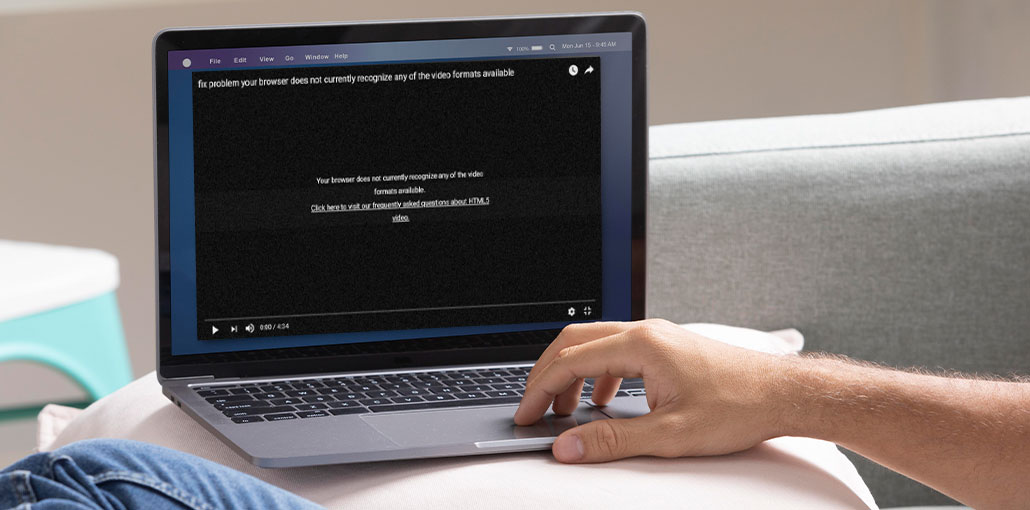
If you play an online video and your video does not load properly, display an error message HTML5 video not found. It can affect your browsing experience, and you’re trying to determine the cause. This could be a browser backend issue, or your browser does not support HTML5 videos. However, it could bring up a question for you: which browsers support HTML5 video?
Do not worry about the HTML5 Not Found error. This article can help you fix this issue. In addition, it provides a solution for HTML5 videos not found in Firefox and Opera, which show an error message HTML5 video is not playing.
The article below will help you fix HTML5 video errors and provide quick solutions for video playback issues.
Common Causes of HTML5 Video Not Found Error
HTML5 video not found error may be triggered by many causes. To resolve this issue, you need to identify the exact reason behind the error. We’ll list the most common causes of HTML5 video not found error to help you understand the cause.
- Outdated web browser
- Corrupted or damaged video file
- Browser cache and cookies issues
- Browser compatibility problems
- Unsupported video codecs
- Website backend errors
Also read: YouTube Video Unavailable? 9 Easy Fixes You Need to Try
How to Fix HTML5 Video Not Found Error?
This section will guide you through the various techniques to resolve the error “HTML5 video file not found”. Therefore, you should follow these techniques to fix this HTML5 video file problem.
1. Update Your Web Browser
At times, your browser may update automatically, but if you encounter issues with HTML5 video playback, you should update your browser manually and ensure it is the latest version. Here to check the latest updates for the Google Chrome browser.
- Open Chrome and click the three-dot menu (top-right corner).
- Go to Help > About Google Chrome.
- Click Update Google Chrome (if available).
Notice: Mozilla, Chrome, and other browsers no longer support Flash Player. If you get an error message such as ” Adobe Flash Player is no longer supported” when you try to open SWF or any other Flash files, you don’t need to panic; you can simply update your browser to fix it.
2. Clear Browser Cache, Cookies, and History
Web browsers use browser history to provide easy access to pages that they have visited. The cache and cookies help users access web pages faster with a better experience. However, they could slow down browsers and lead to HTML5 video playback issues. It is necessary to clear these files to resolve the video playback error on your computer.
Steps:
- Open browser settings.
- Go to Privacy and Security.
- Click Clear browsing data.
- Select cache, cookies, and history, then click Clear Data.
Shortcut: Press Ctrl + Shift + Delete.
3. Disable Hardware Acceleration
Hardware acceleration in the browser can speed up handling multimedia that is graphically intensive, such as videos and games. However, it requires a lot of space, which causes your devices to run on a lower hardware level occasionally. It’s the reason your device slows down or does not function correctly.
In this case, you could turn off hardware acceleration to give it a chance to test it.
Steps:
- Open browser Settings.
- Go to Advanced > System.
- Turn off Use hardware acceleration when available
4. Use Incognito or Safe Mode
Minor bugs in the browser can be addressed by using Incognito or Safe Mode. An HTML5 video not encoded correctly can also be classified. When your browser is set to secure mode, it will not keep your browsing history, caches, or cookies. Options like hardware acceleration are disabled temporarily.
Steps:
- Open your browser.
- Click the menu icon.
- Select New Incognito Window.
Also read: YouTube Videos Not Playing? 10 Proven Fixes That Actually Work
5. Use a Different Browser
It’s not difficult to comprehend. Sometimes, you are unable to play an HTML5 video with Google Chrome, but it might play fine in Firefox. You could try another browser, such as Firefox, Opera, Safari, or Chrome.
6. Check or Modify the Video URL
If you’re the owner of the webpage, but you’ve failed to find the HTML5 video. It could be a problem with the video’s URL. Modifying the video link can help identify the problem.
For example, change https://www.youtube.com/watch?v= to https://www.youtube.com/embed/, and the video plays.
Conclusion
In conclusion, the HTML5 Video Not Found error can be fixed using several simple methods. By following the steps outlined in this guide, you can quickly resolve the issue and restore smooth video playback.
FAQs: HTML5 Video Not Found Error
What is the HTML5 Video Not Found error?
The HTML5 Video Not Found error occurs when a browser cannot locate or load a video file, preventing it from playing on a webpage.
Why is my HTML5 video not playing?
Your HTML5 video may not play due to outdated browsers, unsupported formats, cache issues, or problems with the video source or website.
Does browser compatibility affect HTML5 video playback?
Yes, some browsers may not support certain video codecs, which can cause playback issues or errors.
How can website owners fix HTML5 video errors?
Website owners should check video URLs, ensure proper hosting, use supported formats, and fix any backend or server issues.









Leave a comment