

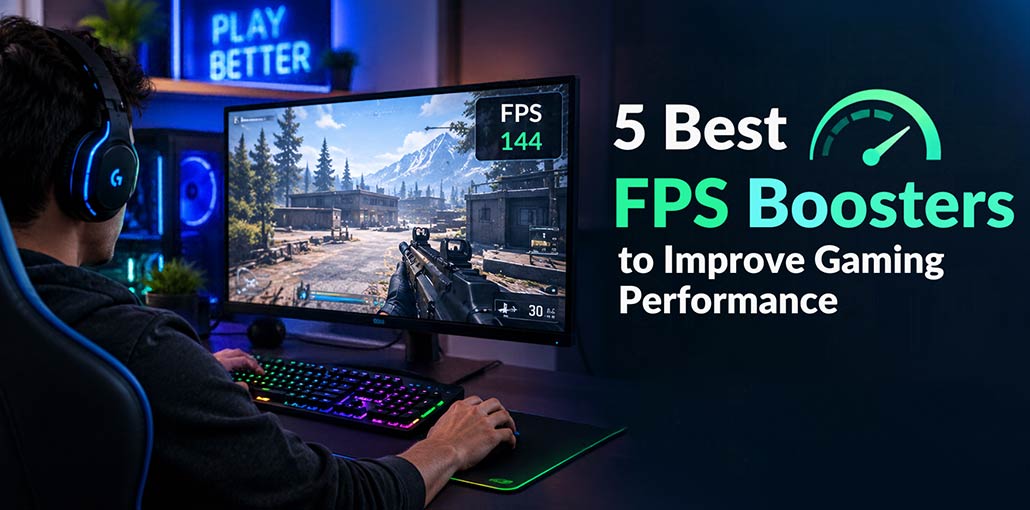
Whether you’re playing a fast-paced first-person shooter or exploring vast virtual worlds, smooth and responsive gameplay is essential for an enjoyable gaming experience. An FPS booster can help optimize system performance, improve frame rates, and reduce stuttering, allowing you to get more out of your favorite games.
What Is an FPS Booster?
FPS boosters, also known as FPS enhancers or game optimization tools, are software applications designed to improve gaming performance and increase frames per second (FPS). They may optimize graphics settings, manage system resources, and reduce unnecessary background processes. Depending on your system and the cause of performance issues, an FPS booster can help reduce stuttering and deliver smoother gameplay.
What Are the Benefits of Using an FPS Booster?
Increased Frame Rate: An FPS booster can optimize system resources and graphics settings to improve frame rates, potentially delivering smoother gameplay and more fluid on-screen motion.
Reduced Input Lag: Maintaining higher frame rates can make gameplay feel more responsive. However, input lag also depends on hardware, display settings, and other system factors.
Improved Gaming Stability: Optimization tools can manage background processes and system resources to help minimize sudden frame drops and stuttering, creating a more consistent gaming experience.
Also read: Top 6 FPS Counter Apps to Monitor Games on Windows 11
5 FPS Boosters to Improve Gaming Performance
The following five FPS boosters offer different ways to optimize gaming performance. The best choice depends on your hardware, the games you play, and whether your main concern is low FPS, background processes, or network lag.
1. Razer Cortex
Razer Cortex is a PC game optimization tool designed to help improve gaming performance. Its Game Booster feature manages non-essential background processes and applications to free up system resources and memory. It can also activate automatically when you launch a game and restore your previous system state when you finish playing. These features may help improve performance without requiring a hardware upgrade. Learn more about Razer Cortex.
Key features:
- Automatically optimizes selected system processes.
- Helps reduce unnecessary background activity.
- Provides game library management features.
- Offers performance monitoring tools.
2. Smart Game Booster
Smart Game Booster helps optimize PC gaming performance by closing unnecessary processes and services. Its one-click boost feature aims to free up system resources, while its monitoring tools display CPU and GPU temperatures and usage. It also provides features for game management, driver updates, and system cleanup.
Key features:
- Improve PC performance by reducing screen tearing, system latency, and crashes.
- Increase in-game FPS and monitor hardware temperatures.
- Protect gaming accounts.
- Capture and record gameplay.
- Clean up the system and defragment game files.
- Update graphics and audio drivers.
3. LagoFast Game Booster
LagoFast Game Booster focuses on reducing online gaming issues such as high ping, packet loss, and connection instability. It uses optimized network routes and server selection to help improve connection quality. The software also offers FPS optimization features intended to reduce frame drops. Its network optimization may be especially useful for multiplayer games, although better network performance does not necessarily increase rendering FPS. LagoFast supports PC, mobile, and console gaming platforms. Explore LagoFast.
Key features:
- Optimize network routes for supported games.
- Help reduce ping, jitter, and packet loss.
- Provide FPS optimization features.
- Support gaming across multiple platforms.
4. NVIDIA App
The NVIDIA App is a gaming utility for compatible NVIDIA graphics cards. It provides Game Ready Driver updates, graphics settings, performance monitoring, and gameplay recording tools. Users can adjust supported game settings and access compatible NVIDIA technologies to improve performance or image quality. The results depend on the GPU, game, and selected settings. The NVIDIA App has replaced GeForce Experience as NVIDIA’s main companion application. Learn more about the NVIDIA App.
Key features:
- Improve gaming FPS.
- Record and share gameplay videos.
- Optimize in-game graphics settings.
- Apply post-processing filters while playing games.
Also read: NVIDIA App Not Working on Windows 11/10? Try These Proven Fixes
5. AMD Software: Adrenalin Edition
AMD Software: Adrenalin Edition provides gaming, driver, and performance tools for compatible AMD graphics hardware. Features such as Radeon Boost can dynamically adjust resolution during fast-paced camera movement to help increase frame rates. AMD Fluid Motion Frames uses frame-generation technology to produce additional frames in supported configurations, creating smoother-looking motion. Availability depends on compatible hardware, software, and game requirements. Learn more about AMD Software.
Key features:
- Update compatible AMD graphics drivers.
- Monitor FPS and hardware performance.
- Use Radeon Boost to improve frame rates in supported configurations.
- Access frame-generation and upscaling technologies where supported.
- Adjust per-game graphics settings.
How to Choose the Best FPS Booster
The best FPS booster depends on the problem you want to solve.
- For background process management: Consider Razer Cortex or Smart Game Booster.
- For online gaming lag: Consider LagoFast if network latency or packet loss is the main issue.
- For NVIDIA graphics cards: Use the NVIDIA App and compatible NVIDIA graphics features.
- For AMD graphics cards: Use AMD Software: Adrenalin Edition and its supported gaming technologies.
Before installing a tool, check its hardware and operating system requirements. Download software from official sources, and be cautious of programs that promise unrealistic FPS increases or require you to disable essential security features.
Summing Up
FPS boosters can help optimize system resources, adjust gaming settings, and address certain performance issues. The right tool depends on your hardware and whether you need better resource management, graphics optimization, or a more stable online connection. Choose a compatible FPS booster, use appropriate in-game settings, and keep your graphics drivers updated to help achieve smoother gameplay.
FAQs: FPS Booster
How can I boost FPS in games on my PC?
You can boost FPS by lowering graphics settings, updating your graphics drivers, closing unnecessary background applications, enabling supported performance features, and checking your PC for overheating.
What is the best FPS booster for PC gaming?
The best FPS booster depends on your hardware and needs. Razer Cortex and Smart Game Booster focus on system optimization, while the NVIDIA App and AMD Software: Adrenalin Edition provide graphics settings and performance features for compatible GPUs.
Can I increase FPS without upgrading my hardware?
Yes. You can sometimes increase FPS by lowering graphics settings, closing unnecessary applications, updating drivers, and enabling supported technologies such as upscaling or frame generation. Results depend on your PC configuration and the game.
What is the difference between FPS and ping?
FPS measures how many frames your system renders per second, while ping measures the time it takes for data to travel between your device and a game server. Low FPS causes choppy visuals, whereas high ping can cause delayed online responses.






Leave a comment