

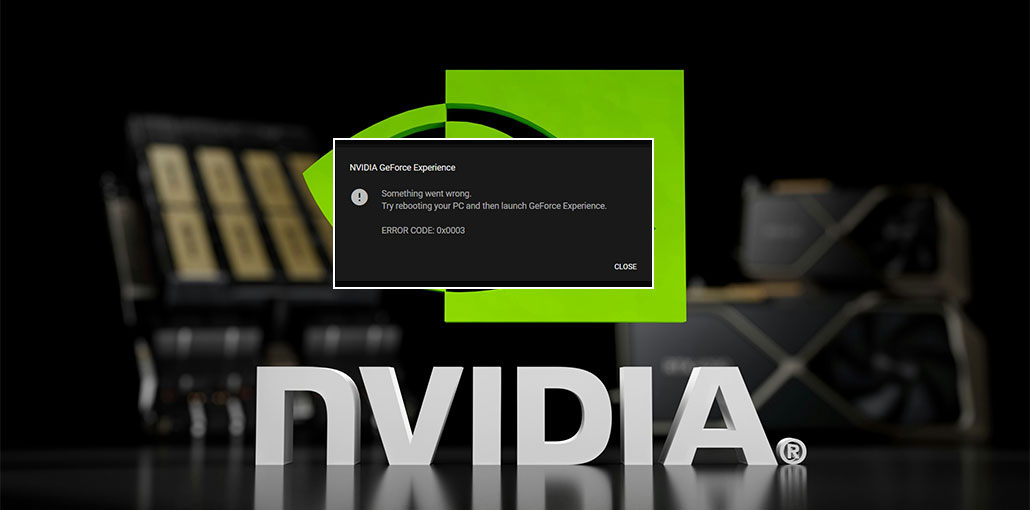
In this article, we’ll discuss Geforce Experience Error code 0x0003, which is a problem that your NVIDIA graphics card may encounter over time.
Additionally, you will learn about the GeForce Experience error code 0x0003, the reasons behind it, and how to fix it and ensure you don’t see it again.
What is Geforce Experience Error Code 0x0003?
The Geforce Experience error code 0x0003 is an error that shows when you attempt to accomplish using the NVIDIA graphics card on your PC, because it isn’t allowed to perform any tasks with the graphics card, and the error keeps appearing.
What Causes GeForce Experience Error Code 0x0003?
There isn’t just one cause behind this error. It can occur due to multiple system or software issues, including:
- Corrupted or outdated NVIDIA drivers
- Disabled NVIDIA services
- Network adapter problems
- Conflicts after a Windows update
- Improper installation of GeForce Experience
- NVIDIA telemetry service issues
Also read: NVIDIA App Not Working on Windows 11/10? Try These Proven Fixes
How to Fix GeForce Experience Error Code 0x0003
I hope you now understand the root causes behind the NVIDIA GeForce experience error code 0x0003. It’s time to identify the issue as soon as you can.
If you aren’t sure how to solve this problem, if you’re stuck, here are a few simple and effective solution-oriented fixers. Follow the steps below to follow the instructions.
1. Reinstall NVIDIA Drivers
As we have mentioned, outdated and corrupted drivers may also trigger the same issue. Therefore, if you have a corrupted driver, it will display the GeForce Experience error code 0x0003.
We recommend cleaning any installation issues with your graphics driver. These are the steps to follow for cleaning the driver.
- For this step, click in the “Start” menu and then select “Device Manager”.
- After that, expand to the “Display Adapter Menu” and select”Driver.
- Once you have done this, click”Uninstall Device” and then look over the option “Delete the Driver for this Software.”
- Click on “Uninstall” and the website of your graphics card manufacturer.
- Choose the graphics card, and install the driver. Once you’ve downloaded the driver, reboot the PC and launch your GeForce Experience to see if it works.
2. Update GeForce Experience
To update to the latest GeForce version, you have to remove the older version. To complete first, you need to start your Run dialogue box. Then type appwiz.cpl and then click OK.
Search NVIDIA Geforce Experience, and double-click the icon to Uninstall. After you have uninstalled GeForce Experience, you need to restart your system.
You should now download the latest version of NVIDIA GeForce Experience from their official website. After that, install the app and then restart your computer.
3. Enable NVIDIA Telemetry Services
There is a way to fix the GeForce Experience 0x0003 error by allowing Nvidia Telemetry Container and its associated services. You can do this by pressing Windows key + R to open up the Run dialog box and then typing Services.msc into it, and then clicking OK. You must now right-click on Nvidia Telemetry Container to choose Properties and then select Local System Account.
Here, let the service communicate with your desktop. Click Apply. Then, right-click on the Nvidia Telemetry container service and select Start.
Then, open Run, then open Services.msc, and then start all services associated with the Nvidia Display Service Container, Nvidia Local System Container, and Nvidia Network Service Container. Reboot your computer to check whether the error is seen or not.
4. Configure NVIDIA Container Services
To set up Nvidia Container, open your Run dialogue box, type services.msc, and then click OK. Then, look for the Container services used by NVIDIA and click the first container service and open Properties.
Go to the Log On tab, the properties, and click the Local System account, then click “Apply” to save the changes. Repeat this process for the Nvidia Container Services to resolve the issue, and then restart your system.
5. Stop All the Nvidia Processes
Another option to remove the NVIDIA GeForce experience error code 0x0003 is to shut down all processes. This is a second method to fix the issue you’re suffering from.
It’s easy and works at the time. Below is how you can end all procedures.
- Use the “Ctrl + Shift + Esc” keys to start the task manager.
- Highlight all Nvidia processes and then click “End Task.”
- After this, close down the “Task Manager” and restart your computer.
- You must now verify if the error has been resolved.
Also read: Roblox Error Code 277: Causes, Fixes, and Troubleshooting Guide
6. Change GeForce Experience Local Host Ports
If you’re still having the same issue, try switching your GeForce user experience to the local host port. This may help you solve the GeForce error code 0x0003. Below are the steps needed to follow to achieve the same.
- First, download and install the code editor.
- It is suggested to use Visual Studio Code to make it user-friendly.
- After that, make sure to check all the boxes before applying your Visual Studio code.
- Visit “C:\Program Files\NVIDIA Corporation\NVIDIA GeForce Experience.”
- Right-click the screen and click select the option to open with code.
- After that, press the “ctrl + shift + H” keys and type “LOCALHOST_PORT”,3e3.”
- And then you need to replace the box, then type “LOCALHOST_PORT”,60487.”
- Then click on “Replace All” and click on “Retry as Admin.”
- Examine whether the issue has been solved after completing all the steps.
7. Clear System Cache
To clear the cache on Chrome, press Ctrl + Shift + Delete simultaneously. Then, a new tab appears that says”Clear Browser cache”.
Here you can choose the time period for which you wish to clear the cache. You can choose any of the selections that your needs. If you’d like to delete all cached data, then you can choose “all”.
After that, select the checkbox before “Images and Files in Cache” and then submit your choice using”Submit” or clicking the “Delete Browser data” Button. Then, restart your site to determine whether the GeForce Experience error code 0x0003 is present or has been resolved.
8. Reset the Network Adapter
To reset your Network Adapter, press “Windows + R” and then type “cmd” to open Command Prompt. You can then click “Run it as Administrator”. Then, you must enter “netsh Winsock reset” and click Enter. After that, restart your computer to check if the issue persists.
9. Restart Your PC
It’s possible the issue is a one-time error and won’t occur again, in which case you may try restarting your computer to see if it’s resolved.
Also read: Is Windows Update Stuck? 7 Easy Fixes for Windows Users
10. Reset Windows
In Windows 10, you go to Settings, select Update & Security, and then select Recovery on the left.
Then Windows offers three options: Resetting the PC, going back to an older version of Windows 10, or Advanced start-up. Click on Reset this computer to reset your Windows.
Tips to Prevent GeForce Experience Error Code 0x0003
- Keep NVIDIA drivers updated
- Avoid installing unofficial GPU tools
- Regularly update Windows
- Ensure NVIDIA services are always enabled
Final Word
We hope these suggestions will help you fix the NVIDIA GeForce Experience error code 0x0003. Therefore, before going out to seek help from anyone else. To fix error 0x0003, you can follow the instructions given above.
FAQs: GeForce Experience Error Code 0x0003
Why does GeForce Experience show Error Code 0x0003?
This error usually appears due to corrupted drivers, disabled NVIDIA services, network issues, or conflicts caused by Windows updates.
Can outdated drivers cause Error Code 0x0003?
Yes, outdated or corrupted NVIDIA drivers are one of the main reasons behind this error. Updating or reinstalling them often resolves the issue.
Is GeForce Experience Error Code 0x0003 a serious issue?
No, it is not a hardware-related problem. It is usually caused by software or service issues and can be fixed easily.
Why is GeForce Experience not opening on my PC?
If GeForce Experience is not opening, it may be due to Error Code 0x0003, corrupted drivers, or disabled NVIDIA services.
Why does Error Code 0x0003 keep coming back?
The error may return if NVIDIA services are disabled again, drivers become corrupted, or Windows updates create conflicts.









Leave a comment