

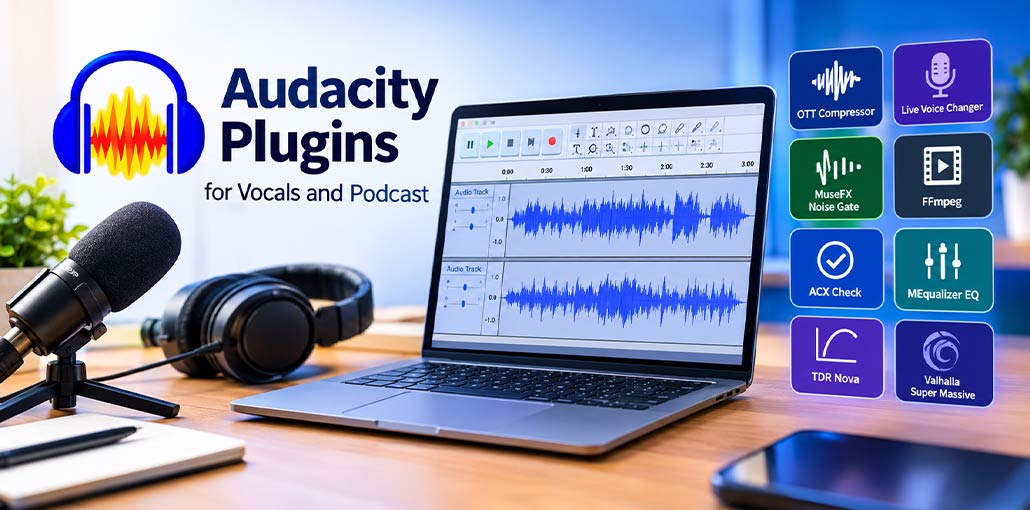
Audacity is an audio editor for musicians, podcasters, voice artists, and video creators. The right plugins can extend its built-in tools, helping you shape vocal tone, control dynamics, manage noise, and add effects. This guide reviews eight options, pros, cons, and installation for podcasters and independent audio creators, especially beginners.
8 Best Audacity Plugins for Vocals and Podcasts
Choose Audacity Plugins for speech, singing, file compatibility, or creative sound. Check official format requirements.
1. OTT Compressor
OTT is a popular multiband dynamics effect. It processes frequency bands, bringing quiet details forward while controlling peaks. It adds energy but may sound aggressive on speech. Start subtly.
Pros
- Controls dynamics across multiple frequency bands.
- Adds punch to electronic music.
- Offers a visual interface for adjusting sound.
- Useful for creative processing.
Cons
- Heavy settings can sound harsh or unnatural.
- May raise background noise along with quiet details.
- Can be excessive for conversational podcasts.
Also read: Top 10 Podcasting Software for Recording and Editing
2. Live Voice Changer: Graillon 2
Graillon 2 by Auburn Sounds offers vocal effects and pitch-related processing. Audacity Plugins like this can shape a vocal. It can correct notes, shift pitch, or create character voices. Results depend on settings.
Pros
- Offers pitch-correction features.
- Supports creative voice transformations.
- Provides controls for shaping vocal effects.
- Useful for singing and character-based content.
Cons
- Strong processing can sound robotic.
- Some features may be limited to paid editions.
- Beginners may need time to learn the controls.
3. MuseFX Noise Gate
A noise gate mutes audio below a set threshold. Some Audacity Plugins focus on pauses. It can reduce room noise between sentences or musical phrases, making pauses sound cleaner. It cannot remove steady noise under speech, and aggressive settings may cut off quiet words. Check compatibility.
Pros
- Reduces low-level noise during pauses.
- Can make speech edits sound cleaner.
- Useful for instruments and voice recordings.
- Threshold settings allow control over when audio closes.
Cons
- Does not remove steady noise under speech.
- High thresholds can cut off quiet syllables.
- Release settings may create unnatural transitions.
4. FFmpeg
FFmpeg is a multimedia framework that supports many audio and video formats. Not all Audacity Plugins are effects. With compatible libraries, it expands import and export options. It supports formats rather than applying effects.
Pros
- Supports a wide range of media formats.
- Helps import files that are not supported by default.
- Can expand export options.
- Useful in workflows involving audio extracted from video.
Cons
- Setup may require extra installation steps.
- Compatibility depends on Audacity and library versions.
- It does not improve audio quality by itself.
5. ACX Check
ACX Check helps audiobook creators inspect technical measurements such as peak level, RMS level, and noise floor. Results flag level or noise problems. It cannot guarantee acceptance; check publisher requirements and listen for clicks or inconsistent delivery.
Pros
- Checks key audiobook audio measurements.
- Helps identify level and noise issues.
- Simple results can guide further editing.
- Useful for repeatable narration quality checks.
Cons
- Does not repair problems automatically.
- Passing checks does not guarantee acceptance.
- Requirements and plugin updates must be checked manually.
6. MEqualizer EQ Plugin
MEqualizer from MeldaProduction is an equalizer for adjusting frequency balance. Audacity Plugins can also refine tone. Equalization changes clarity, warmth, brightness, and muddiness by adjusting frequency ranges. Make small changes at a consistent volume; excessive boosts can sound harsh. Check format support before installing.
Pros
- Offers detailed frequency shaping.
- Can improve vocal clarity and tonal balance.
- Useful for music, speech, and sound design.
- Supports targeted cuts instead of changing all frequencies.
Cons
- Poor settings can make voices thin or harsh.
- Requires listening practice to use effectively.
- Plugin compatibility can vary by system.
7. TDR Nova
TDR Nova is a dynamic equalizer that can respond to changes in particular frequency bands. Some Audacity Plugins react dynamically. It helps when harshness or bass changes across a recording. Subtle settings usually preserve a more natural voice.
Pros
- Combines equalization with dynamic control.
- Can target harsh or boomy frequencies.
- Offers precise processing for vocals and mixes.
- Helps manage tonal problems that vary over time.
Cons
- Its controls may challenge beginners.
- Aggressive settings can change vocal tone noticeably.
- Requires careful gain matching for fair comparisons.
Also read: Top 10 Photoshop Plugins for Better Editing
8. Valhalla Super Massive Reverb
Valhalla Super Massive is a free reverb and delay effect designed for spacious, atmospheric sounds. Creative Audacity Plugins add depth. It creates long tails and echoes on vocals, synths, and effects. It suits music, but heavy reverb reduces speech clarity. Keep podcast dialogue mostly dry.
Pros
- Creates expansive reverb and delay textures.
- Useful for ambient music and sound design.
- Offers creative options for vocal effects.
- Available free from the developer.
Cons
- Long tails can muddy a mix.
- Heavy reverb can reduce speech clarity.
- May require format or host compatibility checks.
How to Use Audacity Plugins?
Download the plugin: Choose a trusted source and confirm that the plugin supports your operating system and Audacity version.
- Install the files: Follow the developer’s instructions for the relevant plugin format.
- Restart Audacity: Reopen the application so it can detect the newly installed plugin.
- Enable the plugin: Open the plugin manager and enable or register the effect if required.
- Import your recording: Open your podcast, voiceover, or audio file in Audacity.
- Apply the effect: Select the audio and choose the required effect from the Effects menu.
- Adjust and export: Preview the result, compare it with the original, and export your finished recording.
Note: Not every tool listed here is a native Audacity effect. Some are separate utilities, analysis tools, or third-party plugins. Check official documentation for availability and compatibility before downloading.
Final Words
Choose a plugin for your task: dynamics, pitch correction, noise control, file compatibility, audiobook checks, equalization, or reverb. Check compatibility, use moderate settings, and listen critically. Audacity Plugins work best when they solve a clear problem; careful editing often really matters more than adding every effect to your recording every time.
FAQs: Audacity Plugins
What are Audacity Plugins?
Audacity Plugins are additional tools that extend Audacity's audio-editing capabilities. They can help improve vocals, reduce background noise, adjust frequencies, add reverb, and control audio levels for podcasts and voiceovers.
Which Audacity Plugins are best for vocals?
TDR Nova, MEqualizer, and compatible compression effects are useful for improving vocal clarity and balance. The best option depends on your recording quality, microphone, and editing requirements.
How do I install Audacity Plugins?
Download a compatible plugin from a trusted source, follow its installation instructions, and restart Audacity if necessary. Open the plugin manager to enable or register it when required.
Are third-party Audacity Plugins safe to download?
Download plugins from official developer websites or trusted repositories. Check compatibility, review installation instructions, and avoid suspicious downloads or installers that request unnecessary permissions.








Leave a comment