

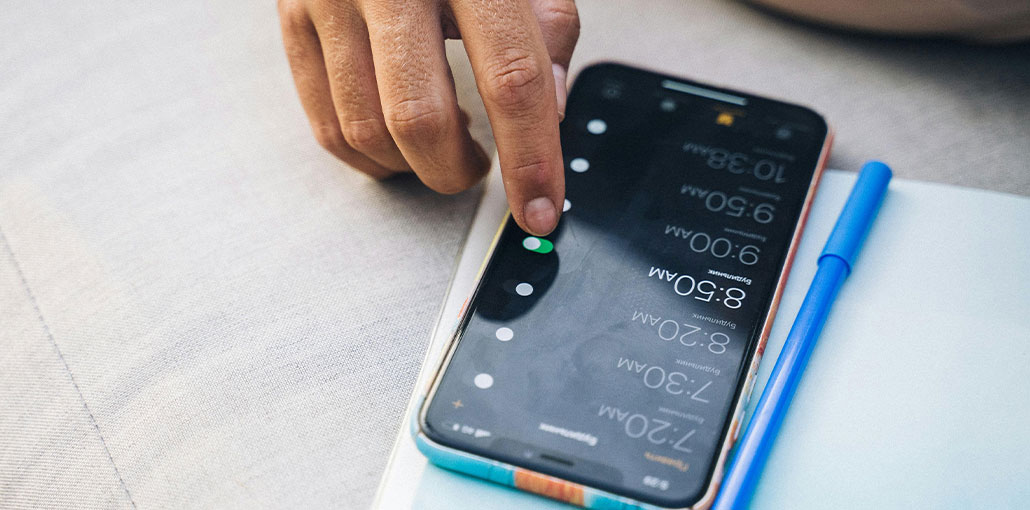
iPhones have become our preferred device for almost everything nowadays. Be it taking pictures, keeping in touch, or just about everything else. Most iPhone users rely on their phones to get up in time. But there are times when an alarm stops working on iPhone. If you’re experiencing an iPhone alarm not going off, do not fret, as it can be resolved quickly. Here are 6 solutions you can try if your iPhone alarm not going off.
Why Is My Alarm Not Going Off?
There are several possible causes behind an iPhone alarm not sounding properly. Some of the most common include:
- Low alarm volume
- Incorrect alarm settings
- Sleep schedule conflicts
- Bluetooth audio connection issues
- Software bugs or outdated iOS
- Silent mode misunderstandings
Understanding the root cause helps you fix the iPhone alarm not going off issue quickly.
Also read: No Sound on iPhone? How to Fix It Fast
How to Fix the iPhone Alarm Not Going Off Issue
There are five fundamental methods for solving the iPhone alarm not going off issue.
1. Turn Off the Mute Switch and Check Volume Levels
Sometimes, the alarm stopped working on iPhone for a simple reason. For instance, you switched the iPhone or tablet’s Mute button off, or the volume of your phone could have been turned down, and the alarm won’t start.
Mute Switch:
Most people will turn on the “Mute Switch at places where they don’t want their phone to ring or make noise. However, many fail to turn off the Mute Switch. So, make sure that your phone’s Mute Switch is on or off. If it’s on, you must turn it off, and the iPhone alarm will operate just as usual.
Volume Level:
It’s also a common reason iPhone alarm not working. People are unaware of turning up the Media Volume instead of the Ringer Volume. This misconception involves two different controls that adjust volume, i.e., Media Volume & Ringer Volume.
Remember:
Ringer Volume controls alarms, notifications, and ringtones
Media Volume controls music, videos, and games
To increase alarm volume:
- Open Settings
- Tap Sounds & Haptics
- Increase the Ringer and Alerts slider
Make sure the volume label shows “Ringer” and not “Volume.”
2. Check Alarm Sound Settings
Verify whether you’ve set sound for your alarm or not, and also how loud it is. The loud sound that you’ve selected for your alarm could have a major impact. This may be the cause of your iPhone alarms not working. To set a sound or song that you like, follow the steps below:
- Open the clock app on your iPhone
- You must now click on the Alarm tab
- In the upper left corner, select Edit
- A list of alerts showing which you’ve previously set. Select the one that you’d like to set as your preferred music or sound.
- Select Sound, and then “Pick a Song’.
- You can search for the music you want in the music database.
- Choose the song to set as your alarm tone. You’ll be directed to the same selection page displaying your selected song. Click ‘Back’, and you’re good to go!
3. Check Your iPhone Sleep Settings
If you’ve enabled sleep schedules on your iPhone, this can cause problems with the alarm sound, particularly when the wake-up time is set to the same time as your iPhone alarm. To prevent conflicts, you can change your alarm’s time or sleep settings.
Fix Sleep Schedule Issues:
- Open the Health app
- Tap Browse
- Select Sleep
- Review your sleep schedule and wake alarm
Make sure it matches your desired wake-up time.
4. Check Third-party Alarm Apps
Installing a third-party alarm app is not recommended as it could conflict with the default Clock App stored on your iPhone, such as the iPhone alarm not working or other problems. Remove any third-party alarm app, then restart your iPhone once, and see if the iPhone alarm goes off or not.
5. Restart or Soft Reset Your iPhone
If any of the suggestions aren’t working for you, consider a Soft Reset. In 50% of cases, a reset has been proven to resolve the issues you’re experiencing on your device, such as the iPhone alarm not going off. These steps will help perform a soft reset.
- Press and hold the “Sleep/Wake” and “Volume Down” buttons simultaneously if you own the iPhone seven or Plus. If you own earlier models, press and hold the “Sleep/Wake” and “Home” buttons together.
- Make sure to hold both buttons down for approximately 10 seconds when the Apple Logo appears. You can release the buttons, then let the iPhone restart.
Also read: iPhone Won’t Turn On? 6 Easy Fixes You Can Try at Home
6. Reset All Settings
If you’re still experiencing an iPhone alarm not going off, it is recommended that you reset all settings on your iOS device. Resetting all settings will erase all user-defined settings but will not erase any data, such as photos, videos, music, or other data. Enter”Settings” or “Settings” of your device, then go into “General”, proceed to “Reset,” and then finally click “Reset All Settings”. Your device will restart after that. You can check whether the iPhone alarm is going off or not.
Tips to Prevent Future Alarm Problems
To avoid your iPhone alarm not going off again:
- Keep iOS updated
- Test alarms regularly
- Avoid sleeping with Bluetooth headphones connected
- Use loud alarm tones
- Set backup alarms
Final Thoughts
These are the best ways to fix an iPhone alarm not going off. We hope you can make your alarm sound work in the future, beyond these solutions. If not, we’d suggest contacting Apple support for assistance. If you have any questions or doubts about the alarms on your iPhone.
FAQs: iPhone Alarm Not Going Off
Why did my iPhone alarm not going off this morning?
This usually happens because of low ringer volume, incorrect alarm settings, Bluetooth devices, or software glitches.
Does Do Not Disturb stop iPhone alarms?
No, Do Not Disturb mode does not normally silence alarms on iPhones.
Can the Sleep Schedule feature interfere with alarms?
Yes, Sleep Schedule alarms in the Health app can conflict with regular Clock app alarms if both are set for similar times.
How do I permanently fix the iPhone alarm not going off issue?
Keep your iPhone updated, use loud alarm tones, avoid Bluetooth connections while sleeping, and regularly test your alarms. If the problem continues, contact Apple Support.






Leave a comment