

If you’re sharing important documents or photos from a family trip, sending attachments should be simple. However, the Gmail attachment size limit may make this process challenging.
There is a way to overcome this issue. If you are aware of the email attachment size limit and attachment options, you can send large files without difficulty.
In this article, we’ll take a deeper look at the sizesize limit of attachment in gmail. We’ll also review the attachment limitations for the most popular email providers and clients. We’ll also provide easy methods to send large files through Gmail.
What Is the Gmail Attachment Size Limit?
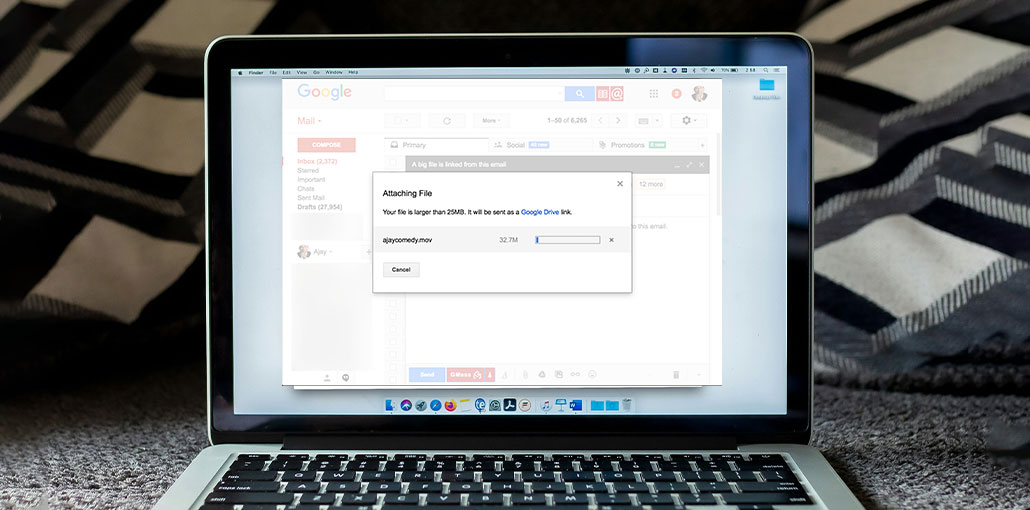
The Gmail attachment size limit is 25MB. It is possible to have multiple attachments, but they cannot exceed 25 MB. If the file size is larger than 25 mb, Gmail will automatically turn it into a Google Drive link instead of adding it as an attachment.
However, this Gmail attachment size limit can be misleading since Google converts the email to a particular format before sending it.
This can increase an attachment’s size; therefore, the real Gmail attachment size limit is close to 12.5 MB.
Why Gmail Has Attachment Size Restrictions
Gmail limits attachment sizes for several reasons:
- Faster email delivery
- Improved server performance
- Better spam and malware protection
- Reduced storage strain
- Compatibility with other email providers
Without attachment limits, email systems could become slow and unreliable.
Also read: How to Increase Outlook Attachment Size Limit in Office 365?
Best Solutions for Gmail Attachment Size Limits
These methods can assist you in sending large files through Gmail:
1. Use Google Drive and Cloud Storage
Google will save your files to Google Drive and create links for you if your attachment size is larger than 25 MB. However, if you want to start from the beginning and stay organized, you should create a folder in your Google Drive account.
You can upload any files that you have to the folder and then share the link within your message body. You can also hyperlink specific terms or phrases that are in the email body.
It is among the most straightforward and common methods to send attachments up to 25 MB.
2. Create a Zipped Folder
You could also create a zipped folder comprising all your files, and then forward it via Gmail. It’s an easy and quick solution, but you need an application like WinRAR on your computer.
Here’s how to create the zipped folder
- Select all files you want to give to the receiver.
- Right-click and select WinRAR.
- Select from the many choices to create a zipped folder.
- You can attach it to your email before hitting Send. You can also download the zip file onto your drive and share the link described in the previous paragraph.
Also read: Discord File Size Limit: How to Send Large Videos Easily
3. Send the File Bit-by-Bit
If your document can be cut into bite-sized pieces, then you can consider sending your file as a series of emails in installments. But this approach can be lengthy and frustrating to your contact(s) at the receiving end. If you decide to use this route, you should notify your recipient(s) before sending them the message.
However, Word documents that are naturally divided into chapters or sections might lend themselves to this technique.
- Copy and paste the sections in your file into a new document.
- Save all of these documents to a folder on your PC. Be sure to save them in an obviously numerical order, so that when it comes to it, you send them the right order.
- Go to Gmail and open a new email
- Attach the document you created in your first email, and the second document in your second email, and so on.
Tips to Avoid Gmail Attachment Size Limits
- Use Google Drive to share files larger than 25MB
- Compress files into ZIP folders before sending
- Keep attachment sizes below 20MB whenever possible
- Reduce image and video file sizes before uploading
- Split large documents into smaller sections
- Convert files into lighter formats like JPG or MP4
- Remove unnecessary files before attaching them
- Organize multiple files into one compressed folder
- Check file size before uploading attachments
- Use cloud storage services for oversized files
Wrapping Up
It is essential to understand the Gmail attachment size limit for better communication. While using Gmail tools can become difficult at times, there are other solutions to get around the limitations. Using several of the most well-known methods described above, like Google Drive, zip files, and compressed files, can help users overcome Gmail’s size limitations with ease.
FAQs: Gmail Attachment Size Limit
Can I Send More Than 25MB Through Gmail?
Yes. Gmail automatically uploads files larger than 25MB to Google Drive and shares them as downloadable links.
Does Gmail Compress Files Automatically?
No. Gmail does not automatically compress files before sending them.
What is the best way to bypass Gmail attachment size limits?
Using Google Drive is one of the easiest and most effective ways to bypass Gmail attachment restrictions.
Are there alternatives to Google Drive for sending large files?
Yes, services like Dropbox, OneDrive, and WeTransfer are popular alternatives for sharing large files online.





Leave a comment