

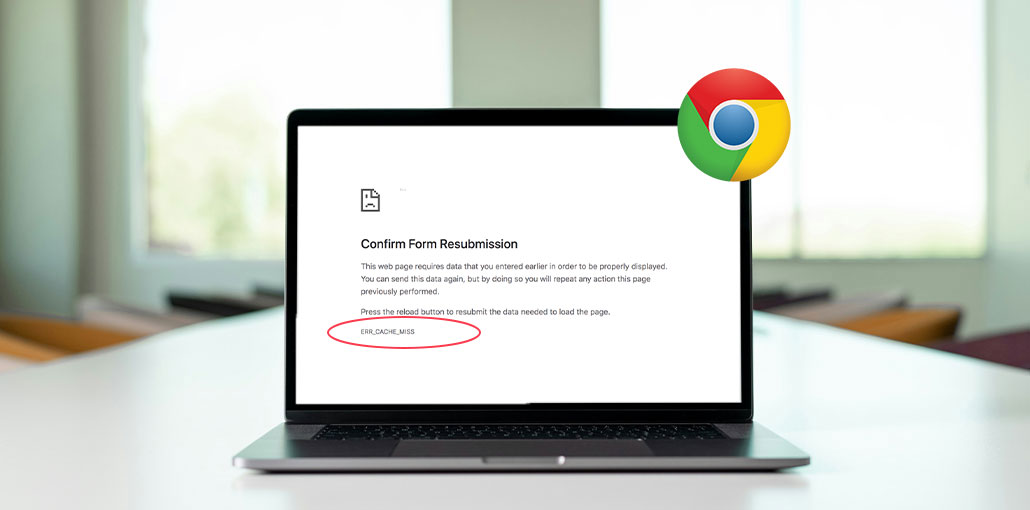
Google Chrome is among the most well-known and reliable web browsers available on the market. However, it’s not without fault. When using Google Chrome, you will encounter a variety of typical problems. There is also an error that is known as “Err_Cache_Miss.” If you encounter this message and are aware that it takes you to a new page, where it requires you to input or re-enter data. Although this error could be a bit confusing and annoying, it’s completely repairable. The good news is that there are several easy methods that you can employ to resolve the error. This way, you can access the page you’re trying to access.
This blog provides a detailed explanation of what causes the “Err_Cache_Miss” error from scratch. We will also go over its most common causes and the various options to correct it.
What Is ERR_CACHE_MISS?
ERR_CACHE_MISS is a common problem with Chrome users that usually occurs when your browser’s cache is full.
The only way to get this specific error is to use only Google Chrome. Other browsers may also be affected by similar caching errors, but they show differently and have different names. For example, the exact error that appears on Firefox could show up as “Document Expired.”
Also read: 7 Quick Solutions for ERR_TIMED_OUT Error in Google Chrome
What Causes ERR_CACHE_MISS?
The ERR_CACHE_MISS error usually happens when Chrome has trouble loading a webpage properly. It is mostly related to browser or connection issues.
Here are the common reasons:
- Your browser cache may be corrupted or outdated
- You might be using an old version of Google Chrome
- Some browser extensions can interfere with page loading
- There could be network or DNS configuration issues
- It often appears when a form is submitted and the page tries to reload data
How to Fix ERR_CACHE_MISS in Chrome
Once you know what “Err_Cache_Miss” really means and its root causes, let’s know how to resolve it. Let’s take a close look at the 7 most effective ways you can solve this “Err_Cache_Miss” error in Google Chrome:
1. Reload the Webpage
Sometimes, the Google Chrome error “Err_Cache_Miss” can appear on your screen if you have constant network issues. If this happens, then try reloading the website. Reloading the page is possible by clicking the reload icon located in the upper-right-hand corner of the Google browser’s address bar.
Alternatively, pressing the F5 key on the keyboard could be an effective solution. If, after this, Google Chrome still displays an error message, then it is possible to conclude that network connectivity is not the primary source of the problem. In this case, it’s best to move to the next option.
2. Update the Browser
If you’re using an outdated version of Google Chrome, then it is recommended that you update your browser to see whether it can fix the issue. This could help eliminate incompatibility issues or other inefficiencies that cause errors like “ERR_Cache_Miss.”
- Open Chrome
- Click the three-dot menu (⋮)
- Go to Help > About Google Chrome
- Let Chrome check for updates
- Restart the browser after updating
2. Clear Browser Cache and Cookies
You may be using Google Chrome, which contains some corrupted files. This could cause the warnings you’re seeing now. In this instance, the best option is to clear your browsing data. Follow the steps, restart your browser, and then access the website again.
- Open Chrome Settings
- Go to Privacy and Security
- Click Clear browsing data
Select:
Cookies and other site data
Cached images and files - Click Clear data
- Restart Chrome
If the issue is related to browsing data, this technique will resolve the problem immediately. If it doesn’t, then it’s time to change to a different method.
4. Disable Browser Extensions
Another cause for this extension is that you’ve installed it. They could be infected or hindering Chrome’s ability to connect and load the website. To determine if this is the root cause, the best way is to disable all of your browser extensions.
- Open Chrome
- Type chrome://extensions/ in the address bar
- Turn off all extensions
- Reload the page
- If fixed, enable extensions one by one to find the issue
Pro Tips: If extensions are the main cause of the err_cache_miss error, it is suggested to disable extensions. Try refreshing your browser after deactivating every extension to see if the issue gets fixed.
If the issue isn’t resolved even after deactivating extensions, then extensions aren’t the cause.
5. Reset Your Network Settings
Network settings that aren’t working properly can cause an “ERR_CACHE_MISS” message. To resolve this issue, you may choose to reset the settings.
- Open Command Prompt as Administrator
- Type the following commands:
ipconfig /flushdns
netsh winsock reset - Press Enter after each command
- Restart your PC
The next step is to restart your system and then open the browser window. If the issue is due to the network and you want to reset it, this will resolve the issue completely, and you will not see any “ERR_Cache_Miss” error in the future.
6. Reset Your Browser Settings
If the previous method you tried doesn’t fix the issue, you can be confident does not lie with your network settings. In this scenario, the issue could be the settings in your browser. So, try changing your browser’s settings.
- Open Chrome Settings
- Scroll to Reset and clean up
- Click Restore settings to original defaults
- Confirm reset
- Restart Chrome
You can also try accessing the reset settings with the following command.
Chrome://settings/resetProfileSettings.
After you have completed the steps above, you will need to restart your browser and then access your website page once more. It is hoped that this will fix any “net err_cache_miss WebView” or browser error. However, if you still do not find the solution after this approach, then it’s time to go to the seventh method.
Also read: 10 Ways to Fix Error Code Out of Memory in Chrome or Edge
7. Disable Cache Using Developer Tools
If the six options above do not fix the issue, there’s a last alternative to consider: deactivating the caching system.
- Open Google Chrome and go to the webpage where the issue appears
- Open Developer Tools by pressing F12 or going to More Tools > Developer Tools
- Click on the Network tab
- Check the option “Disable cache”
- Refresh the webpage
How to Prevent ERR_CACHE_MISS
You can reduce the chances of encountering this error by:
- Keeping Chrome updated
- Regularly clearing browser cache
- Removing unnecessary extensions
- Maintaining a stable internet connection
- Testing website forms thoroughly if you manage a website
Conclusion
The Google Chrome ERR_CACHE_MISS error may affect your browsing. But, luckily, it’s quite simple to repair. With the help of the seven strategies that were mentioned earlier, from simple page reloads to resetting your network or browser settings, or clearing browser cache, you can get rid of this annoying error message.
Start with the simplest solutions, like refreshing your browser or reloading the page, before moving to more complex resolutions like resetting settings or disabling cache. Many users are satisfied with these methods, allowing them to enjoy a smooth browsing experience without interruption.
FAQs: ERR_CACHE_MISS
Why does ERR_CACHE_MISS happen?
It usually happens due to corrupted cache files, browser extensions, outdated Chrome, network issues, or form resubmission requests.
Is ERR_CACHE_MISS a serious error?
No, it is not serious. It is a common browser issue and can be fixed easily using basic troubleshooting steps.
Is ERR_CACHE_MISS a virus?
No, it is not a virus. It is a browser-related caching or loading issue in Google Chrome.
What is the fastest way to fix ERR_CACHE_MISS?
The fastest fix is to refresh the page or clear Chrome cache and cookies.









Leave a comment