

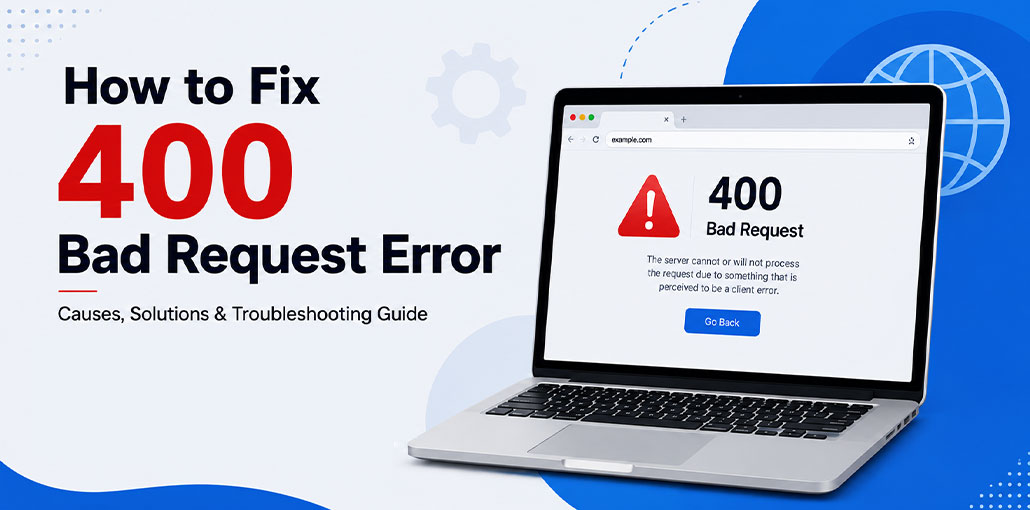
There are many errors when using the internet. In this blog, we will discuss the 400 Bad Request Error. This is one of the numerous 4xx status codes. It blocks people from using the site they want to visit or other web-based resources.
Our experts will conduct an in-depth investigation of Error 400 before discussing potential solutions to fix 400 Bad Request Error.
Let’s begin by asking ourselves an easy question: What does an error 400 Bad Request indicate?
What is a 400 Bad Request Error?
HTTP Error 400 is one of several HTTP Response status codes and indicates that your request to the web server was either incorrect or corrupted, meaning it could no longer understand your request and displayed a 400 Bad Request message.
Common Variations of Error 400 Bad Request
Because websites and browsers handle errors differently, you may see several versions of the same error message.
- Bad Request – Error 400
- Bad Request – Invalid URL
- 400 Bad Request
- HTTP Error 400 – Bad Request
- HTTP Error 400
- 400 – Bad Request
- Bad Request – Your browser has sent a request that this server couldn’t understand
- 400 Bad Request – Request Header or Cookie Too Large
- HTTP Error 400 – The request hostname is invalid
What causes a 400 Bad Request Error?
A 400 Bad Request Error occurs when a server cannot process your browser request due to invalid or corrupted data being submitted from your browser.
- Corrupted browser cookies
- Damaged cache files
- Incorrect or incomplete URL
- Expired login sessions
- Browser extensions interfering with requests
- File uploads exceeding server limits
- DNS issues
- Corrupted request headers
- Temporary website server problems
Also read: 7 Quick Solutions for ERR_TIMED_OUT Error in Google Chrome
How to Fix 400 Bad Request Error
Before trying advanced troubleshooting methods, refresh the webpage once using Ctrl + F5. Temporary communication issues between your browser and the server can sometimes be resolved with a simple reload.
If refreshing the page does not help, try the solutions below.
1. Flush DNS Cache
Due to a corrupted DNS cache, the server rejects your browser request because it seems to have an error. Therefore, you will see a 400 Bad Request error.
Remove the outdated or corrupted DNS cache on your system to fix the problem.
Flush DNS Cache in Windows
- Open Command Prompt as Administrator.
- Type the following command:
- ipconfig /flushdns
- Press Enter.
- Restart your browser and check whether the error has been fixed.
Flush DNS Cache on macOS
- Open Terminal from Applications > Utilities.
- Enter the following command:
sudo dscacheutil -flushcache; sudo killall -HUP mDNSResponder - Press Return.
- Enter your Mac password if prompted.
- Reopen your browser and check whether the error has been resolved.
2. Disable Browser Extensions
Disabling browser extensions is one of the easiest and simplest solutions for fixing a 400 Bad Request error, such as when trying to access certain pages online. Simply temporarily deactivate or uninstall extensions you currently use.
Numerous browser extensions inject extra code into the browser’s working frame. This interferes with the browser can send a request to a particular web server.
In the end, your web browser extensions could be the primary cause of the 400 Bad Request error.
3. Check the Requested URL
We mentioned earlier that the HTTP 400 error occurs due to client-side mistakes. One of the largest and most common errors is typing the wrong URL.
If you type the wrong URL for the correct website, you could cause a 400 error.
You may have accidentally entered an incorrect spelling when entering the URL into the address bar in your browser. It could be that you have misformed syntax in the address. Also, you could have inserted incorrect or insignificant characters while entering the URL.
4. Clear Browser Cookies and Cache
Your browser’s cookies save information regarding your interactions with various websites. They can improve user experience and personalize the website to ensure that you continue to visit it. This is also true for the browser cache data.
Error 400 typically occurs due to Outdated cookies and cache, or when sending large cookie files directly to the server, resulting in a 400 Bad Request response code from your browser.
To resolve error code 400 and gain access the website, your browser cache and cookies must be cleared out.
Clear Cookies and Cache in Google Chrome
- Open Google Chrome.
- Press Ctrl + Shift + Delete.
- Select All Time from the Time Range dropdown menu.
- Check:
Cookies and other site data
Cached images and files - Click Delete Data.
- Restart Chrome and visit the website again.
Clear Cookies and Cache in Microsoft Edge
- Open Microsoft Edge.
- Press Ctrl + Shift + Delete.
- Select All Time from the Time Range menu.
Enable:
Cookies and other site data
Cached images and files - Click Clear Now.
- Restart Edge and reopen the website.
5. Check File Upload Size
Uploading large files to servers may result in a 400 and/or “400 Bad Request message if they exceed the upload limit.
The solution to this problem can be as simple as decreasing file sizes.
You can reduce the large file to meet the upload size limits. Nevertheless, resizing a file may result in lower quality. This is typical with PDF and image files, as the contents can become difficult to read and blurry.
6. Restart Your PC and Network Equipment
In the last instance, try restarting your computer to fix the problem. Also, you can restart your network connection, as it could fix the issue with bad requests.
You could also try resetting your router or other connections.
Restarting your computer or hardware may help clear temporary memory in RAM, which can prevent the 400 Bad Request issue.
Also read: 10 Easy Fixes for This Site Can’t Be Reached Error in Chrome
7. Wait for the Website Administrator to Fix the Server
Sometimes the issue originates from the website itself.
Possible server-side causes include:
- Misconfigured web server rules
- Corrupted cookies generated by the website
- Oversized request headers
- Temporary maintenance
If multiple users report the same issue, waiting for the website owner to resolve it may be the only option.
How to Prevent 400 Bad Request Error
To avoid encountering this error in the future:
- Keep your browser updated.
- Clear cache files regularly.
- Avoid using suspicious browser extensions.
- Double-check URLs before visiting websites.
- Maintain a stable internet connection.
Conclusion
You could try multiple solutions to fix the 400 Bad Request error and, if that does not help, speak to an expert. In most instances, this issue lies with client-side configuration or can be easily fixed via simple solutions.
Understanding and applying these techniques should not require technical expertise – you’re free to get back to work right away without interruption!
FAQs: 400 Bad Request Error
Is 400 Bad Request a server error?
No, a 400 Bad Request error is usually a client-side issue caused by your browser, network, or request data. However, incorrect server configurations can also trigger this error.
Why do I get 400 Bad Request only on one website?
If the error appears on only one website, the problem is usually related to that site's cookies, stored browser data, or a server-side configuration issue.
How do I fix 400 Bad Request on my phone?
To fix 400 Bad Request on Android or iPhone, clear browser cookies and cache, update your browser, switch networks, or try opening the website in private browsing mode.
How do I fix 400 Bad Request in WordPress?
To fix a 400 Bad Request error in WordPress, clear browser cookies, disable conflicting plugins, check URL settings, and verify server configuration.






Leave a comment