

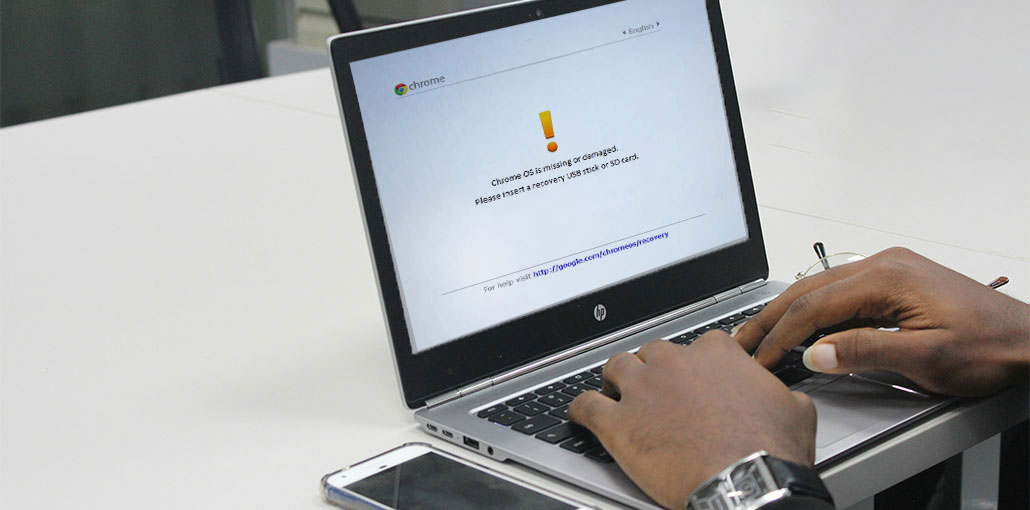
Have you experienced the “Chrome OS is Missing or Damaged” error on your Chromebook? It may resemble the famous Blue Screen of Death (BSOD) found on Windows 10 and 11 computers.
In this guide, we’ll outline some of the primary causes of Chrome OS is missing or damaged errors and discuss effective strategies to fix them and prevent them from happening again.
What Causes the Chrome OS Is Missing or Damaged Error?
Chrome OS is missing or damaged error is often displayed during Chromebook startup when important system files cannot be verified or loaded properly by Chrome OS.
Some of the most common causes include:
- Corrupted Chrome OS system files
- Failed or interrupted Chrome OS updates
- Hard drive or SSD corruption
- Sudden power loss or improper shutdown
- Software bugs and system glitches
- Incorrect system settings or Developer Mode changes
At risk with this error is any locally stored data being corrupted and lost. Therefore, the appropriate troubleshooting steps must be followed to restore your Chromebook.
Also read: Why Is My Chromebook So Slow? 9 Proven Fixes to Speed It Up
How to Fix Chrome OS Is Missing or Damaged Message
These are the best three solutions to solve the Chrome OS missing or damaged error.
Reboot Your Device
The first step is to reboot your Chromebook to determine if you can solve the Chrome OS missing or damaged error.
Rebooting or restarting the device enables your laptop to stop background processes that consume system resources and can lead to system problems.
Here’s how:
- Shut down the laptop by pressing and holding the Power button;
- Hold the Power button to turn the device back on.
- Let your laptop begin to boot normally.
If the issue persists, try the next solution below.
Do a Factory Reset
If you can log in to your Chromebook, you can fix the “Chrome OS is missing or damaged” error by performing a factory reset. It will restore your device to factory settings and fix any system issues.
Here’s how you can do a factory reset for your Chromebook:
- Sign out of your Chromebook;
- Press and Hold Ctrl+ Alt + Shift+ R and then select Restart
- Then, in the window that appears, choose Powerwash > Continue
- Follow the screen instructions and sign in using your Google Account
Follow the steps below to set up your Chromebook and see whether the issue is resolved.
Also read: How to Factory Reset Chromebook Without Password: 4 Best Methods
Reinstall Your Chrome OS
If you’re still unable to resolve that Chrome OS is missing or damaged, your last option is to reinstall Chrome OS and give your laptop a fresh start. You will need Recovery media, such as a formatted USB flash drive, to reinstall the operating system on your Chromebook.
Use a working computer to download ChromeOS, then save the file on your USB drive. Next, you’ll need to use your USB drive to download ChromeOS to your notebook. These are the steps.
- You can access the Chrome browser using a working PC
- Go to the Chromebook Recovery Utility extension page.
- Select “Add To Chrome” to install the extension on your computer.
- Open the extension and then click Get Started
- You must enter the Chromebook model number (you will find this in the Chrome OS is damaged or missing message)
- Click Continue
- The USB drive must be connected to your working computer
- If your device recognizes it as a USB drive, choose it, then click Continue>Create Now
- Take off the USB drive after the download is completed
- Press and hold the Esc and Refresh buttons. Press the Power button once, and then release the keys to boot the Chromebook in recovery mode.
- When the recovery screen appears, click Recover using an external storage.
Follow the on-screen directions to finish your Chrome OS installation. You can also fix the Chrome OS is damaged or missing error.
Ending Notes
The Chrome OS is missing or damaged error is a common problem that many Chromebook users encounter at some point; it can be easily solved with the right techniques. These troubleshooting techniques will remove this annoying issue. Be aware that a complete OS reboot or factory reset may result in loss of your important files.
FAQs About Chrome OS Is Missing or Damaged
Why does my Chromebook say Chrome OS is missing or damaged?
This error usually appears because Chrome OS system files are corrupted, missing, or unable to load properly.
Will fixing Chrome OS missing or damaged delete my files?
Yes, Chromebook recovery usually removes local files stored on the device. Files saved in Google Drive will remain safe.
How long does Chromebook recovery take?
The recovery process usually takes around 15–30 minutes, depending on internet speed and Chromebook model.
How do I enter Chromebook Recovery Mode?
Turn off your Chromebook, then press Esc + Refresh + Power to enter recovery mode.







Leave a comment