

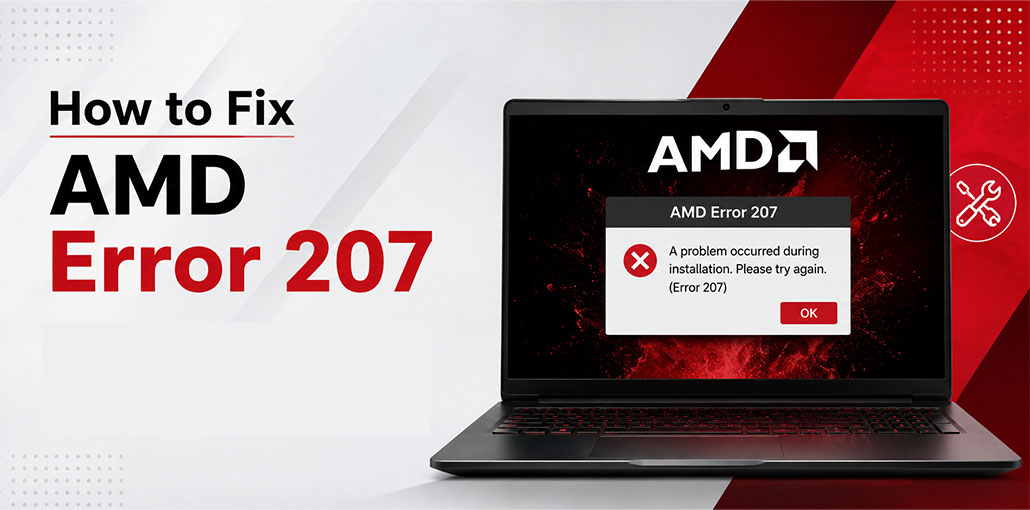
Seeing an AMD Error 207 after installing or updating your graphics driver may be confusing. While your AMD Software installation may appear to have completed successfully, Windows still detects potential issues with your GPU device.
Fortunately, Error 207 does not always indicate your graphics card has failed. In most cases, checking Windows Device Manager, upgrading Windows, reinstalling drivers, or performing clean AMD driver installations may help resolve this problem.
In this guide, we explain what AMD Error 207 means, why it appears, and how to fix it completely.
What Is AMD Error 207?
According to AMD, Error 207 indicates a successful Software installation, but Windows detected potential graphics device issues.
In simple words, while AMD Software itself may have installed successfully, Windows indicates that something is not working as expected with your graphics device or driver.
You may notice symptoms such as:
- AMD Software or Adrenalin not working correctly
- Your AMD GPU not appearing normally in Windows
- Display problems after a driver update
- Driver-related warnings in Device Manager
- AMD Software reporting an issue after installation
- Games or graphics applications experiencing crashes or instability
As noted, AMD Error 207 should not necessarily indicate a defective GPU. Before considering any definitive conclusions, it is worth checking the driver and Windows configuration first.
Why Does AMD Error 207 Appear?
Error 207 AMD does not have a single cause. According to AMD, it stems from Windows detecting potential issues with graphics devices after software installations have completed. Troubleshooting should focus on your graphics driver and Windows Device Status.
Possible contributing factors include:
- A graphics driver that is not functioning correctly
- A previous driver installation that was not removed cleanly
- A mismatch between the installed AMD Software and graphics driver
- Windows updates or driver changes affecting the graphics device
- An incorrect or incompatible driver package
- A problem reported by Windows Device Manager
- Display, power, or hardware connection problems
The best approach is to start with simple checks and then move toward a clean driver installation if the problem continues.
Also read: GeForce Experience Error Code 0x0003: Here Are Easy Fixes
How to Fix AMD Error 207
Try the following solutions in order. After each major step is completed, reboot your PC and check if AMD Error 207 has gone away.
1. Restart Your PC
Before changing drivers or system settings, restart Windows.
A restart can clear temporary driver states and allow Windows to reload the AMD graphics device correctly.
To restart Windows:
- Save your work.
- Close running applications.
- Select Start.
- Select Power.
- Choose Restart.
After Windows starts again, open AMD Software and check whether Error 207 is still displayed.
If the error remains, continue to the next step.
2. Check Your AMD GPU in Device Manager
Windows Device Manager can help determine whether Windows is experiencing a specific problem with your AMD graphics device.
Follow these steps:
- Press Windows + X.
- Select Device Manager.
- Expand Display adapters.
- Find your AMD Radeon graphics device.
- Right-click it and select Properties.
- Check the General tab.
- Look at the Device status section.
If Windows displays an error code or warning, make a note of it. That information can be more useful than Error 207 alone because it may identify a specific Windows device or driver problem.
You can also check the Driver tab to see the installed driver version and available driver-management options.
If the AMD GPU is missing entirely from Display adapters, that may indicate a different device-detection or hardware issue that should be investigated before repeatedly reinstalling AMD Software.
3. Install Pending Windows Updates
An outdated Windows installation can sometimes cause compatibility problems with hardware drivers.
Before performing a more complicated driver repair, check Windows Update for available updates.
On Windows 11:
- Open Settings.
- Select Windows Update.
- Click Check for updates.
- Install available updates.
- Restart your PC if Windows asks you to.
You should also check Advanced options → Optional updates for available driver updates.
After updating Windows, restart your computer and check AMD Software again.
If Error 207 continues, proceed with the graphics driver troubleshooting steps below.
4. Reinstall the AMD Graphics Driver
If the installed AMD graphics driver is damaged, incomplete, or not functioning properly, reinstalling it may resolve the problem.
First, identify your exact AMD GPU model. Then obtain the appropriate driver package from AMD’s official support resources.
During installation, follow AMD’s available installation options and restart Windows when the installation finishes.
A normal reinstall may be enough when the problem is minor. However, if Error 207 appeared after several driver installations or updates, a clean driver installation is generally a better next step.
5. Use AMD Cleanup Utility
If reinstalling the driver normally does not solve AMD Error 207, consider using AMD Cleanup Utility.
AMD provides this utility to remove previously installed AMD graphics and audio drivers and prepare Windows for a fresh graphics driver installation.
How to use AMD Cleanup Utility:
- Download AMD Cleanup Utility from AMD’s official website.
- Close open applications.
- Run the utility.
- Follow the instructions displayed on screen.
- Allow the computer to restart if requested.
- Let the cleanup process finish.
- Restart Windows if necessary.
- Download the appropriate AMD graphics driver.
- Install the driver.
- Restart your PC.
AMD notes that the utility may recommend or use Safe Mode for the cleanup process.
AMD Error 207 often arises after repeated driver updates or when previous installations left your system in an inconsistent state, so a clean install is highly beneficial in this case.
6. Install the Correct AMD Driver
Installing the wrong driver package can create unnecessary compatibility problems.
Before downloading a driver, verify:
- Your exact Radeon GPU model
- Your Windows version
- Whether you are using a desktop or laptop
- Whether your computer manufacturer provides a customized graphics driver
For a desktop Radeon graphics card, AMD’s official driver package is generally the appropriate place to start.
For laptops, it can also be worth checking your laptop manufacturer’s support page. Some manufacturers customize drivers for their specific hardware configurations.
If you’re unsure which driver you need, AMD’s driver detection and support tools can help identify compatible software.
After installing the correct driver, restart Windows and check Device Manager and the AMD software installer error.
Also read: Top 10 Free Driver Updater Software
7. Try AMD Software Factory Reset
Depending on your AMD Software version and installation options, you may have access to a Factory Reset option.
This option is intended to remove previous AMD Software components and provide a cleaner installation path.
It can be useful when a normal installation or update has not resolved the problem.
However, use this option carefully. AMD notes that using Factory Reset means you cannot roll back to the previously installed drivers through the normal rollback process.
If you’re already troubleshooting a persistent installation problem, a clean installation may be preferable to repeatedly installing the same driver over an existing installation.
8. Check for Windows Driver Conflicts
Windows can manage hardware drivers independently of AMD Software, so it is important to check whether Windows itself is reporting a driver problem.
Return to:
Device Manager → Display adapters → AMD Radeon → Properties
Look for a warning icon or a specific device status message.
If Windows reports device issues, try searching for a specific Windows error code rather than assuming every problem must stem from AMD Error 207.
Windows Device Manager includes its own error codes for hardware and driver issues. These error codes could give more clues about what may be preventing the graphics device from functioning properly.
Also check whether the issue started immediately after a Windows update or driver update. If so, the timing can help identify a driver compatibility problem.
9. Check GPU, Power, and Display Connections
If software troubleshooting does not resolve the AMD Error 207, inspect the physical side of the system.
For a desktop PC, shut the computer down completely before checking internal hardware.
Depending on your system, check:
- Whether the graphics card is properly seated
- Whether required GPU power connectors are firmly connected
- Whether the monitor cable is securely connected
- Whether the monitor is connected to the intended GPU output
- Whether another display cable or port works
- Whether the GPU fans or other hardware behavior appears unusual
If you recently installed, moved, or cleaned your computer, a loose connection is worth checking.
Laptop users should only open their devices if they feel confident doing so and understand all necessary service requirements outlined by their manufacturer.
Continuing errors on an AMD GPU after clean driver installation and Windows troubleshooting make investigating hardware-related issues all the more important.
10. Roll Back the Driver if Error 207 Started After an Update
If AMD Error 207 appeared immediately after installing a new graphics driver, the newest driver may be related to the problem.
Windows may provide a Roll Back Driver option in:
Device Manager → Display adapters → AMD Radeon → Properties → Driver
If the Roll Back Driver button is available, Windows may be able to return to the previously installed driver.
This is especially useful when:
- The GPU worked correctly before the update.
- Error 207 appeared immediately afterward.
- Games or applications started crashing after the update.
- Display problems began after installing the new driver.
If rollback is unavailable, you can investigate an earlier compatible driver from the official AMD support page instead.
How to Check Whether AMD Error 207 Is Fixed
After troubleshooting, don’t rely solely on whether the AMD Software window opens.
Use the following checklist to confirm that the AMD Error 207 has actually been resolved:
- AMD Software opens without showing Error 207.
- Your Radeon GPU appears correctly in Device Manager.
- Device Manager does not show a warning icon for the GPU.
- The Device status reports that the device is working properly.
- Your monitor displays normally.
- Your normal screen resolution and refresh rate are available.
- Games and GPU-accelerated applications launch normally.
- You no longer experience unexpected display driver crashes.
- The AMD driver version shown in Windows matches the driver you intended to install.
You can also restart your PC one more time and test the GPU under normal workloads.
If everything works normally after the restart, AMD Error 207 was likely resolved.
Conclusion
AMD Error 207 can usually be resolved by checking Device Manager, updating Windows, and reinstalling the correct AMD graphics driver. If these steps don’t resolve it, AMD Cleanup Utility may assist with performing a clean install. Additionally, check GPU connections or consider driver rollback if this happened after recent software updates.
FAQs: AMD Error 207
Is AMD Error 207 a hardware problem?
Not necessarily. Error 207 does not by itself prove that your graphics card is physically damaged. Driver problems, Windows configuration, compatibility issues, and other factors should be checked first.
Why does AMD Software say installation completed successfully but show Error 207?
AMD Software can finish installing while Windows detects a potential problem with the graphics device. This is why the installation can appear successful while AMD Software still reports Error 207.
What if AMD Error 207 started after a driver update?
If the GPU worked correctly before the update, check whether Roll Back Driver is available in Device Manager. You can also install a compatible previous driver from AMD's official support page.
Can AMD Cleanup Utility fix Error 207?
Yes, it can help when AMD Error 207 is related to an existing or corrupted AMD graphics driver installation. It removes previous AMD graphics and audio drivers so you can perform a fresh installation.






Leave a comment