

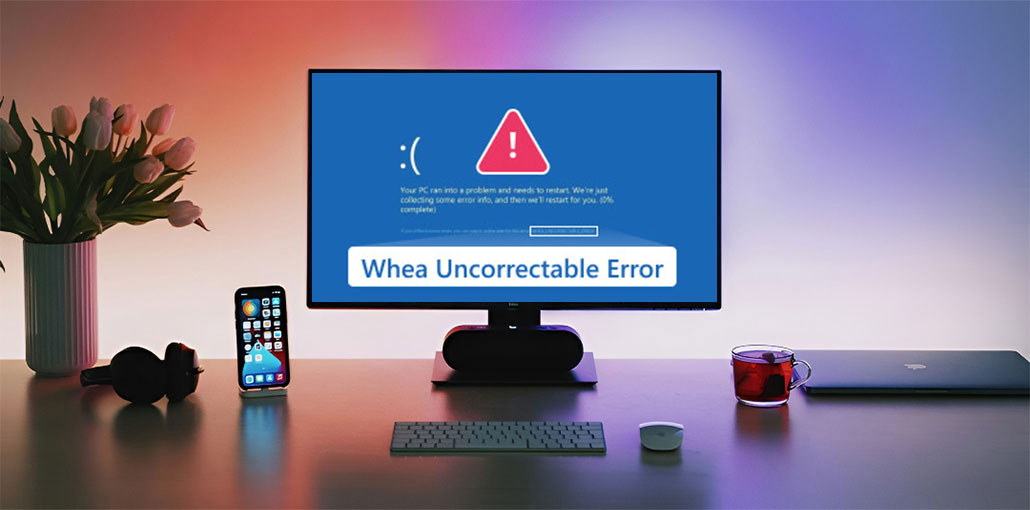
A solid operating system it may be, but Windows often comes into several errors, a few of which could cause a blue screen. However, if you look at the blue screen error, there are many variations of the Blue Screen of Death error, such as “There was a problem resetting your PC” and “WHEA_UNCORRECTABLE_ERROR”. To resolve your Whea Uncorrectable Error quickly, it is crucial to identify the correct solution to the specific issue. In this post, you’ll learn why a Whea Uncorrectable Error can occur and how to fix it in Windows 11/10 using 10 proven methods.
What Is the Whea Uncorrectable Error?
It’s the Whea Uncorrectable Error (Stop Code 0x00000124) that typically appears at the bottom of the blue screen on Windows 10/11 computers, as shown above. WHEA is the abbreviation for Windows Hardware Error Architecture, which warns of possible problems with the Hardware of a Windows computer.
Common Causes of Whea Uncorrectable Error
Several factors can trigger this BSOD error, including:
- Faulty or failing hardware components
- Corrupted or outdated device drivers
- Overclocked CPU, GPU, or RAM
- Damaged system files
- Hard drive or SSD issues
- Insufficient cooling causing overheating
- BIOS or firmware problems
- Memory (RAM) failures
How to Fix Whea Uncorrectable Error in Windows 11/10
1. Disable Overclocking in BIOS
The main cause of Windows 10 Whea Uncorrectable Error is an overclocked CPU, which causes the computer to become unstable. So, let’s begin with the option to disable overclocking in BIOS.
- Open Settings > Update & Security > Recovery.
- Under Advanced Startup, click Restart now.
- Navigate to Troubleshoot > Advanced Options > UEFI Firmware Settings > Restart.
- Once your computer enters BIOS/UEFI, disable any CPU, GPU, or RAM overclocking settings or restore the default BIOS configuration.
- Save the changes and restart your computer.
The steps to enable advanced options on your computer model can be checked online. After restarting, verify if the issue is still present on your Windows PC.
Also read: How to Easily Fix Clock Watchdog Timeout Error in Windows 10 & 11
2. Uninstall Problematic Drivers in Safe Mode
If Method 1 failed to fix the issue, it could be a driver conflict that needs to be resolved by using Safe Mode. You should learn how to turn on Safe Mode by yourself. These steps work on certain types of computers.
- Hold the Shift key and click Restart from the Start menu.
- Go to Troubleshoot > Advanced Options > Startup Settings > Restart.
- Press 4 or F4 to boot into Safe Mode.
- Right-click the Start button and select Device Manager.
- Locate the recently installed or problematic driver.
- Right-click the device and select Uninstall Device.
- Restart your PC and check if the error is resolved.
3. Update Device Drivers
Incompatible or outdated drivers are often overlooked as a reason for WHEA errors, especially after a Windows update or new hardware installation.
- Press Windows + X and select Device Manager.
- Expand the category containing the device you want to update.
- Right-click the device and choose Update Driver.
- Select Search automatically for drivers.
- Follow the on-screen instructions to complete the update.
- Repeat the process for graphics, chipset, storage, and network drivers.
- Restart your computer.
4. Update or Reset BIOS/UEFI
BIOS/UEFI is firmware that initializes your hardware before Windows loads. The update fixes known compatibility bugs; resetting it can clear misconfigured settings and could cause hardware malfunctions.
- Press Windows + R, type msinfo32, and press Enter.
- Note your motherboard model and current BIOS version.
- Visit the manufacturer’s official support website.
- Download the latest BIOS update if available.
- Follow the manufacturer’s instructions to install the update.
- If no update is needed, enter BIOS and select Load Optimized Defaults or Load Default Settings.
- Save changes and restart your computer.
5. Check for Overheating
When GPU or CPU temperatures exceed the safe operating limits, the system triggers a WHEA error to prevent heat damage before the part is destroyed.
Overheating is caused by dust accumulation in cooling units, malfunctioning fans, dried thermal paste, or a blocked airflow in the case.
6. Uninstall Problematic Windows Updates
If you experience a ” Whea Uncorrectable Error after the upgrade to an updated Windows 10 build, then the build or a defective part of it might be the cause. Uninstall the issue update and run an investigation.
- Open Settings > Windows Update.
- Click Update History.
- Select Uninstall Updates.
- Locate the update installed before the error began appearing.
- Select the update and click Uninstall.
- Restart your computer.
Check if the WHEA_UNCORRECTABLE_ERROR has been fixed.
7. Check for Hardware Issues
Although we’ve concluded that the Whea uncorrectable Error could be due to hardware problems, it would be best to use the methods above to repair the issue, which requires very little effort and costs. However, since you’re here today, it’s the right time to examine hardware issues on your Windows 10 computer.
- Open Command Prompt as Administrator.
- Type the following command: chkdsk C: /f /r
- Press Enter.
- If prompted, type Y to schedule the scan.
- Restart your computer.
- Wait for Windows to complete the disk scan and repairs.
Check whether the error still occurs.
8. Run Windows Memory Diagnostic
If the RAM on your PC is faulty, it can lead to system instability, random crashes, and BSOD errors, such as the Whea Uncorrectable Error. Windows Memory Diagnostics is a hidden tool in Windows 10 for detecting RAM errors.
- Open the Start menu and search for Windows Memory Diagnostic.
- Click the utility from the search results.
- Select Restart now and check for problems.
- Save your work and allow Windows to restart.
- Wait for the memory test to complete.
- Windows will display the results after login.
Tip: Replace faulty RAM modules if errors are detected.
9. Fix Corrupted System Files
Corrupted system files can also contribute to the Whea Uncorrectable Error issue. It is easy to repair and check the damaged system files on Windows 10.
- Open Command Prompt as Administrator.
- Type the following command: sfc /scannow
- Press Enter and wait for the scan to finish.
- Restart your computer.
- If the issue persists, reopen Command Prompt as Administrator.
- Run: DISM /Online /Cleanup-Image /RestoreHealth
- Restart your PC after the repair process is complete.
Also read: How to Fix Unexpected Store Exception Error in Windows 10/11
10. Perform a System Restore
This is the last resort since it can cause too much to cause users to lose settings or even optimization. Additionally, many people do not want to make any system restore points.
- Open Control Panel > Recovery > System Restore
- Click Next to view available restore points.
- Select a restore point created before the error occurred.
- Click Next, then Finish.
- Wait for Windows to restore the system and restart automatically.
How to Prevent Whea Uncorrectable Error
To reduce the chances of future crashes:
- Keep Windows updated.
- Update drivers regularly.
- Avoid unstable overclocking.
- Monitor hardware temperatures.
- Run periodic disk and memory diagnostics.
- Use a reliable power supply.
- Back up important files regularly.
Conclusion
If it’s an issue with the hardware or a system glitch, you can resolve Whea Incorrectable Error above these solutions as quickly as possible. If you do not, you risk losing important files. If you have questions or suggestions, feel free to share them with us via the comments.
FAQs: Whea Uncorrectable Error
Can faulty RAM cause a Whea Uncorrectable Error?
Yes. Faulty or failing RAM is one of the most common causes of the Whea Uncorrectable Error. Running the Windows Memory Diagnostic tool can help identify memory-related problems.
Does overclocking cause the Whea Uncorrectable Error?
Unstable overclocking can cause hardware instability and trigger the Whea Uncorrectable Error. Restoring default BIOS settings is often recommended when troubleshooting this issue.
Is the Whea Uncorrectable Error a hardware problem?
It can be caused by either. Hardware failures, overheating, and overclocking are common causes, but corrupted drivers and system files may also contribute.
What should I do if none of the Whea Uncorrectable Error fixes work?
If the issue persists, run hardware diagnostics to check for faulty RAM, storage drives, or other components. If no cause is found, seek professional assistance, as a hardware replacement may be required.









Leave a comment