

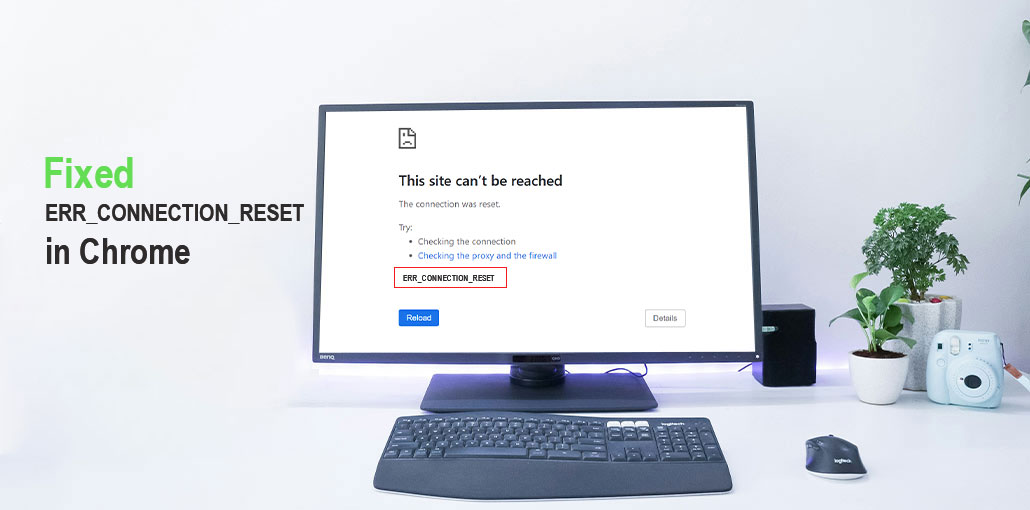
The ERR_CONNECTION_RESET can be extremely irritating as it prevents you from accessing websites and interferes with your browsing experience. But there’s no reason for worry–like most technical problems, this error is easily fixed through appropriate troubleshooting steps.
By following this guide, you will discover what an ERR_CONNECTION_RESET error means and its causes, as well as possible solutions on Chrome and other web browsers.
What does the ERR_CONNECTION_RESET Error Mean?
Error code ERR_CONNECTION_RESET is also known as “NET::ERR_CONNECTION_RESET”. It typically appears in web browsers such as Google Chrome along with an error message like, ‘This site can’t be reached; connection was reset.”
It means that something went wrong with the connection between the browser and the website. The data transfer between your computer and the server was disrupted, and consequently, the connection was reset. The browser flags the issue by displaying the error ERR_CONNECTION_RESET.
What Causes the ERR_CONNECTION_RESET Error?
Several factors can trigger this error. The most common causes include:
- Unstable or slow internet connection
- Corrupted browser cache or cookies
- Incorrect network or TCP/IP configuration
- Misconfigured proxy settings
- VPN connection issues
- Antivirus or firewall blocking the website
- DNS or router cache problems
- Internet Service Provider (ISP) network restrictions
- Temporary server or hosting issues
Identifying the underlying cause helps you apply the right solution.
How to Fix the ERR_CONNECTION_RESET Error
We will discuss how to fix the top 9 problems that affect visitors and another solution you can apply for the site owner.
1. Check Your Internet Connection
Your network may be having issues that prevent your device from establishing a stable internet connection. As a result, you may encounter the error ERR_CONNECTION_RESET.
Try logging on to the website via a different network to determine whether the issue persists. For instance, if you are connected to your office network, you can test it using your mobile network and reverse the process.
Also read: How to Fix “Not Enough Memory to Open This Page” Error in Chrome
2. Clear Browser Cache and Cookies
Should changes occur on your site, your browser might store outdated cached information, resulting in connection errors.
Therefore, clearing your cache and cookies may solve this ERR_CONNECTION_RESET error. Please follow these steps to clear cookies.
Steps:
- Open Chrome.
- Go to Settings → Privacy and security.
- Click Clear browsing data.
- Select Cookies and Cached images/files.
- Click Clear data and restart Chrome.
3. Restart Your Router
Routers also store cached network and DNS settings, which can degrade over time and interrupt network connections. Resetting your network device erases previously saved error settings and can solve the connection reset errors.
Here’s how you can reset all routers.
- Turn off your router.
- Unplug it for 1 minute.
- Turn it back on.
- Re-open the website and see whether ERR_CONNECTION_RESET has disappeared.
4. Disable Your Proxy Server
Most modern internet connections rely on proxy servers, which improve your online session security and speed. Yet, misconfigured proxy settings or other issues that are not fully understood can block internet connections and trigger the error ERR_CONNECTION_RESET.
Enable proxy server access to the internet to identify if it’s the reason. It is easy to open the proxy settings on your computer.
Steps:
- Open Windows Settings.
- Go to Network & Internet → Proxy.
- Turn off Use a proxy server.
- Restart your browser.
5. Turn Off Your VPN
Virtual Private Network (VPN) is a well-known service used by thousands of users and companies every day. It provides numerous advantages regarding online security, speed, and flexibility. Limitations or incorrect VPN settings could potentially force your connection to specific websites to reset, leading to the error ERR_CONNECTION_RESET.
6. Temporarily Disable Antivirus and Firewall
Antivirus software is essential in protecting your device, providing defense from viruses, malware, and other threats, such as overly restrictive rules that might block or restore access to certain websites.
Like antivirus software, firewalls can effectively block or restore connections between computers and websites. You can quickly test whether its presence may be to blame by temporarily disabling it.
Steps:
- Open your antivirus/firewall settings.
- Disable protection temporarily.
- Test the website.
- Enable protection again after testing.
Also read: Who is Better For Security: VPNs vs. Firewalls vs. Antivirus
7. Reset TCP/IP Settings
TCP/IP is an Internet protocol used by computers to gain access to the internet, but if it’s not functioning properly, you could experience unreliable or unsafe connections leading to “ERR_CONNECTION_RESET” error codes.
So, restoring the TCP/IP default settings can fix connectivity issues.
Steps:
- Open Command Prompt as Administrator.
- Run these commands:
netsh winsock reset - Press Enter.
netsh int ip reset - Press Enter.
ipconfig /release - Press Enter.
ipconfig /renew - Press Enter.
ipconfig /flushdns - Press Enter.
- Restart your computer.
8. Contact Your Internet Service Provider (ISP)
If the error ERR_CONNECTION_RESET persists after trying every solution available to you, it could be related to firewall restrictions, restricted ports, or issues with connectivity with your internet provider that lead to this message: ‘Connection reset”.
Contact your ISP about any problems you are encountering with Chrome, and have them test your connection and determine whether firewall rules could be contributing to the Chrome error.
9. Contact Your Hosting Provider (For Website Owners)
Hosting servers for a website typically don’t encounter ERR_CONNECTION_RESET errors. However, temporary issues on hosting platforms could trigger this error and reset connections with hosting websites.
You should contact your hosting service provider if your website displays the error ERR_CONNECTION_RESET. They will look into connections between the IP address of your computer and the server and look through the firewall logs for possible blockages.
Tips to Prevent ERR_CONNECTION_RESET
You can reduce the chances of encountering this error by following these best practices:
- Keep your browser updated.
- Clear browser cache regularly.
- Restart your router occasionally.
- Keep antivirus software up to date.
- Use trusted VPN services.
- Avoid unnecessary proxy configurations.
- Update your operating system regularly.
Conclusion
The ERR_CONNECTION_RESET is a common browser connectivity issue, but you can fix it using this simple method. Follow these steps to troubleshoot and fix this problem, whether it occurs in Google Chrome or another browser.
FAQs: ERR_CONNECTION_RESET
Why does Chrome show This site can’t be reached connection was reset?
Chrome shows this message when it cannot maintain a stable connection with the website server. The issue may be caused by your network, browser settings, security software, or server problems.
Can VPN cause ERR_CONNECTION_RESET?
Yes. A VPN can sometimes cause ERR_CONNECTION_RESET due to incorrect settings, blocked IP addresses, or connection issues with the VPN server. Try disabling the VPN and reload the website.
Why does ERR_CONNECTION_RESET happen only on one website?
If the error appears on only one website, the issue may be related to that site's server, firewall, SSL settings, or hosting configuration.
How do I fix ERR_CONNECTION_RESET on Windows 10/11?
To fix it on Windows, restart your router, clear Chrome cache, disable proxy/VPN, reset TCP/IP settings using Command Prompt, and check firewall or antivirus settings.








Leave a comment