

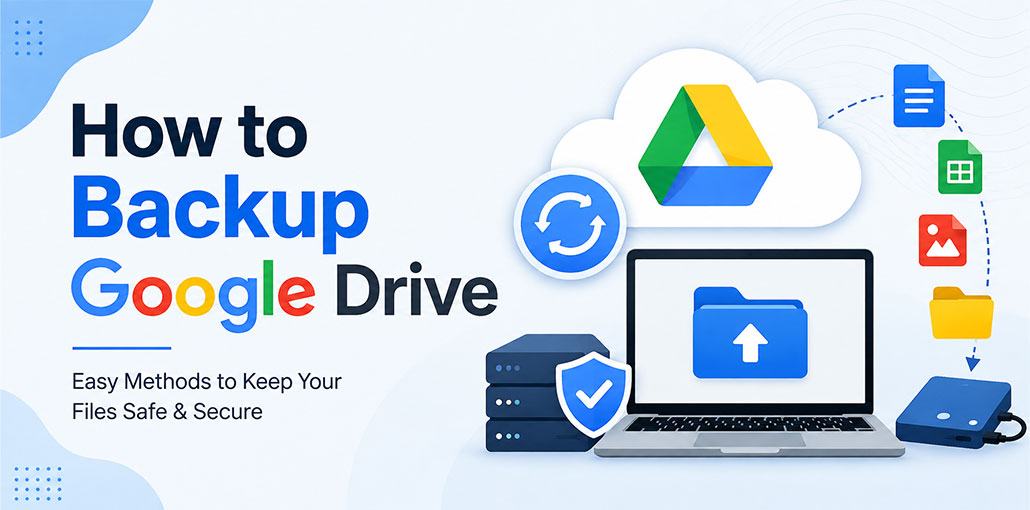
Google Drive makes it easy to store documents, photos, videos, and other essential files online. But just keeping files on Google Drive may not always be sufficient: accidental deletion, account issues, or corruption could put your data at risk.
If you want to backup Google Drive, there are various reliable methods, including Google Takeout, Desktop Google Drive, and downloading files manually or using another cloud storage service.
Through this guide, you’ll learn the most effective way to backup Google Drive, when each method should be used, and how to select the best backup option.
Why Should You Backup Google Drive?
Google Drive is a cloud storage service that people use to store all important documents, including family photos/videos, school projects, resumes, and many more. It is possible to use a variety of devices to backup your files to Google Drive. Backup Google Drive creates copies of Google Drive files and keeps the backup in a secure local location or in cloud storage.
You may want to backup Google Drive because of:
- Accidental file deletion
- Permanent deletion from the Trash
- Google account access problems
- Malware or ransomware
- Sync errors
- File corruption
- Accidental changes or overwrites
- Limited access to your Google account
- Business or organizational data loss
How do I backup Google Drive files efficiently? What are the backup options available for Google Drive? In this article, we’ll discuss 6 reliable methods to backup Google Drive files and folders.
Also read: Which is Better Cloud Storage: Dropbox vs Google Drive
Best Ways to Backup Google Drive for Free
Then, you’ll discover a method to automatically backup Google Drive and 5 ways to manually make copies from Google Drive.
1. Use Google Takeout
Google Takeout is a simple free option to backup Google Drive files. It creates a downloadable archive of your selected Drive data, making it useful for creating an offline copy without installing additional backup software.
Steps:
- Open Google Takeout.
- Sign in to your Google account.
- Select Google Drive.
- Choose the Drive data you want to export.
- Scroll down and click Next step.
- Select the delivery method.
- Choose the file type and archive size.
- Click Create export.
- Wait for Google to prepare your archive.
- Download the archive when it is ready
2. Download Google Drive Files Manually
If you only have a few important files, manually downloading them is an easy way to backup Google Drive. You can save documents, photos, videos, and folders directly to your computer and later copy them to another storage device.
Steps:
- Open Google Drive.
- Select a file or folder.
- Right-click the selection.
- Choose Download.
- Select a location on your device.
- Wait for the download.
- Check your files.
3. Use Google Drive for Desktop
Google Drive for desktop lets you access Drive files directly from your computer. It can help you backup Google Drive data locally, depending on your sync settings. However, synchronization isn’t a complete backup because deletions may also sync.
Steps:
- Install Google Drive for desktop.
- Sign in with your Google account.
- Open the Drive for desktop settings.
- Configure your syncing preferences.
- Choose folders or files you want available locally.
- Allow the synchronization process to finish.
- Verify that your files are available on your computer.
4. Backup Google Drive to an External Hard Drive
An external hard drive provides an offline copy of your files. It’s a practical way to backup Google Drive data and protect important documents, photos, and videos from online account or internet-related problems.
Steps:
- Download your Drive files.
- Connect an external hard drive.
- Create a backup folder.
- Copy your files.
- Wait for the transfer.
- Open several files to verify them.
- Safely eject the drive.
Also read: External Hard Drive Not Showing Up? Try These 5 Troubleshooting Steps
5. Use Another Cloud Storage Account
You can backup Google Drive by copying important files to another cloud storage account. This provides a separate online copy and can be more convenient than maintaining physical storage, especially when you regularly access files from multiple devices.
Steps:
- Choose another cloud service.
- Create or sign in to your account.
- Download your Google Drive data.
- Upload the files.
- Organize the backup folders.
- Verify that the files were copied successfully.
- Schedule recurring backups if the service supports them.
6. Use a Third-Party Backup Service
A dedicated backup service can automatically backup Google Drive data on a schedule. This is useful for users and businesses with frequently changing files because automated backups reduce the need to manually download and copy data.
Popular options:
- SysCloud
- CBackup
- MultCloud
- SpinOne
Also read: 4 Best Practices for Data Security and Backup Planning
Common Mistakes and Troubleshooting When Backing Up Google Drive
Backing up Google Drive is usually simple, but some common problems can prevent files from being copied correctly. Avoid these mistakes and use the troubleshooting tips below to keep your backup complete and reliable.
| Common Mistake / Problem | What Happens | Quick Fix |
|---|---|---|
| Incomplete Backup | Some files or folders are missing. | Check selected folders and repeat the backup. |
| Google Takeout Fails | The archive doesn’t download properly. | Create a new export or use smaller archive sizes. |
| Files Not Syncing | Latest files don’t appear on your computer. | Check your internet connection and restart Drive for desktop. |
| Not Enough Storage | Backup stops because there isn’t enough space. | Free up space or use a larger storage drive. |
| Relying Only on Sync | Deleted changes may affect synced files. | Keep a separate offline or cloud backup. |
| Files Won’t Open | Downloaded files may be incomplete or corrupted. | Download the affected files again and test them. |
| Backup Never Tested | You may discover problems when restoration is needed. | Regularly open and restore test files. |
| Wrong Google Account | Expected files aren’t included in the backup. | Confirm you’re using the correct Google account. |
Conclusion
Learning how to backup Google Drive helps protect your important files from accidental deletion, account issues, and data loss. You can use Google Takeout, Drive for desktop, an external hard drive, cloud storage, or third-party backup services. For better protection, keep multiple copies and regularly check your backups to ensure your files are safe and recoverable.






Leave a comment