

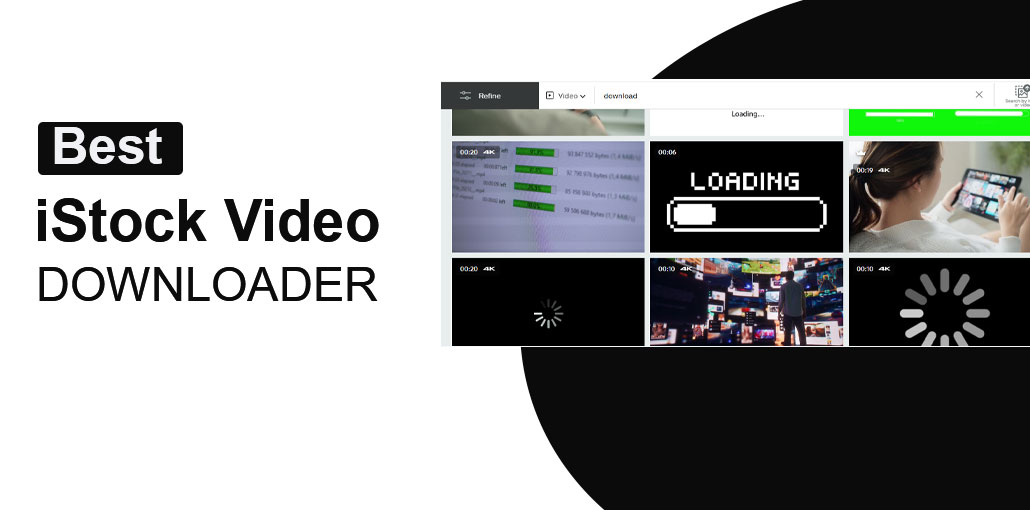
iStock is among the most well-known high-quality stock platforms used by marketers, creators, and businesses worldwide. It provides a huge selection of professional-quality visual content. For full-resolution and watermark-free images, users generally must buy a paid subscription or redeem credits.
We’ll discuss what iStock video downloaders are and how the download method works, and then recommend the best iStock video downloaders so you can get iStock pictures and videos in HD and even 4K resolution.
Quick Comparison
| Downloader | iStock Video Support | Best For |
|---|---|---|
| Fetchpik | Yes | Simple iStock video downloads |
| ExpertsPHP | Yes / needs testing | Multiple stock-media tools |
| ExpertsTool | Yes | iStock video and photo downloads |
| StepToDown | Limited / verify video support | iStock-related downloads |
| GetFilePic | Yes | HD/4K iStock videos |
5 Best iStock Video Downloaders in 2026
1. Fetchpik iStock Video Downloader
Fetchpik is one of the more straightforward options on this list. The service has a dedicated iStock Videos Downloader page where users can enter an iStock video URL.
The site currently advertises support for iStock videos in HD resolutions, including 720p and 1080p.
How to use Fetchpik
- Open iStock and find the video you want to check.
- Copy the video’s URL.
- Open the Fetchpik iStock video downloader.
- Paste the URL into the input box.
- Start the download process.
- If the tool generates an available file, select the desired download option.
Pros
- Dedicated iStock video downloader
- Simple URL-based process
- Supports HD video according to its current page
- Easy interface
Cons
- Third-party service
- Availability can change
- You still need the appropriate rights to use the footage
Best for: Users looking for a simple URL-based iStock video downloader.
Also read: GettyImages Downloaders: 10 Best Tools for Easy Downloads
2. ExpertsPHP iStock Video Downloader
ExpertsPHP is another third-party downloader website that provides several media-downloading tools.
Its website currently includes tools for various stock media platforms and video services. Because its tool lineup can change, it is worth checking the available iStock option before relying on it for a particular video.
How to use ExpertsPHP
The general process is straightforward:
- Copy the iStock video URL.
- Open the relevant ExpertsPHP downloader.
- Paste the URL.
- Submit the link.
- Check whether a downloadable video result is generated.
Pros
- Multiple downloader tools in one website
- Simple URL-based workflow
- Useful if you work with different media platforms
Cons
- Individual downloader availability can change
- iStock video support should be tested before relying on it
- Third-party service
Best for: Users who want one website with multiple media downloader options.
3. ExpertsTool iStock Video Downloader
ExpertsTool is one of the strongest matches for this list because it currently has a dedicated iStock Video and Photo Downloader.
The tool specifically mentions iStock videos, photos, vectors and related content. This makes it more relevant to an iStock video downloader list than general-purpose downloading websites.
How to use ExpertsTool
- Go to the ExpertsTool iStock downloader.
- Copy the URL of the iStock video.
- Paste the URL into the downloader.
- Click the download/submit button.
- Choose an available video result if one is generated.
Pros
- Dedicated iStock downloader
- Supports video and photo URLs
- Simple interface
- Specifically designed around iStock content
Cons
- Third-party service
- Results can vary depending on the iStock URL
- Licensing still applies
Best for: People who need an iStock-specific downloader rather than a general video downloader.
4. StepToDown iStock Downloader
StepToDown is another service worth testing, although it comes with an important qualification.
Its current public iStock page provides an iStock downloader, but the page focuses heavily on HD image downloading. StepToDown also promotes access to iStock and Getty video-related functionality through its broader service.
Because of this, we recommend manually checking the current video functionality before treating StepToDown as a dedicated free iStock video downloader.
How to test StepToDown
- Copy an iStock video URL.
- Open the StepToDown iStock downloader.
- Paste the URL.
- Submit it.
- Check whether the service produces a video result rather than an image result.
Pros
- iStock-specific service
- Simple interface
- Supports iStock-related downloads
Cons
- Public iStock page currently emphasizes images
- Video availability may depend on the current service/portal
- Some functionality may require premium access
Best for: Users who want to test another iStock-compatible downloader.
5. GetFilePic iStock Video Downloader
GetFilePic is another interesting option because it has a dedicated page specifically titled iStock Video HD/4K Downloader.
The service explains that users can copy an iStock video URL, paste it into the tool, and generate a downloadable result.
How to use GetFilePic
- Find the iStock video you want to check.
- Copy its URL.
- Open the GetFilePic iStock Video Downloader.
- Paste the URL.
- Start the processing.
- Check the available download result.
Pros
- Dedicated iStock video page
- Advertises HD/4K support
- URL-based workflow
- Specifically targets iStock video
Cons
- Third-party service
- Availability can change
- Not every iStock URL is guaranteed to produce the same result
Best for: Users specifically looking for HD or 4K iStock video support.
Also read: Top 10 Free Video Downloaders: Downloading Videos From the Internet
Which iStock Video Downloader Is Best?
If you want to try these tools yourself, Fetchpik and ExpertsTool are the two I’d test first because both currently have dedicated iStock video downloader pages.
GetFilePic is another strong candidate, particularly if you’re looking for an HD/4K option.
ExpertsPHP is useful as a broader downloader platform, while StepToDown should be treated as a tool to test because its public iStock page currently focuses more on images than videos.
What to Check Before Using an iStock Video Downloader
- Does it accept the current iStock URL?
- Does it actually return a video rather than an image?
- What resolution is available?
- Does it require an account?
- Does it redirect to another website?
- Does it ask you to install software?
- Does it produce a preview or the licensed original?
- Is the downloaded file actually playable?
- Are there usage/licensing restrictions?
Final Verdict
Finding a working iStock video downloader isn’t as simple as choosing the first website appearing in search results. Some services support images but not videos, while others change the tools available over time.
FAQs About iStock Video Downloaders
What is an iStock video downloader?
An iStock video downloader is an online tool that claims to let users download video content from an iStock video URL. Third-party tools can vary in availability and functionality.
Can I download iStock videos for free?
Yes, some third-party tools like Fetchpik, ExpertsTool, and GetFilePic may allow free downloads, but you still need the proper iStock license to legally use the video.
Why isn't an iStock video downloader working?
A downloader may stop working because iStock changes its website, the URL format isn't supported, the video is unavailable, the service is temporarily down, or the tool only supports certain types of iStock content.
What should I do if one iStock downloader doesn't work?
Try another tool from the list and test the same iStock URL. Because third-party downloaders can change frequently, it's a good idea to verify the tool immediately before using it.







Leave a comment