

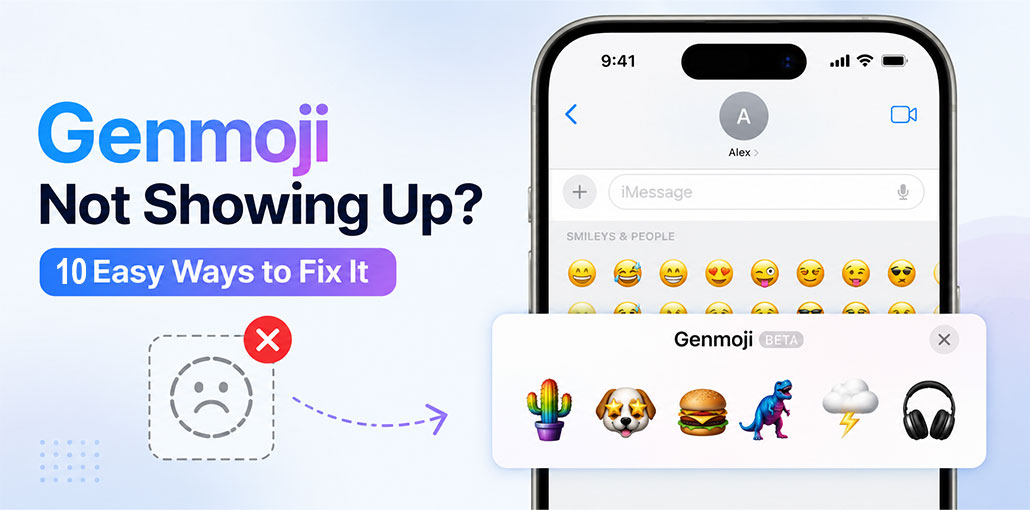
Are you trying to create a custom Genmoji, but Genmoji not showing up on your iPhone? You’re not alone. Genmoji not working or missing from the emoji keyboard, unavailable when creating an emoji, or failing to generate properly.
The good news is that several simple troubleshooting steps can usually solve the Genmoji not showing up issue.
In this guide, we’ll explain why Genmoji not showing up and walk you through the best ways to get Genmoji working again.
Why Is Genmoji Not Showing Up?
If Genmoji is missing from your iPhone, one of these could be the reason:
- Your iPhone doesn’t support Apple Intelligence.
- Your iOS version is outdated.
- Apple Intelligence is turned off.
- Apple Intelligence models haven’t finished downloading.
- Your iPhone doesn’t have enough available storage.
- Your device and Siri languages don’t match.
- Your current language or region isn’t supported for the feature.
- The Emoji keyboard isn’t configured correctly.
- A temporary iOS or keyboard glitch is preventing Genmoji from appearing.
- Screen Time or other restrictions may be blocking image creation features.
Let’s go through each solution.
Genmoji Not Showing Up? 10 Ways to Fix It on iPhone
1. Check If Your iPhone Supports Genmoji
Before changing any settings, make sure your iPhone actually supports Genmoji.
Genmoji is powered by Apple Intelligence, so Genmoji not available on every iPhone.
Apple currently lists these iPhones as compatible with Apple Intelligence:
iPhone 15 Pro
iPhone 15 Pro Max
iPhone 16 models and later
Apple Intelligence is also available on certain iPad and Mac models, but compatibility requirements differ by device.
If you have an older iPhone that isn’t compatible with Apple Intelligence, Genmoji won’t appear regardless of how many times you restart the device.
Quick check: Go to Settings → General → About and check your iPhone model.
Also read: iCloud Music Library Not Showing Up? 4 Quick Solutions Explained
2. Make Sure Apple Intelligence Is Turned On
One of the first things to check when Genmoji not showing up is Apple Intelligence.
- Open Settings
- Tap Apple Intelligence & Siri
- Make sure Apple Intelligence is enabled
- If you recently turned it on, wait for the required models to download
If you’ve recently disabled Apple Intelligence, the required on-device models may also need to download again after you turn it back on.
3. Update Your iPhone to the Latest iOS Version
An outdated version of iOS can prevent newer Apple Intelligence features from appearing or working correctly.
Go to:
Settings → General → Software Update
If an update is available, install it.
Apple recommends using the latest available software to access the most recent Apple Intelligence features.
After the update finishes, restart your iPhone and check the emoji keyboard again.
4. Give Apple Intelligence Time to Download
This is an easy step to overlook.
After you enable Apple Intelligence or update your iPhone, Apple Intelligence models may need to download to your device.
Apple recommends keeping your device connected to Wi-Fi and power while the models are downloading. Download time can vary depending on your connection and device.
So, if you just enabled Apple Intelligence and Genmoji not showing up, give your iPhone some time before assuming something is wrong.
5. Check Your iPhone’s Available Storage
Apple currently lists 7 GB of device storage as a system requirement for Apple Intelligence on supported devices.
To check your storage:
Settings → General → iPhone Storage
If your iPhone is nearly full, free up some space by removing apps, videos, downloads, or other unnecessary files.
Then restart your iPhone and check whether Genmoji appears.
6. Check Your Emoji Keyboard
A keyboard configuration problem can also make emoji-related features harder to access.
Go to:
Settings → General → Keyboard → Keyboards
Make sure the Emoji keyboard is installed.
You can also open a text field and switch between your available keyboards using the Emoji or Next Keyboard button.
Once you’re on the Emoji keyboard, check the top-right area for Genmoji.
Apple’s keyboard documentation confirms that Genmoji is accessed through the Emoji keyboard when Apple Intelligence is enabled.
7. Restart Your iPhone
If everything looks correct but Genmoji not showing up, restart your iPhone.
A restart can clear temporary system or keyboard glitches.
After restarting:
- Open Messages or another app with a text field.
- Open the Emoji keyboard.
- Look for the Genmoji button.
- Try creating a Genmoji.
If it still doesn’t appear, move on to the next solution.
Also read: iPhone Keeps Turning On and Off? Here Are 6 Easy Fixes
8. Check Your Region and Feature Availability
Apple Intelligence isn’t necessarily identical across every device, language, and region.
Apple says feature availability can vary by platform, language, and region.
If you’re traveling, recently changed your Apple Account region, or changed your device language, check whether Apple Intelligence and Genmoji are supported in your current configuration.
For users in the European Union, Apple says most Apple Intelligence features are available on supported iPhones and iPads with iOS 18.4 or later. Apple also lists separate availability conditions for mainland China.
9. Check for Restrictions That Could Block Genmoji
If Genmoji used to work and suddenly disappeared, check whether restrictions have been enabled on your device.
Apple provides Screen Time controls that can restrict access to image creation features such as Genmoji.
Check:
Go to Settings → Screen Time
Review any content and privacy restrictions that may affect Apple Intelligence or image creation.
If the iPhone is managed by a parent, school, or organization, restrictions may also be controlled externally.
10. Reset the Keyboard Dictionary
If you’ve checked compatibility, Apple Intelligence, language, storage, and keyboard settings and Genmoji not appearing, you can try resetting the keyboard dictionary.
Go to:
Settings → General → Transfer or Reset iPhone → Reset → Reset Keyboard Dictionary
Keep in mind that resetting the keyboard dictionary removes custom words and keyboard shortcuts you’ve added.
Final Thoughts
If Genmoji not showing up on your iPhone, start by checking device compatibility, updating iOS, and enabling Apple Intelligence. Make sure your language settings are supported, connect to Wi-Fi and power, and check your Emoji keyboard. These simple troubleshooting steps should help you get Genmoji working again.
FAQs: Genmoji not showing up
Why is Genmoji missing from my keyboard?
Genmoji is accessed through the Emoji keyboard. Check Settings → General → Keyboard → Keyboards and make sure the Emoji keyboard is enabled. Then open the Emoji keyboard and look for Genmoji.
Why is Genmoji not showing up after restarting my iPhone?
A restart can fix temporary glitches, but it won't solve compatibility or availability problems. If Genmoji is still missing, check your iPhone model, iOS version, Apple Intelligence settings, language, and storage.
I have an iPhone 15 Pro, so why is Genmoji not showing up?
The iPhone 15 Pro supports Apple Intelligence, but Genmoji can still be unavailable if Apple Intelligence is turned off, the required models haven't downloaded, or your language settings aren't supported.
Can I use Genmoji without an internet connection?
Apple Intelligence performs many features on-device, but an internet connection may be needed while required Apple Intelligence models are initially downloading. Keeping your iPhone connected to Wi-Fi during setup is recommended.









Leave a comment