

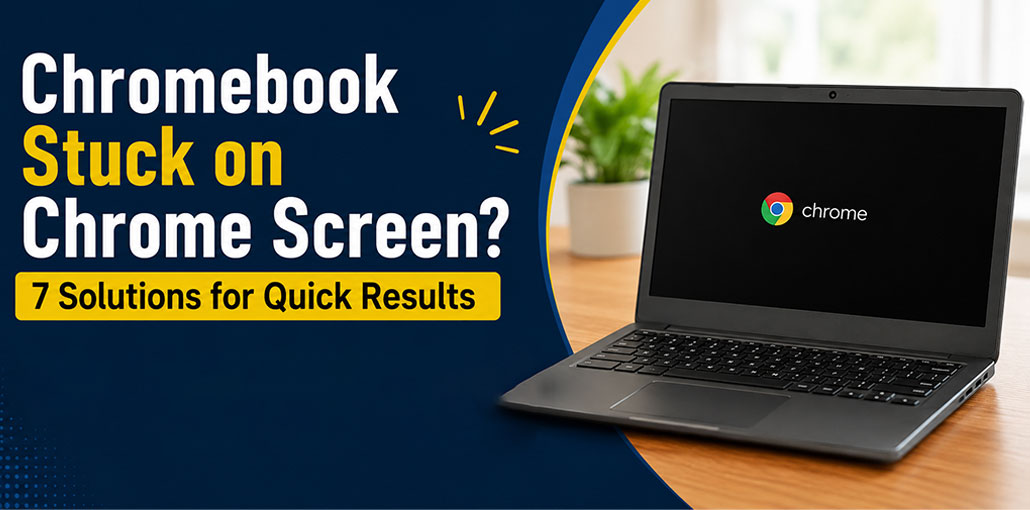
Chromebooks are generally reliable, but they can sometimes have unexpected issues, including startup problems. Recently, many users reported a Chromebook Stuck on Chrome screen issue. Don’t panic. In this blog, we provide easy solutions to fix the Chromebook Stuck on screen issue.
Why Is My Chromebook Stuck on Chrome Screen?
Before trying advanced solutions, it helps to understand what may be causing the problem.
Common reasons include:
- A temporary ChromeOS software glitch
- An incomplete or failed system update
- Low or completely drained battery
- Connected USB devices causing startup problems
- A frozen system process
- Corrupted ChromeOS files
- Hardware or storage problems
- Problems after installing an update or extension
In many cases, a simple restart or hardware reset can resolve the issue.
Also read: Why Is My Chromebook So Slow? 9 Proven Fixes to Speed It Up
How to Fix a Chromebook Stuck on Chrome Screen
1. Wait a Few Minutes
Sometimes a Chromebook takes longer to start, especially after a ChromeOS update. If your Chromebook Stuck on Chrome Screen problem appears during startup, give the device a few minutes before trying other solutions.
Steps:
- Connect your Chromebook to the charger.
- Leave it on the Chrome screen for 5–10 minutes.
- Avoid pressing the Power button repeatedly.
- If it is still frozen, try the next method.
2. Unplug All Accessories
Connected accessories can sometimes interfere with the Chromebook startup process. If your Chromebook Stuck on Chrome Screen issue is caused by a USB device, SD card, or another accessory, unplugging everything before restarting may help.
Steps:
- Turn off your Chromebook.
- Unplug all USB devices and accessories.
- Remove the SD card if one is inserted.
- Disconnect external keyboards, mice, and other devices.
- Turn on your Chromebook again.
- Check whether it starts normally.
3. Force Shut Down and Restart
A temporary ChromeOS glitch may cause the freeze Chromebook screen on startup. A force restart can clear the temporary issue and allow the system to boot normally.
Steps:
- Press and hold the Power button.
- Keep holding it until the Chromebook turns off.
- Wait a few seconds.
- Press the Power button again.
- Wait for the Chromebook to start.
4. Perform a Chromebook Hardware Reset
If the Chromebook is frozen, performing a hardware reset can help resolve certain startup and hardware-related problems. This method is useful when the normal restart doesn’t work.
Steps:
- Turn off the Chromebook.
- Press and hold the Refresh key.
- While holding Refresh, briefly press the Power button.
- Release the Refresh key when the Chromebook starts.
- Check whether the device gets past the Chrome screen.
5. Charge the Chromebook and Try Again
A very low battery can prevent your Chromebook from starting properly. Charging the device before restarting it can solve startup problems caused by insufficient power.
Steps:
- Connect the Chromebook to a compatible charger.
- Check whether the charging indicator turns on.
- Leave it charging for 15–30 minutes.
- Press the Power button.
- Check if the Chromebook starts normally.
Also read: Chromebook Not Charging: 10 Proven Ways to Fix the Problem
6. Reinstall ChromeOS on Your Chromebook
If corrupted ChromeOS files are causing the problem, reinstalling ChromeOS may fix the startup issue. ChromeOS Recovery can repair the operating system, but it may erase locally stored data.
Steps:
- Turn off the Chromebook.
- Press and hold Esc + Refresh.
- Press the Power button while holding the keys.
- Release the keys when the Recovery screen appears.
- Follow the on-screen recovery instructions.
- Allow ChromeOS to reinstall completely.
Note: Recovery can erase local files, so back up important data whenever possible.
7. Powerwash the Chromebook
Powerwash resets the Chromebook to its factory settings and can fix persistent software or Chromebook hang problems. Because this process removes local data and settings, use factory reset only after trying the simpler solutions.
Steps:
- Open your Chromebook’s settings if you can access ChromeOS.
- Go to Settings > Advanced > Reset settings.
- Select Powerwash.
- Choose Restart.
- Follow the on-screen instructions.
- Set up your Chromebook again after the reset.
Prevent Tips
You can reduce the chances of your Chromebook getting stuck during startup by following a few simple habits.
- Keep ChromeOS updated.
- Don’t interrupt system updates.
- Keep important files backed up.
- Use a compatible charger.
- Disconnect unnecessary USB devices.
- Keep enough free storage space.
- Restart your Chromebook occasionally.
Conclusion
A Chromebook Stuck on Chrome Screen can be frustrating, but it’s often repairable with simple solutions such as force-restarting it or unplugging all external accessories. If the problem continues, try resetting or reinstalling ChromeOS, as these two methods could get your device working again quickly. By following these steps to fix the Chromebook stuck on Chrome screen issue, you should restore normal operation quickly.
FAQs: Chromebook Stuck on Chrome Screen
Why is my Chromebook stuck on Chrome screen and not starting?
If your Chromebook is stuck on the Chrome screen, it may be caused by a temporary ChromeOS glitch, a failed update, low battery, or a connected USB device. Try charging it, disconnecting accessories, and force-restarting the Chromebook first.
My Chromebook is frozen on the Chrome logo. What should I try first?
Start with the simplest fixes. Connect the Chromebook to its charger, unplug USB devices and SD cards, and then hold the Power button until the device shuts down. Turn it back on and check whether it gets past the Chrome logo.
How do I recover a Chromebook that is completely stuck?
If basic troubleshooting does not work, you can enter the ChromeOS Recovery screen by turning off the Chromebook and pressing Esc + Refresh, then pressing the Power button. Follow the recovery instructions shown on the screen. Keep in mind that recovery can erase locally stored data.
When should I get professional help for a Chromebook stuck on Chrome screen?
If your Chromebook repeatedly freezes on the Chrome screen after restarting, hardware resetting, and attempting ChromeOS Recovery, professional support may be necessary. This is especially important if the device shows signs of storage, charging, display, or other hardware problems.






Leave a comment