

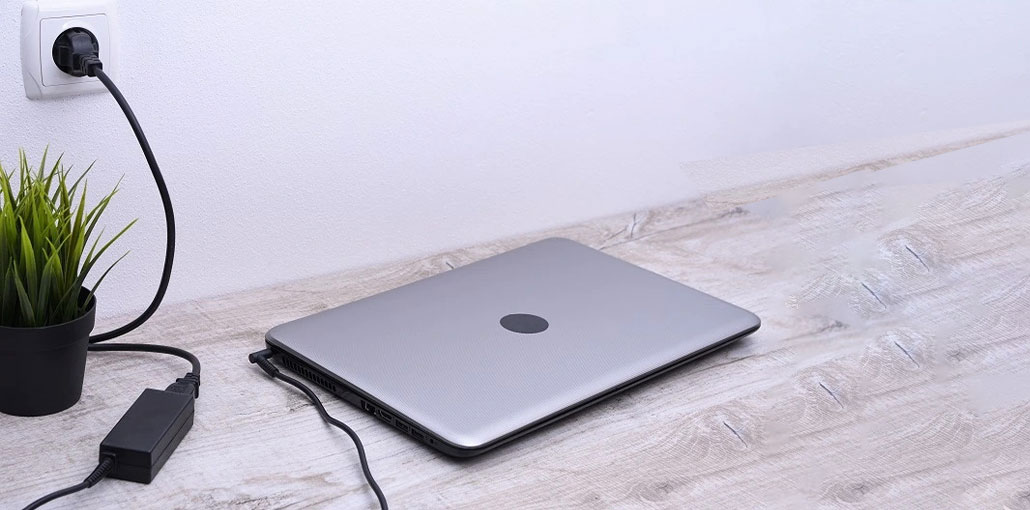
Chromebooks are still the most popular choice for students or those with a limited budget. ChromeOS is user-friendly, does the job, and can run Android applications because of its integration with the Android system. The perfect ChromeOS experience may turn upside down if your Chromebook charger fails to charge. Here are the best solutions to solve your Chromebook not charging issue.
Most Chromebooks have a small battery life due to the efficient ChromeOS. However, you will need to charge your laptop after a short time. A Chromebook that isn’t charging could affect your study hours or other tasks. Let’s look into the problem.
Why Is My Chromebook Not Charging?
There are several possible reasons behind a Chromebook not charging issue, including:
- Damaged charging cable
- Faulty power adapter
- Dirty or damaged charging port
- Software glitches
- Battery deterioration
- Power outlet problems
- Overheating issues
- Outdated ChromeOS
Identifying the exact cause can save both time and money.
Also read: Why Is My Chromebook So Slow? 9 Proven Fixes to Speed It Up
10 Ways to Fix Chromebook Not Charging Issue
1. Check the Power Source and Adapter
Let’s go over some basic information first. You must check whether the power source is working. If it’s not working, switch it back on again and test it. You may also test the adapter that came with it on another device. If your Chromebook charger not working, then it’s time to buy a new adapter from a local store or online.
2. Check the Charging Cable
This is another important aspect you must check before making any modifications to the Chromebook. You should check the charging cable; if it has significant damage or a cut on either end, replace it with a new cable and check again if your Chromebook not charging issue is solved.
3. Inspect the Charging Port
Modern Chromebooks have a variety of USB-C ports for you to use. If one port isn’t working, switch to a different one and then charge your device.
4. Restart Chromebook
Most Chromebook users will put their laptops to sleep, so it’s ready for use within a few minutes. You should restart your Chromebook to ensure that the device is operating smoothly.
5. Run EC Reset
It’s a different method to solve a battery that isn’t charging. EC (Embedded Controller) reset is a hard reset that resets all software and hardware settings. Connect your Chromebook to a power adapter and then try the methods below.
- Turn off your Chromebook completely.
- Connect the charger.
- Press and hold the Refresh key.
- While holding Refresh, press and hold the Power button.
- Hold both buttons for about five seconds.
- Release the buttons when the Chromebook starts.
6. Allow the Chromebook to Cool Down
If your Chromebook is overheating due to high usage, it may not be charging to prevent damage to internal parts. You should let the Chromebook cool down and charge it after some time.
7. Adjust Power Settings
If your Chromebook does not remain idle in sleeping mode, then it can drain the battery and won’t fully charge when the lid is shut. It is necessary to alter the power settings of your laptop.
- Open Settings.
- Navigate to Device.
- Select Power.
- Enable the option to put the Chromebook to sleep when the lid is closed.
8. Check the Battery Health
ChromeOS includes an integrated diagnostic tool that can examine the battery’s health. You can use the charge test to verify the battery’s health, charging cycles, capacity, and current battery.
- Open the Chrome browser.
- Type chrome://diagnostics in the address bar.
- Press Enter.
- Review battery health and charging status.
If your battery health is below 70 percent, then you might need to replace it.
9. Update ChromeOS
An outdated ChromeOS version could cause problems with charging your laptop. You must update ChromeOS to the latest version.
- Open Settings.
- Go to About ChromeOS.
- Click Check for Updates.
- Download and install any available updates.
- Restart the Chromebook after the update is complete.
Also read: Why Chromebook Won’t Connect to WiFi? Easy Fix Guide for 2026
10. Reset Chromebook
Are you having issues when charging your Chromebook? It’s time to reset your system to start over.
- Open Settings.
- Select Reset Settings.
- Click Reset.
- Follow the on-screen instructions to complete the process.
Final Thoughts
Chromebook not charging can ruin your mood and result in your laptop dying. Before going to the nearest repair center, follow the steps above to resolve the Chromebook not charging issue. While you’re at it, tell us about the method that worked for you.
FAQs: Chromebook Not Charging
What battery health percentage is considered bad on a Chromebook?
If battery health falls below 70%, you may notice reduced battery life and charging issues. At this point, battery replacement is often recommended.
Why is my Chromebook charging slowly?
Slow charging can occur due to a low-power charger, damaged cable, overheating, or running multiple resource-intensive apps while charging.
What is an EC reset on a Chromebook?
An EC (Embedded Controller) reset is a hardware reset that can fix charging, battery, and power-related issues by resetting the Chromebook's controller.
Can third-party chargers cause Chromebook not charging problems?
Yes. Low-quality or incompatible chargers may not provide the correct power output, leading to charging issues or slow charging speeds.








Leave a comment