

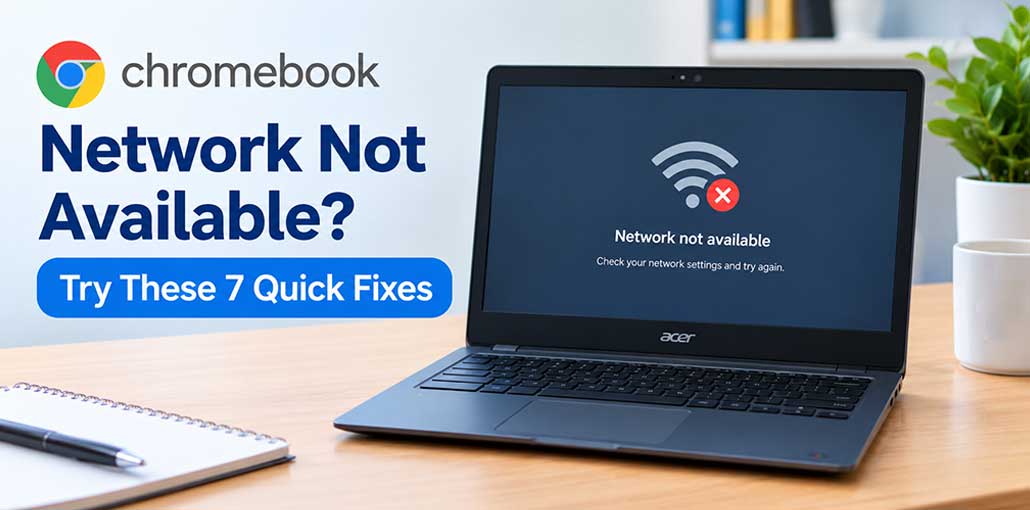
Similar to other devices and operating systems, Chromebooks are also prone to problems. Although these issues may be caused by hardware or software, the likelihood that the issue you’re dealing with is a software issue is fairly high. The most frequently encountered problems on Chromebooks are network issues, particularly those that result in the “Network not Available” error. Here’s how to solve the Chromebook Network Not Available issue.
Why Does My Chromebook Say “Network Not Available”?
Before trying Chromebook network not available fixes, it’s useful to understand what may be causing the problem.
Common causes include:
- Wi-Fi is turned off on the Chromebook
- Incorrect Wi-Fi password
- Temporary ChromeOS network glitch
- Router or modem problems
- Weak or unstable Wi-Fi signal
- Saved network profile is corrupted
- Outdated ChromeOS
- Problems with the Chromebook’s network adapter
- Network restrictions on a school or work Chromebook
- Issues with the internet service provider
Try the solutions below one at a time.
Also read: Mobile Network Not Available on Android? Try These 10 Fixes
How To Fix Chromebook Network Not Available Issue
There are some fixes you can try to resolve this problem. But these solutions won’t work in all cases because they are based on the severity of the issue. Let’s start with options that you can use to fix the Chromebook Network Not Available issue.
Check Your Password
If your Chromebook not connecting to internet or your WiFi because you entered the wrong password. So verify that you entered the right password. To confirm, log in to your router’s administrator panel on your phone or laptop and verify the password you’ve set to connect other devices. Then, you can enter the correct password on your Chromebook and test whether it works.
Enable Network Sharing
If you’re not enabling network sharing mode on your Chromebook, it is recommended to enable it to fix the network not available error. Yesterday, I had an exchange with one of our users via the Quora forum. He told me that he had the same problem, but he accidentally turned on the network sharing mode, and then the error was gone.
Steps:
- Open Settings on your Chromebook.
- Go to Network.
- Select the connection you want to use.
- Check the available network sharing options.
- Enable the relevant sharing setting.
- Try connecting to the network again.
Restart Your Chromebook
We are sorry if the issue persists with your Chromebook. This doesn’t mean we don’t have an issue. Sometimes, an unintentional glitch or bug can cause the issue. To fix the Chromebook network not available issue, you can remove these temporary files or bugs on your Chromebook. To do this, simply restart your Chromebook. Reboot it, and then check whether the network not available issue has been resolved.
Power Cycle Your Router
First, check whether your internet is working or not. Many users ignore this most often. So, it’s crucial to determine whether your WiFi connection is running at a proper speed. To test it, go to the Ookla speed test website and check your internet speed. If you get a slow speed, restart your router to see whether it helps.
Try an Ethernet Connection
If you’ve noticed that your WiFi router has slower speeds than usual. So use an Ethernet cable if you can. Some users have claimed that this can solve the problem after using an Ethernet cable or adapter
Also read: Chromebook Stuck on Chrome Screen? Try These 7 Fixes
Use a Different Wi-Fi Connection
If your internet is still failing and you can’t resolve the Chromebook Network Not Available issue, try connecting to different Wi-Fi networks. You can use mobile hotspots to test the internet connection. If the Chromebook still cannot connect, it may be related to either network provider.
Try Guest Mode
If nothing fixes the Chromebook network not available issue, we suggest you log in as a guest and see whether it helps. Many users have reported that this has helped them solve network not available errors.
FInal word
These are solutions to help you resolve the Chromebook network not available issue. We hope this guide helps. If you are still unable to connect after trying all the methods, consider visiting the nearest service center. If you found a solution that worked, please let us know in the comment section which method worked for you.
FAQs: Chromebook Network Not Available
Why is my Chromebook connected to Wi-Fi but has no internet?
The Chromebook may be connected to your router while the router itself has no internet access. Check another device on the same network and restart your router. If other devices also have no internet, contact your internet provider.
Why can't my Chromebook find any Wi-Fi networks?
If no networks appear at all, check that Wi-Fi is enabled and restart the Chromebook. Try moving closer to a router or testing a mobile hotspot. If no networks are detected anywhere, further software or hardware troubleshooting may be required.
Does restarting the router help when a Chromebook cannot connect?
Yes. Restarting the router can clear temporary connection problems and re-establish communication with your Chromebook. Turn off the router, wait briefly, turn it back on, and then try connecting again.
What should I do if Chromebook Network Not Available keeps appearing?
If the message keeps appearing after restarting your Chromebook and router, try forgetting and reconnecting to the Wi-Fi network, installing available ChromeOS updates, and testing another network. If the Chromebook cannot connect anywhere, professional hardware inspection may be necessary.







Leave a comment