

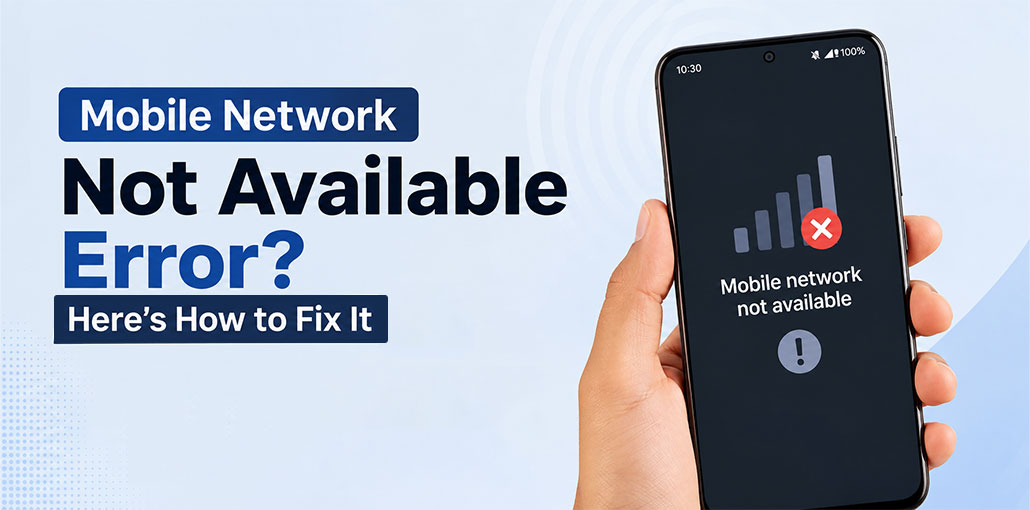
If your phone shows a “mobile network not available” message, it is a huge issue on smartphones, as the purpose is to make calls and access the internet without a router. There’s a lot you can do when the error occurs. It’s not always true, and this guide will help you get back on track.
Why Does Mobile Network Not Available Happen?
There isn’t always one specific reason for a network connection problem. Your phone needs to register with your carrier’s network before you can use cellular services. If that registration fails, the device may show a network error.
Some common causes include:
- Poor cellular coverage
- Temporary network outage
- Loose or damaged SIM card
- Incorrect network operator selection
- Unsupported network mode
- Outdated phone software
- Roaming-related problems
- Incorrect network configurations
- SIM or account restrictions
Before trying advanced solutions, start with the simple fixes below.
Also read: Why Is My Hotspot Not Working? 7 Proven Fixes for Android
How to Fix Mobile Network Not Available on Android
1. Restart Your Phone
If you see mobile network not available, start by restarting your phone. A quick reboot can clear a temporary glitch and help your phone reconnect to your carrier.
Try this:
- Press and hold the Power button.
- Tap Restart.
- Wait for the phone to turn on.
- Check your signal and try making a call.
2. Turn Airplane Mode On and Off
Sometimes your phone simply needs to reconnect to the network. If mobile network not available appears suddenly, turning Airplane Mode on and off can refresh the connection.
Swipe down from the top, turn Airplane Mode on, wait 10–15 seconds, and turn it off again. Give your phone a few seconds to find the network.
3. Check Your Network Coverage
Your location could be the reason for the problem. Weak coverage inside buildings, basements, elevators, or remote areas can cause mobile network not available to appear.
Move somewhere with better reception and check whether your signal improves. If people using the same carrier also have no service, there may be an outage.
4. Remove and Reinsert the SIM Card
A loose or damaged SIM can stop your phone from connecting to the carrier. If you see cellular network not available, take the SIM out and check that it isn’t damaged or dirty.
Reinsert it properly, restart your phone, and check the connection again. If the SIM still doesn’t work, contact your carrier.
5. Select Your Network Operator Manually
Your phone usually chooses the carrier automatically, but that doesn’t always work correctly. If mobile network not available stays on the screen, try selecting your network manually.
Go to Settings → Mobile Network → Network Operators, turn off automatic selection, and choose your carrier from the available networks.
6. Change the Preferred Network Type
Sometimes the selected network mode isn’t working well in your area. If you’re dealing with mobile network not available, check your phone’s preferred network type.
Go to your mobile network settings and look for Network Mode or Preferred Network Type. If 5G isn’t working properly, try 4G/LTE if your carrier supports it.
7. Check Roaming Settings
Are you traveling? Roaming may need to be enabled for your phone to connect to another supported network. In this situation, mobile network not available can appear even when your phone is working normally.
Check your carrier’s roaming policy before enabling it, especially when traveling internationally, as extra charges may apply.
Also read: Phone Not Registered on Network Error ? 9 Quick Solutions for Android
8. Update Your Phone
An outdated system can sometimes cause network problems. If mobile network not available keeps appearing, check whether a software update is available.
Go to Settings → System → Software Update and install any available update. Restart your phone afterward and check the connection.
9. Reset Network Settings
If nothing has worked so far, try resetting your network settings. This can fix incorrect settings that are preventing your phone from connecting properly.
If mobile network not available continues, go to Settings → System → Reset Options and look for Reset Wi-Fi, Mobile & Bluetooth.
Remember that this may remove saved Wi-Fi networks and Bluetooth connections.
10. Contact Your Mobile Carrier
If you’ve tried everything and still have no mobile network, the problem may be with your carrier. They can check for an outage, SIM issue, account restriction, or coverage problem.
If you’re seeing cellular network not available for voice calls, contact your carrier to check whether your voice service or SIM registration needs attention.
Conclusion
These are some of the most effective solutions for fixing mobile network not available on Android phones. We hope one or more will help you get your connection quickly. If this issue arises, try these solutions one at a time until one works for your phone.
FAQs: Mobile Network Not Available
Why does my network work outside but not inside my house?
Buildings, thick walls, metal structures, and your location can weaken cellular signals. Try moving near a window or going outside to see whether reception improves.
Does resetting network settings improve signal strength?
A network reset doesn't increase the actual signal strength in an area. However, it can fix incorrect network configurations that prevent your phone from connecting properly.
My phone has signal bars, but I still can't make calls. What should I do?
Try switching Airplane Mode on for a few seconds and then turning it off. You can also check your network mode and restart your phone. If calls still don't work, your carrier may need to check your SIM or account.
Should I factory reset my phone if the network isn't working?
Not immediately. A factory reset erases your personal data and settings, so try restarting, checking the SIM, changing network settings, and resetting network settings first.









Leave a comment