

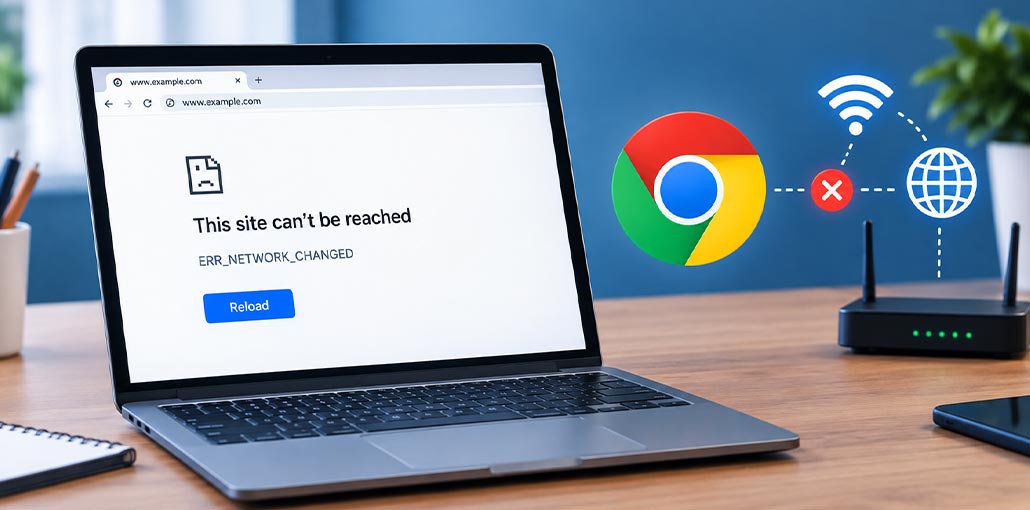
Getting the ERR_NETWORK_CHANGED error in Chrome can be frustrating, especially when your internet seems to be working normally. The message appears when Chrome detects a change in your network while a webpage is loading. Wi-Fi interruptions, router problems, DNS issues, VPNs, or network settings can all be responsible.
If the problem doesn’t go away, the fixes below can help you troubleshoot ERR_NETWORK_CHANGED without making complicated system changes.
What Does ERR_NETWORK_CHANGED Mean?
The ERR_NETWORK_CHANGED message means Chrome noticed that your network changed while trying to load a website. Your Wi-Fi may have briefly disconnected, your IP address may have changed, or your computer may have switched between network connections.
When Chrome detects this change, it interrupts the current request and displays the error instead of loading the page.
What Causes ERR_NETWORK_CHANGED?
Several network and browser issues can trigger the error.
- Unstable Internet — Frequent Wi-Fi drops can interrupt browsing.
- Router Issues — Temporary router or modem problems can disconnect your device.
- IP Changes — Your device may receive a new IP address while browsing.
- DNS Problems — Unreliable DNS settings can affect website access.
- Network Adapter — Wi-Fi or Ethernet issues can cause sudden changes.
- Proxy Settings — An incorrect proxy can interfere with Chrome.
- VPN Changes — Switching VPN servers can alter your network route.
- Chrome Cache — Outdated or corrupted cache data can cause problems.
Also read: How to Fix Your Connection Is Not Private Error in Chrome
How to Fix ERR_NETWORK_CHANGED?
Try the following fixes to resolve ERR_NETWORK_CHANGED. Start with the easier methods first, as you may not need to change any advanced settings.
1. Check Your Internet Connection
First, make sure your internet is actually stable. If your Wi-Fi disconnects for a few seconds and then reconnects, Chrome may detect that change and stop loading the page. Checking another website or device can help you quickly identify where the problem is.
Steps:
- Open another website in Chrome.
- Check whether other devices can access the internet.
- Make sure your Wi-Fi hasn’t disconnected.
- Move closer to the router if the signal is weak.
- If possible, try an Ethernet connection.
- Reload the affected webpage.
If other devices are also offline, the problem may be with your router or internet service.
2. Restart Your Router and Computer
A simple restart can clear temporary network problems that aren’t immediately obvious. Restarting the router creates a fresh network session, while restarting your computer can clear temporary network processes that may be interfering with browsing.
Steps:
- Close Chrome.
- Shut down your computer.
- Turn off your router or modem.
- Unplug it from the power source.
- Wait about 30 seconds.
- Plug the router back in.
- Wait until the internet is available again.
- Turn on your computer.
- Open Chrome and try the website again.
3. Reset TCP/IP Settings
If the basic solutions don’t work, the problem may be related to Windows network settings. Resetting TCP/IP refreshes the way Windows communicates with your network and can help when the error keeps appearing.
Steps:
- Press Windows + S.
- Search for Command Prompt.
- Right-click Command Prompt and select Run as administrator.
- Run these commands one at a time:
netsh int ip reset
ipconfig /release
ipconfig /renew
ipconfig /flushdns - Press Enter after each command.
- Restart your computer.
- Open Chrome and try loading the website again.
4. Change DNS Settings
DNS helps your computer find the correct server when you enter a website address. If your current DNS service is slow or unreliable, websites may not load properly. Switching to a trusted DNS service can help rule out DNS-related problems.
Steps:
- Press Windows + R.
- Type ncpa.cpl and press Enter.
- Right-click your active network connection.
- Select Properties.
- Choose Internet Protocol Version 4 (TCP/IPv4).
- Click Properties.
- Select Use the following DNS server addresses.
- Enter a trusted DNS service, such as:
Preferred DNS: 8.8.8.8
Alternate DNS: 8.8.4.4 - Click OK.
- Restart Chrome.
- Try opening the website again.
If this doesn’t help, you can switch back to Obtain DNS server address automatically.
5. Restart Your Network Adapter
Your network adapter manages the Wi-Fi or Ethernet connection on your computer. Sometimes it can temporarily stop responding correctly. Disabling and enabling it forces Windows to establish the connection again without changing your browser settings.
Steps:
- Press Windows + X.
- Select Device Manager.
- Expand Network adapters.
- Find your Wi-Fi or Ethernet adapter.
- Right-click the adapter.
- Select Disable device.
- Wait a few seconds.
- Right-click the adapter again.
- Select Enable device.
- Open Chrome.
- Try loading the website again.
6. Clear Chrome Cache
Chrome stores temporary files to help websites load faster. Sometimes these files become outdated or corrupted and can interfere with normal browsing. Clearing the cache can be especially useful if ERR_NETWORK_CHANGED started appearing after a browser update or when loading specific websites.
Steps:
- Open Chrome.
- Click the three dots in the top-right corner.
- Select Settings.
- Go to Privacy and security.
- Click Delete browsing data.
- Select Cached images and files.
- Choose your preferred time range.
- Click Delete data.
- Restart Chrome.
- Open the affected website again.
Also read: Fix ERR_CACHE_MISS in Chrome: 7 Easy Troubleshooting Methods
7. Disable Proxy Settings
A proxy changes how your computer communicates with websites. If it has been configured incorrectly, Chrome may struggle to maintain a stable connection. If you don’t normally use a proxy, disabling it temporarily can help determine whether it is causing the problem.
Steps:
- Press Windows + I.
- Open Network & Internet.
- Select Proxy.
- Review the available proxy settings.
- Turn off a manually configured proxy if you don’t need it.
- Close Settings.
- Restart Chrome.
- Try opening the website again.
If you’re using a work or school network, check with the administrator before changing proxy settings.
Final Thoughts
The ERR_NETWORK_CHANGED error can be annoying, but it’s usually not difficult to fix. Start by checking your internet and restarting your router. If the problem continues, try resetting TCP/IP, changing DNS settings, or restarting your network adapter.
Hopefully, one of these fixes gets Chrome back to normal. Try the fixes above one by one, and you should be able to get back to browsing without interruptions.
FAQs: ERR_NETWORK_CHANGED
Why does ERR_NETWORK_CHANGED happen on only one website?
If other websites are working normally, the problem may be specific to that site or the way your network connects to it. Try refreshing the page or restarting your router first.
Can a VPN cause ERR_NETWORK_CHANGED?
Yes. Switching VPN servers or reconnecting to a VPN can change your network route, which may cause Chrome to display the error.
Will clearing Chrome cache fix ERR_NETWORK_CHANGED?
Clearing cached files can help if outdated or corrupted browser data is contributing to the problem, although it won't fix every network-related cause.
Can restarting the router fix ERR_NETWORK_CHANGED?
Yes. Restarting the router can refresh your network and resolve temporary connection problems.






Leave a comment