

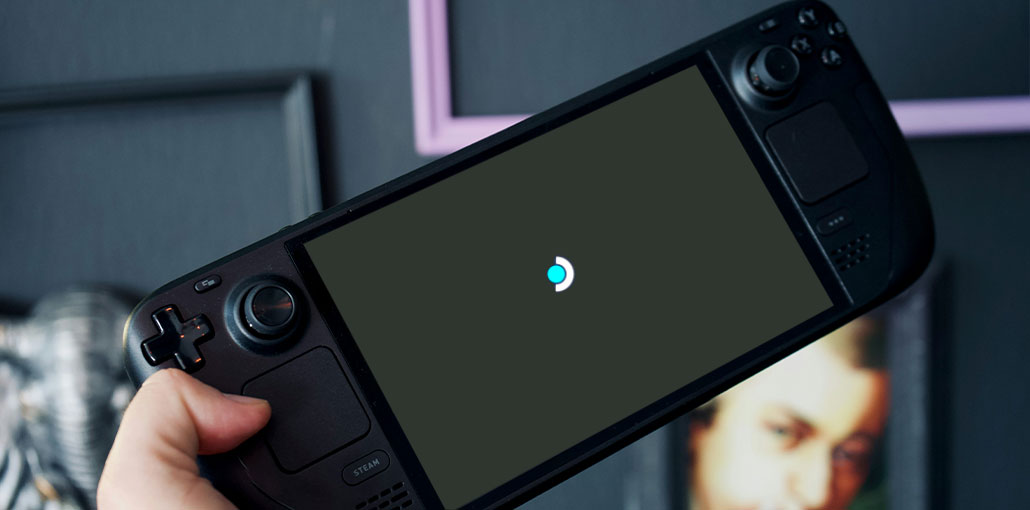
If your Steam Deck is stuck on logo and won’t load into SteamOS, you’re not alone. This problem can happen because of a temporary startup freeze, a SteamOS update, a problematic microSD card, connected accessories, or an issue with internal storage.
Seeing the Steam logo doesn’t necessarily mean your Steam Deck is permanently damaged. In many cases, you can troubleshoot the Steam Deck stuck on logo screen by starting with simple fixes and gradually moving to more advanced recovery options.
This guide explains how to fix a Steam Deck stuck on logo screen step by step, starting with the safest methods first.
Why Is My Steam Deck Stuck on Logo?
There isn’t always one specific reason for a Steam Deck stuck on logo screen. During startup, the device needs to complete its boot process, access internal storage, and load SteamOS. A problem at any of these stages can prevent it from reaching the normal Game Mode screen.
Common causes can include:
- A temporary SteamOS freeze
- An interrupted or failed SteamOS update
- Corrupted operating-system files
- Very low internal storage
- A damaged or corrupted microSD card
- A connected dock or USB device
- Software modifications
- SSD or internal-storage problems
- Battery or power-state issues
If the Steam Deck stuck on logo screen after an update, pay particular attention to the update and recovery methods below. If it happens randomly, checking your accessories, microSD card, and internal storage can help narrow down the cause.
Also read: Steam Deck Not Turning On? 8 Quick Solutions to Fix It Today
10 Ways to Fix Steam Deck Stuck on Logo Screen Issue
1. Wait Before Forcing a Shutdown
The first thing to do when your Steam Deck stuck on logo screen is surprisingly simple: wait.
If the problem happened after a system update, first startup, or another major system change, SteamOS may take longer than usual to complete its startup process.
Steps to follow
- Leave the Steam Deck on the Steam logo screen.
- Connect the charger if the battery may be low.
- Make sure you haven’t accidentally pressed any buttons.
- Give the device several minutes to complete the startup process.
- Watch for any change in the logo, screen, or loading process.
- If SteamOS eventually loads, allow the system to finish starting completely.
- If nothing changes after a reasonable amount of time, continue to the next method.
Don’t leave the device frozen indefinitely. If there is clearly no progress, a controlled force restart is the next step.
2. Force Restart the Steam Deck
A temporary operating-system freeze can make the Steam Deck stuck on logo, even when there isn’t a serious underlying problem. A force restart can clear that temporary state.
Steps to force restart
- Locate the Power button on the top of the Steam Deck.
- Press and hold the Power button.
- Continue holding it for approximately 10 seconds.
- Wait until the display turns completely off.
- Release the Power button.
- Wait a few seconds.
- Press the Power button once normally.
- Allow the Steam Deck several minutes to start.
- Check whether the SteamOS Game Mode screen appears.
If the Steam Deck starts normally after the restart, the problem may have been a temporary system freeze.
If it returns to the same logo and remains there, continue with the next troubleshooting method rather than repeatedly forcing it off.
3. Disconnect the Dock and USB Accessories
External accessories are another thing worth checking when troubleshooting a Steam Deck boot problem.
If you normally use your Steam Deck with a dock, USB hub, external monitor, or storage device, temporarily remove everything that isn’t required for the device to start.
Steps to follow
- Turn off the Steam Deck.
- Disconnect it from the docking station.
- Remove USB drives.
- Disconnect USB hubs.
- Disconnect your keyboard and mouse.
- Remove external display connections.
- Disconnect other USB-C accessories.
- Leave the Steam Deck by itself.
- Press the Power button.
- Wait for SteamOS to load.
If the Steam Deck starts normally after removing an accessory, shut it down again and reconnect your devices one at a time.
This can help identify whether a particular dock, USB device, or other accessory is contributing to the startup problem.
4. Remove the microSD Card
A microSD card is another component worth checking when your Steam Deck stuck on logo. A corrupted filesystem, damaged card, or storage-related issue can sometimes contribute to startup problems.
Removing the card is also a relatively simple troubleshooting step because it doesn’t require opening the Steam Deck.
Steps to remove and test the card
- Shut down the Steam Deck completely.
- Make sure the screen is completely off.
- Locate the microSD card slot.
- Press the microSD card gently to release it.
- Remove the card.
- Leave other accessories disconnected.
- Press the Power button.
- Wait for SteamOS to start.
If the Steam Deck boots normally without the microSD card, the card may be contributing to the problem.
Don’t immediately format the card if it contains important screenshots, files, or other data. Back up its data first when possible.
5. Access the Steam Deck Boot Menu
If your Steam Deck stuck on logo screen, accessing the low-level boot options can help determine whether the device is responding before SteamOS loads.
Valve’s hardware documentation provides button combinations for accessing the Steam Deck’s boot options. Avoid changing firmware settings unless you know exactly what they control.
Steps to access the boot options
- Make sure the Steam Deck is completely powered off.
- Press and hold the Volume Up (+) button.
- While holding Volume Up, press the Power button.
- Continue holding the button combination while the device starts.
- Wait for the boot menu to appear.
- Review the available options.
If you can reach the boot menu, the device is responding before the normal SteamOS interface loads.
Be careful when changing boot or firmware settings. Selecting the wrong option can create additional boot problems.
Also read: Why Is My PC Stuck on Boot Screen? 7 Ways to Fix It
6. Open the Boot Manager
The Boot Manager can be useful if your Steam Deck is stuck on the boot screen. It allows you to review available boot options and, depending on the system state, select an available SteamOS installation.
Steps to open the Boot Manager
- Shut down the Steam Deck completely.
- Press and hold the Volume Down (-) button.
- While holding Volume Down, press the Power button.
- Continue holding Volume Down until the boot menu appears.
- Review the available boot options.
- If another SteamOS version is available, select it.
- Allow the system to boot.
- Check whether you reach the normal SteamOS interface.
This method can be particularly useful when the problem started after an operating-system update.
If an older SteamOS installation loads successfully, the issue may be related to the current installation or update.
7. Troubleshoot a Steam Deck Stuck on Logo After Update
If you’re searching for a solution because your Steam Deck stuck on logo after update, the timing of the problem is important.
When the device worked normally before an update and stopped booting afterward, troubleshoot the software installation before assuming the hardware has failed.
Steps to follow
- Wait several minutes to make sure the update process has finished.
- If there is no progress, perform a force restart.
- Disconnect docks and USB accessories.
- Remove the microSD card.
- Try accessing the Boot Manager.
- Check whether a previous SteamOS version is available.
- If an older version boots, use the working system to check for additional SteamOS updates.
- If no version boots, consider the Steam Deck recovery options.
Valve also provides a recovery-menu option for booting a previous known-good SteamOS version. This can be useful when the problem began immediately after an update.
Avoid repeatedly interrupting the device during an active update unless it is clearly frozen.
8. Check the Internal Storage
Another possible cause of a Steam Deck stuck on logo is an issue with internal storage.
Remember that the microSD card and internal SSD are separate. Free space on your microSD card doesn’t necessarily mean the internal drive has enough available space.
Steps to check storage
- If you can access SteamOS, open System Settings.
- Check the available space on the internal storage.
- If the internal drive is almost full, remove unnecessary games or files.
- Remove unnecessary downloads where appropriate.
- Restart the Steam Deck.
- Check whether it now boots normally.
If you cannot access SteamOS, you may need to use the recovery environment to troubleshoot the system.
Avoid deleting system files unless you know exactly what they are. Removing important files can create additional software problems.
9. Use Steam Deck Recovery Options
If the basic Steam Deck stuck on logo fixes haven’t worked, Steam Deck recovery tools may be necessary.
Recovery options can help when SteamOS files are corrupted or the normal operating system cannot start.
Steps to use recovery tools
- Prepare compatible recovery media using the appropriate Steam Deck recovery image.
- Connect the recovery media to the Steam Deck.
- Turn the Steam Deck completely off.
- Open the Boot Manager.
- Select the recovery media.
- Wait for the recovery environment to load.
- Review the available recovery options.
- Choose the option that matches your situation.
- Follow the instructions shown on screen.
- Restart the Steam Deck after the process finishes.
- Be careful with re-imaging
Don’t automatically choose a full re-image just because your Steam Deck stuck on logo.
Valve’s recovery options have different effects. Repair SteamOS is intended to reinstall SteamOS while preserving games and personal content, while Re-image Device is a full factory reset that removes user data, installed games, applications, and the operating system.
If you have important data, back it up before using a destructive recovery option whenever possible.
10. Check the SSD or Get Professional Help
If you’ve tried the previous solutions and the Steam Deck is still stuck on logo, the internal SSD or another hardware component may need attention.
This is especially worth considering if the problem started after an SSD replacement, physical damage, liquid exposure, or repeated storage errors.
Steps to follow
- Try accessing the boot options.
- Check whether the internal storage is detected.
- Try accessing the Boot Manager.
- Attempt to start the recovery environment.
- Look for storage-related errors.
- Consider whether the problem began after an SSD replacement or hardware change.
- If the SSD isn’t detected, consider professional repair.
- Contact Steam Support if the device remains unable to boot.
If you’re not experienced with electronics, avoid opening the Steam Deck just to inspect the SSD. Internal repairs can cause additional damage if performed incorrectly.
Also read: How to Check SSD Health on Windows 10: Best Methods to Try
Steam Deck Stuck on Logo but Fan Is Running
If the fan is running while the Steam logo remains on the screen, the device is receiving power and is getting through at least part of its startup process.
However, a running fan doesn’t identify the exact cause of the problem. A Steam Deck stuck on loading screen can still have several possible causes.
Try these steps:
- Force restart the Steam Deck.
- Disconnect all accessories.
- Remove the microSD card.
- Access the boot options.
- Open the Boot Manager.
- Try an available previous SteamOS version.
- Use recovery options if normal booting still fails.
The symptoms can help narrow down the troubleshooting process, but they don’t provide a definitive diagnosis by themselves.
Final Thoughts: Steam Deck stuck on logo screen
A Steam Deck stuck on logo doesn’t always mean a serious hardware problem. Start with the simple fixes above, then move to boot and recovery options if needed. Remove accessories, test without the microSD card, and troubleshoot recent updates carefully. Still stuck? Work through recovery options before considering hardware repair and get back to gaming.
FAQs: Steam Deck stuck on logo screen
Can too many installed games stop Steam Deck from booting?
Having many games installed isn't normally a problem. However, extremely low internal storage can contribute to software issues.
Does a Steam Deck need an internet connection to boot?
A normal SteamOS startup generally doesn't require an active internet connection. Internet access may be needed for updates or some online services.
Why is my Steam Deck stuck on logo but still making sounds?
Sounds indicate that the device may still be running, but they don't identify the exact cause. Try a force restart and disconnect external accessories.
Can a Steam Deck stuck on logo be fixed without losing data?
Yes, in many cases. Start with a force restart, disconnect accessories, remove the microSD card, and try the Boot Manager. If recovery is required, choose Repair SteamOS instead of Re-image Device, as re-imaging can erase your internal data.







Leave a comment