

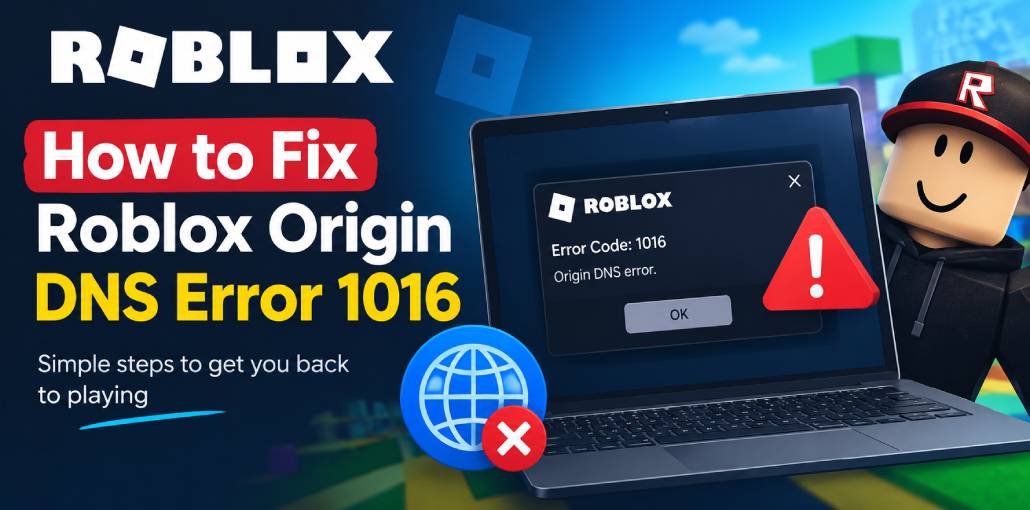
So you finally have time to play Roblox, you open the app, and instead of your game loading, you’re staring at an “Origin DNS error.” Frustrating, right? Especially when everything else online seems to be working just fine.
Roblox error 1016 is a type of error that pops up when your device can’t complete a DNS lookup — basically, it couldn’t figure out where to send the connection. Sometimes it’s your network’s fault. Sometimes it’s Roblox’s. And sometimes it fixes itself in ten minutes. But if you’re here, it probably hasn’t fixed itself, so in this guide, we’ll explain what causes the Roblox origin DNS error and how to troubleshoot it step by step.
What Does Roblox Origin DNS Error Mean?
The Roblox Origin DNS error is associated with a DNS resolution failure. DNS translates website names into IP addresses so devices can connect to online services. Error 1016 is a Cloudflare error related to origin DNS resolution. If this message appears while accessing Roblox, the cause could be your network, DNS provider, or a problem with the affected service.
Why Does Roblox Origin DNS Error Happen?
There’s no single cause for Roblox error 1016 to appear. A few different things can trigger it:
- Roblox server outages or service disruptions.
- DNS errors preventing server connections.
- Router or internet connection problems.
- VPN or proxy interfering with Roblox.
- ISP-related DNS or network issues.
- Incorrect DNS settings on your device.
- Temporary network glitches or outdated DNS cache.
Also read: How to Reduce Lag on Roblox?
How to Fix Roblox Origin DNS Error
Go through these steps in order. Start simple — the first couple of checks take almost no time and solve the Roblox Origin DNS error problem more often than you’d expect.
1. Check if Roblox Is Actually Down
Before you change any setting, find out if Roblox is having an outage. There’s no point adjusting your DNS if their servers are the ones struggling.
- Open a browser on any device.
- Head to the official Roblox status page.
- See if there are any active incidents listed.
- If there’s an outage, just wait it out — these usually resolve within a few hours.
- Once the status page looks clear, try opening Roblox again.
2. Restart Your Router
Boring advice, but it works more often than it should. Routers accumulate connection issues over time, and a quick restart clears them out.
- Close Roblox.
- Unplug your router from the power outlet.
- Leave it unplugged for about 30 seconds.
- Plug it back in and wait for it to fully reconnect — usually a minute or two.
- Restart your computer or console as well.
- Open Roblox and see where things stand.
3. Flush Your DNS Cache
Your computer stores DNS records so it doesn’t have to look up addresses every single time. That’s usually helpful, but sometimes those stored records go stale and point your device in the wrong direction.
Flushing the cache wipes those old records so Windows fetches fresh ones.
- Open the Start menu.
- Search for Command Prompt.
- Right-click it and select Run as administrator.
- Type this command and hit Enter:ipconfig /flushdns
- Wait for the confirmation message.
- Reopen Roblox and give it another try.
Worth noting — this won’t help if the issue is on Roblox’s servers. But it’s a fast step and worth ruling out early.
4. Switch to a Different DNS Server
Your ISP’s default DNS isn’t always the most reliable. Switching to a public DNS provider like Google or Cloudflare is a straightforward change that can make a noticeable difference, especially if you’ve been having intermittent issues.
- Open Settings and navigate to Network & Internet.
- Open the settings for your active connection (Wi-Fi or Ethernet).
- Find DNS server assignment and click Edit.
- Switch to Manual and enable IPv4.
- Enter your preferred DNS addresses:
- Google Public DNS
Preferred: 8.8.8.8
Alternate: 8.8.4.4
- Cloudflare DNS
Preferred: 1.1.1.1
Alternate: 1.0.0.1
- Save the settings and reconnect to your network.
- Launch Roblox and check if the error’s gone.
Before you change anything, write down your current DNS settings. That way, you can easily switch back if this doesn’t help.
Also read: Roblox Error Code 280 Not Fixed? Try These Proven Solutions
5. Turn Off Your VPN or Proxy
VPNs and proxies are great for privacy, but they can occasionally mess with how certain services handle your connection — Roblox included. It’s worth disabling them temporarily just to see if they’re the culprit.
- Open your VPN app and disconnect.
- If you’ve got a proxy configured manually, disable it for now.
- Keep your firewall and antivirus on — you don’t need to touch those.
- Open Roblox and see if it loads.
If it works, your VPN settings are likely the issue. Try connecting to a different VPN server, or look into split tunneling options.
6. Try a Completely Different Network
If none of the above solve the Roblox origin DNS error, test your connection on a different network. Your phone’s mobile hotspot is the easiest way to do this.
- Enable the hotspot on your phone.
- Connect your computer or gaming device to it.
- Open Roblox and try joining a game.
- See if the error still shows up.
If Roblox works fine on the hotspot, the problem is almost certainly tied to your home connection — your router, DNS settings, or ISP. If it breaks on the hotspot too, something else is going on, and it’s worth checking the Roblox status page one more time before reaching out to support.
How to Avoid Roblox Origin DNS Error in the Future
You can’t prevent every outage, but you can minimize Roblox origin DNS error issues in the future:
- Keep your router firmware and Windows up to date.
- Use a reliable DNS provider rather than your ISP’s default.
- Be picky about which VPN or proxy services you use — free ones tend to cause more problems than they solve.
- Give your router a restart now and then, especially if connections start feeling unreliable.
- Check Roblox’s status page before assuming the problem is on your end.
- Don’t install “DNS repair” tools you found in a forum — most are junk.
Always note down your settings before changing them.
Conclusion
A Roblox origin DNS error looks scary, but it usually isn’t. Nine times out of ten, it comes down to a temporary outage, a router in need of a restart, or stale DNS settings. Start with the quick checks, work your way through the network steps if needed, and don’t change things randomly hoping something sticks.
If Roblox error 1016 origin DNS error keeps showing up across multiple networks and Roblox’s status page looks fine, that’s when you contact Roblox Support — and make sure you tell them what you’ve already tried. It’ll save everyone time and get you back in the game faster.
FAQs About Roblox Origin DNS Error 1016
Is Roblox Origin DNS Error a server-side issue?
It can be. If Roblox or its underlying service is experiencing server problems, you may need to wait until the issue is resolved.
Can changing DNS fix Roblox Error 1016?
Yes. Switching to Google Public DNS or Cloudflare DNS may help if your current DNS configuration is causing the connection problem.
Does Roblox Origin DNS Error affect all players?
No. The error may affect only certain players, networks, or regions. If many players report the same issue, a wider service outage may be responsible.
What should I do if Roblox Origin DNS Error keeps appearing?
Restart your network, try another internet connection, check your DNS settings, and temporarily disable any VPN or proxy. If the issue persists, contact Roblox Support.




Leave a comment