

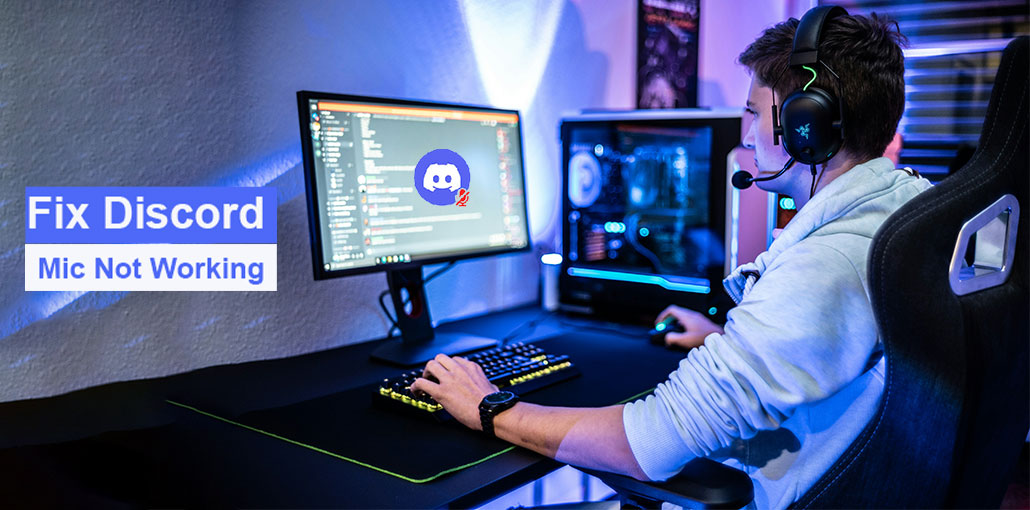
If you want to stay in touch, Discord voice and audio chat is the most popular option for gamers. That’s why there are glitches, such as the Discord mic not working, which is irritating. Many Windows users have shared their experiences with the issue on Reddit, Quora, and the Microsoft community.
If you’ve also encountered problems with your microphone when using Discord, or you are unable to connect with other users on Discord because of microphone issues Don’t worry, since we’ve provided you with the solution to fix the Discord Mic not working! In this article, you’ll discover what caused this issue and also how to fix the Discord microphone not working properly.
Why is Discord Mic Not Working? Common Reasons
A Discord mic not working is an old problem that is still unsolved by users. What’s causing the problem? The truth is, most problems are solved when you understand the root cause of them, such as the Discord update failed. It provides you with a direction to work within.
The most effective way to deal with the mic not working on Discord problem is to determine the root of the issue. Some of the problems that could be causing your microphone to malfunction include the following:
- Hardware problems with mic
- The wrong Mic was selected in Discord
- An issue with Discord or PC
- Mic permissions are restricted
- Discord voice settings errors
- Outdated audio drivers
- Misconfigured sound settings
Once you’ve identified the common causes why my mic is not working on Discord, you can work to fix the issue. Since every error appears because of different causes, its solutions differ. Learn how to fix the Discord mic not working within the following section!
Also read: Discord No Route Error? 8 Easy Fixes to Connect Instantly
How to Fix Discord Mic Not Working Issue
1. Check for Hardware & Connection Issues
The first step is to avoid any hardware problems that may be affecting your computer. Hardware issues can be addressed by a professional or by replacing the component. For example –
- Check that the microphone you’re using functions and has no hardware issues, like a faulty wire, a damaged connecting port, or a damaged microphone or other component.
- Check that the connection is proper. The port you use to connect your microphone is in good working order and not loose.
- Examine the microphone’s physical buttons and ensure they’re on. If you’ve connected your microphone but the device isn’t turned on, it may be a reason Discord not detecting microphone.
The most effective way to remove most problems with connections is to unplug the microphone and connect it to another port. Examine the PC to determine whether it’s detected correctly, and then try Discord again. If you discover there’s an issue in the cable, port or hardware, you’ll have to replace the device, or you may require professional assistance.
2. Check Discord Mic Settings
If a different microphone is selected as input, even if your microphone is working and connected correctly, the input won’t be accessible. Therefore, you should verify the Discord mic settings to confirm that the right mic is selected.
Here’s what you need to do.
Step 1: Start Discord on the PC.
Step 2: Navigate to user settings by clicking the gear icon that is located in the lower left-hand corner.
Step 3: In the user settings, scroll down the left-hand panel until you find Voice & Video under App Settings. Click it to find options.
Step 4: Click the Input Device to view the list of microphones available. Verify that the right mic is in use.
Step 5: Check if the input is in real-time by looking at the status bar in the option “Let’s Check.
This will allow you to check the connection to your new microphone and see if you get feedback. This will give you an idea of the source of the issue on your computer.
3. Try Changing Your Input Mode in Discord
If the external microphone is working properly but the Discord Mic not working, it is possible to change the manner in which your mic is ON while you chat.
As a default, the microphone settings for your voice are set to Voice Activity. That means that as soon as you talk, your microphone detects your voice and turns on. It is in motion and is active when hearing your different voice. However, since it’s not working for you, try the following modifications and test if they work.
Here’s how you do it –
Step 1: Launch Discord from your PC.
Step 2: Open user settings. Click the gear icon located at the bottom left-hand corner.
Step 3: In the user settings, scroll to the left side of the screen to locate Voice & Video under App Settings. Click it to open alternatives.
If you’re in input mode, select the Push to Talk option. You can also select the desired shortcut key to activate your microphone.
When you are ready to speak, just hit the button. In this way, you can control the microphone and leave no delay.
Also read: 10 Best Discord Music Bots 2025: Top Picks for Every Server
4. Allow Discord Access in Microphone Privacy Settings
It is essential to keep a microphone permission on your computer because many apps for data suggestions can hear the surroundings. This is the reason Windows monitors mic permissions and lets you alter them as you see fit.
If you pressed Don’t Allow, or on a security prompt from Discord, you may encounter problems with your Discord not picking up microphone. It is important to check the Privacy Setting of your microphone in Windows to determine whether Discord can access your mic. If not, ensure that you enable it.
Step 1: Press Win+S to start the search. Then type “Microphone Privacy Settings” in the search box.
Step 2: Click on the relevant search result or press enter to display the options.
Step 3: Determine if the Microphone access toggle is on or off. If it’s off, switch it on.
Step 4: If the toggle is on, scroll down and verify whether Discord has access and the toggle for Discord is turned ON.
This way, you can quickly determine if you are having issues with the microphone or not.
5. Update Audio and Microphone Drivers
If none of these fixes worked, your computer may be running outdated drivers.
Drivers are the primary programs that allow connection between linked devices with the motherboard in your computer. Therefore, to avoid Discord Mic not working issues, your device and system drivers should be regularly kept up to date.
For updating your audio driver, instead of taking the manual method, we suggest using a Driver Updater tool. Because manually, you’ll need to look for drivers, search for the right files, and then install them yourself.
Summing Up
Overall, the Discord Mic not working issue can be resolved easily when you are aware of the cause. Check these suggestionss and you’ll see the outcomes. Let us know which one has helped you the most. If you encounter difficulties in implementing the steps, please feel free to reach out! Best of luck.
FAQs: Discord Mic Not Working
Why does Discord not detect my microphone?
Discord may not detect your mic if the wrong input device is selected, exclusive mode is enabled, or the audio driver is outdated or corrupted.
Why does my mic work in other apps but not Discord?
This usually means Discord’s input device, permissions, or voice settings are incorrect—even though the microphone itself is working fine.
How do I reset Discord voice settings?
Open Discord → User Settings → Voice & Video, scroll down, and click Reset Voice Settings to fix mic detection problems.
Can reinstalling audio drivers fix Discord mic issues?
Yes. Reinstalling audio drivers often fixes corrupted or incompatible driver issues that prevent Discord from detecting the microphone.




Leave a comment