

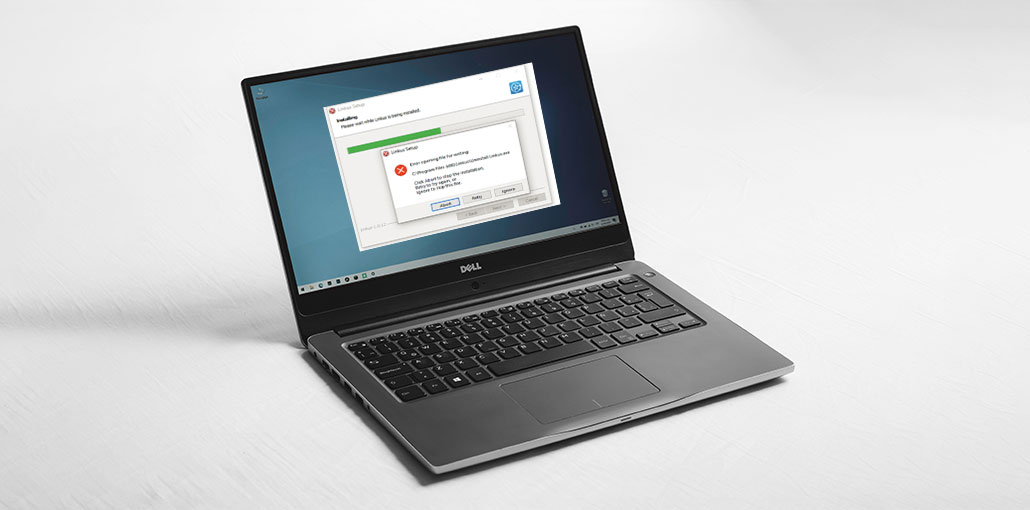
If you install third-party software on a Windows PC, you could encounter an “error opening file for writing” message, and you may fail to install the software. What’s the cause of the error opening file for writing, and how can it be fixed? This article will provide effective solutions to fix this.
What Causes the “Error Opening File for Writing”?
The error opening file for writing isn’t an issue with a particular software. It could happen if you run programs such as Steam, VLC, Wireshark, CCleaner, and BSPlayer on the Windows Operating system. It can impact any third-party Windows software and stop it from being installed.
Other Common reasons for this error include:
- Compatibility issues with Windows
- Lack of administrator privileges
- Restricted security permissions
- Interference from User Account Control (UAC)
Because of these problems, Windows blocks the installer from writing files to your system.
In this scenario, you will not be able to run certain programs on your computer, which can cause deal of discomfort. How do you fix the errors opening file for writing Windows 10? This article will discuss the most effective ways to fix it, along with detailed steps.
Also read: Windows 11 22H2 Update: What’s the Catch?
How to Fix Error Opening File for Writing on Windows 10?
1. Run Compatibility Troubleshooter
The file opening error for writing can be due to compatibility issues. When you attempt to install a third-party program that isn’t compatible with your Windows operating system, you might encounter installation issues, such as the error opening file for writing.
In this instance, you can run the Windows compatibility troubleshooter to check and fix compatibility issues. If you’re not sure how to use the compatibility troubleshooter, then follow the steps.
- Locate the .exe installer file for the program you want to install.
- Right-click on the installer file.
- Click on Properties from the context menu.
- Navigate to the Compatibility tab.
- Find and click on Run Troubleshooting compatibility
- Click on Try recommended settings.
Follow the on-screen instructions for fixing problems with the compatibility troubleshooter. Once the compatibility troubleshooter has completed, try installing the program again and see if the error file opening for writing issues are resolved.
2. Run the Installer as Administrator
You can run the installer for the third-party application using administrator privileges. This can help you fix the error opening file for writing.
- Find the .exe installer file for the software.
- Right-click on the installer and select “Run as Administrator” in the contextual menu.
- Follow the on-screen instructions to finish the installation. Make sure that your error message “error opening file for writing” is fixed.
3. Change Security Permissions
- Locate the installation folder where the program is trying to install files.
- Right-click on the folder and click Properties.
- Go to the Security tab.
- Click on Edit….
- Under the Group or user names section Click on Users.
- Check the box for Allow next to Write under Permissions for users.
- Click on Apply and then click on Ok.
- Restart your computer and then try again.
After restarting your computer, if you are still experiencing the error opening file for writing messages, follow the next option.
Also read: How to Fix Activate Windows Watermark in Windows 10
4. Disable User Account Control
It is possible that the User Account Control feature can result in third-party installation errors, such as an error opening file for writing. If you experience this error, try disabling your User Account Control.
- Type Change User Account Control settings in the Windows 10 Cortana search box and then click on the closest match to open it.
- Move the slider to Never notify.
- Click on OK to confirm the operation.
- Start your PC. After that, try installing the application again.
Summing Up
Have you resolved this “error opening file for writing” installation issue? What method is working for you? If you have other ideas, then don’t be afraid to send them to us. We are delighted to have you share with us.
FAQs: Error Opening File for Writing
What is “Error Opening File for Writing” in Windows 10?
It is an installation error that occurs when Windows blocks a program from writing files to your system.
Can a corrupted installer cause the Error Opening File for Writing?
Yes, a damaged or incomplete installation file can trigger this error. Re-download the installer.
How do I check folder permissions in Windows?
Right-click the folder → Properties → Security → Edit permissions and allow Write access.
Should I disable User Account Control to fix this error?
You can temporarily disable User Account Control (UAC) if it blocks the installer.





Leave a comment