

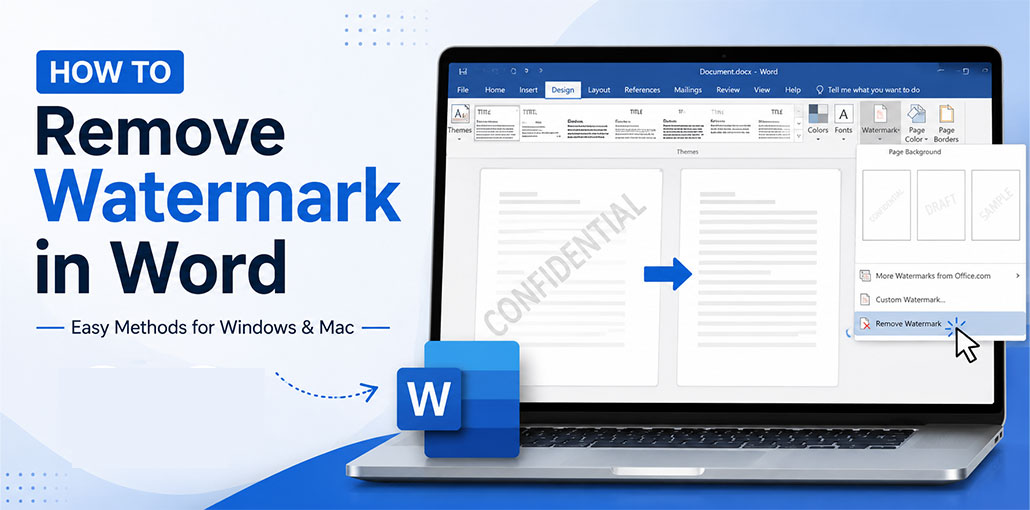
Professionals or business workers commonly rely on Microsoft Word for daily tasks, especially for applying watermarks. MS Word’s built-in feature makes it easy to add watermarks to text. Just add one at the end! Watermarks show ownership but may cause difficulties when copying, editing or altering data.
Here, you will learn how to remove watermark in Word documents to access clean documents. Our guide covers everything, whether that means an image watermark or a text Word watermark being present: keep reading
What is MS Word Watermark?
In MS Word, the watermark is usually a reference to a faint, semi-transparent, transparent, or embedded overlay text or static image (such as logos or brand names) which is displayed beneath the content. It’s used to communicate information to members of the team or other users. The embedded test will not affect the quality of reading; instead, it allows clear communication about documents like “under review”, ‘confidential brand ownership’ (including name or stamp), and many other things.
Why Need to Remove Watermark from Word?
You may need to remove a watermark for several reasons:
- Print a clean version of the document.
- Reuse an existing document template.
- Replace an old watermark with a new one.
- Remove accidental watermarks.
- Edit business or school documents.
- Improve document readability.
Also read: How to Remove Watermark from PDF: 4 Easy or Best Methods
How to Remove Watermark in Word Using MS Word
Microsoft Word comes equipped with a native watermark feature; users can easily apply or remove watermarks without installing additional software. Furthermore, this feature can detect watermarks instantly and remove them in one step. It offers a quick and free method to remove watermark from Word: Follow these steps
- You can open MS Word on your PC.
- Go to the Design ribbon, then click Watermark.
- Then, you can use the Remove Watermark to remove it.
How to Remove Watermark in Word Using the Header or Footer
Sometimes watermarks appear in the header or footer area of the documents. They are commonly referred to as stubborn watermarks. If you’re trying to figure out how to remove stubborn header and footer watermarks, then the following is a step-by-step procedure. Be aware that these steps are entirely manual. Follow these steps to remove the stubborn Word watermarks:
- Once again, open MS Word on your operating system.
- Double-click either the head (top) as well as you can double-click on bottom (bottom) in the text.
- Tab Header & Footer Editor mode.>Click for the Watermark > click delete.
How to Remove Watermark in Word Using Google Docs
To remove watermarks in Word document, you can try Google Docs. It is regarded as the most suitable option for MS Word. To remove the watermark from Word, users need to convert the Word files(DOC or DOCX) to an editable format. After that, users can upload their Word file to Google Docs to remove the watermarks. Here are the easy steps to remove the watermarks from a Word document with Google Docs:
- First, sign in to Google and access Google Docs.
- Move to Blank and then select the File feature.
- Once you have done this, go to the Open menu to upload Word (or .docx) documents.
- Then, choose your Watermark and click the button to delete it. button.
- After opening the document in Word immediately.
Also read: 7 Best Video Watermark Removers for 2025 (No More Watermarks)
How to Remove Watermark in Word on Mac
If you are having difficulties removing watermarks from Word Document on Mac, follow these steps to fix the issue. It should help remove watermark from select pages in Word.
- Go to the “Design” tab.
- Go to the “Page Background group” and choose the “Watermark” option.
- Select “No Watermark”.
Common Watermark Problems and Solutions
If the watermark doesn’t disappear, one of these issues may be the cause:
| Problem | Solution |
|---|---|
| Watermark is stored in the header | Open the header and delete it manually. |
| Document has multiple sections | Remove the watermark from each section separately. |
| File is protected | Disable editing restrictions before removing the watermark. |
| Watermark is an image | Select the image in the header and delete it. |
| Older Word version | Update Microsoft Word or use the header editing method. |
Tips Before Removing a Watermark in Word
- Save a backup copy first.
- Check every section of the document.
- Make sure the document isn’t protected.
- Update Microsoft Word if features are missing.
- Save the document after making changes.
Ending Notes
This is a comprehensive guide on how to remove watermark in Word on both Mac and Windows. So, you can delete any watermark in Word at no cost. Additionally, you get the watermark removal feature in Word Online too. You can now remove the watermark from Word that isn’t going away completely for free.
FAQs: Remove Watermark in Word
Why can't I remove a watermark in Word?
A watermark may be stored in the document header, applied to multiple sections, or protected by editing restrictions. Open the header, remove document protection if necessary, and delete the watermark.
Can I remove a watermark from only one page in Word?
Yes. Insert section breaks before and after the page, disable Link to Previous, then delete the watermark from that section only.
Does removing a watermark affect my document?
No. Removing a watermark only deletes the background text or image. It does not change your document's content, formatting, or layout.
Which versions of Microsoft Word support watermark removal?
The built-in watermark removal feature is available in Microsoft Word 365, Word 2024, Word 2021, Word 2019, Word 2016, and Word for Mac.









Leave a comment