

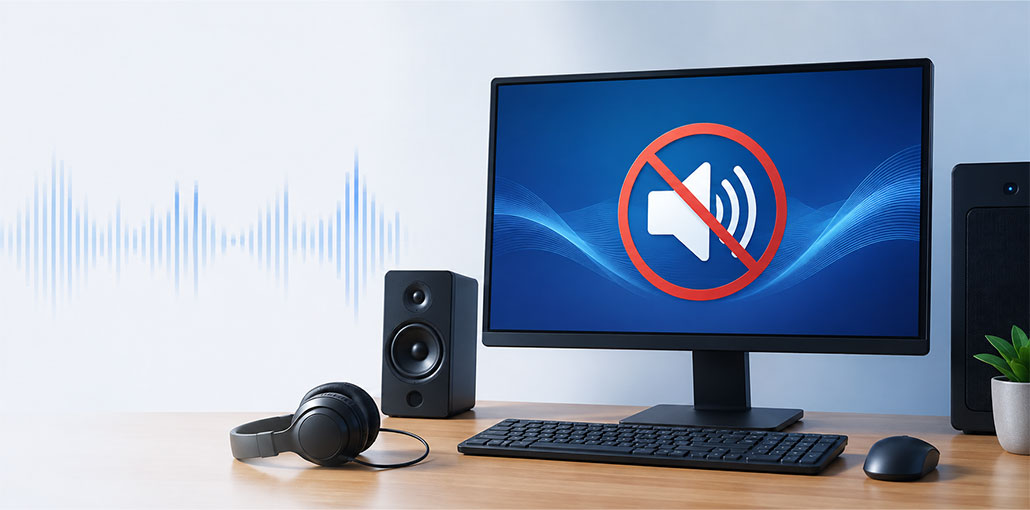
No sound on computers is a common issue, especially when you are trying to watch a video, listen to music, or join an online meeting, but Don’t worry! You can see solutions here to fix no sound on computers quickly and efficiently.
Why Is There No Sound on My Computer?
There are several possible reasons why your computer has no sound. The most common causes include:
- A problem with your speakers or headphones
- Incorrect audio settings
- An incorrect default audio device
- A corrupted audio driver
- A missing or outdated audio driver
- A Windows sound problem
Before trying the software solutions, make sure the volume icon on your computer isn’t muted.
Also read: No Sound on iPhone? How to Fix It Fast
How to Fix No Sound on Computers?
Here are some solutions to resolve no sound on computers. Don’t need to try them all; just try one and work through them until the issue is resolved.
Fix 1: Check Your Computer Hardware
If your system suddenly has no sound, it is most likely that there is a hardware issue. Troubleshooting can be done with the following suggestions:
Check the Computer Speakers
Check your speakers on your PC and see if something is blocking them. This may result in no sound coming from your computer. Ensure that no dust or fabric is blocking the sound from your computer.
Check the Headphone Jack
Check the headphone jack for any obstacles that could stop the headphones from working.
If it is debris, clean the jack using a cotton swab or a soft brush. It is best to push the brush inside the port and move it around to pull the dust and lint out.
Check Your Headphones
When your laptop is connected to a headset, you can also test your headphones to confirm that they are working properly.
Try disconnecting the headphones to see whether there is any sound. If yes, it’s likely a headphone issue, and you should replace them with a new headphone.
Fix 2: Check the Audio Settings on Your Computer
If your speakers and headphones appear to be working correctly, the next step is to check your computer’s audio settings.
Check the Volume Mixer
Volume Mixer is a specific application that may have its volume turned down even when your computer’s main volume is working.
To check the Volume Mixer:
- Right-click the volume icon in the bottom-right corner of your screen.
- Select Open Volume Mixer.
- Check the volume levels for your speakers and applications.
- Make sure none of them are muted or set to the lowest level.
- Play some audio to check whether the sound has returned.
- Make Sure Your Audio Device Is the Default Device
Your computer may be using the wrong audio device, which can cause the no audio on PC issue.
To check the default audio device:
- Right-click the volume icon.
- Open your sound or playback settings.
- Find your preferred audio device.
- Make sure it is selected as the default device.
- Test the sound again.
If you have multiple audio devices connected, such as speakers and headphones, make sure the device you want to use is selected.
Change the Audio Format
If your audio device is selected correctly but you still have no sound on computer, try changing the audio format.
- Open your sound settings.
- Select your audio device and open its Properties.
- Find the Advanced settings.
- Under the default format, select a different audio format.
- Use the Test option to check the sound.
- Try another format if necessary until you find one that works.
- Save the setting once the sound returns.
Fix 3: Reinstall Your Audio Driver
A corrupted or incompatible audio driver can also cause no sound on computer. You can try uninstalling the current audio driver and allowing Windows to reinstall it.
Follow these steps:
- Open Device Manager.
- Expand Sound, video and game controllers.
- Find your audio device.
- Right-click the audio device.
- Select Uninstall device.
- Confirm the removal if prompted.
- Restart your computer.
After restarting, Windows may automatically detect the audio device and install the necessary driver again.
Once the computer starts, test the sound to see whether the problem has been fixed.
Fix 4: Update Your Audio Driver
If reinstalling the driver doesn’t fix the computer sound not working problem, your audio driver may be outdated or missing.
You can update the audio driver manually by visiting your computer or audio hardware manufacturer’s website and downloading the correct driver for your system.
After installing the updated driver, restart your computer and check whether the sound is working.
An updated audio driver can help resolve no audio on computer problems caused by outdated or incompatible driver software.
Also read: No Sound on YouTube? 5 Quick Fixes to Instantly Restore Audio
Fix 5: Troubleshoot the Sound Problem
To fix no sound on computers, Windows includes troubleshooting tools that can help identify and fix common audio problems.
To run the sound troubleshooter:
- Open the Control Panel.
- Select Troubleshooting.
- Open the Hardware and Sound section.
- Select the option for troubleshooting audio or sound.
- Follow the on-screen instructions.
- Allow Windows to identify and repair any detected problems.
- Restart your computer after the troubleshooting process is complete.
Then test your computer’s audio again.
Final Thoughts
These are five simple solutions to fix no sound on computers. If you have any concerns, leave a post or comment below, and we’ll determine what we can do to assist.
FAQs: No Sound on Computer
Why does my computer have no sound but headphones work?
Your computer may be sending audio to the wrong output device, or the built-in speakers may have a driver or hardware problem. Check your Windows sound output settings first.
Why is there no sound on my computer after an update?
A Windows update may change audio settings or affect an audio driver. Check your output device, update or roll back the audio driver if appropriate, and restart your computer.
Can an audio driver cause no sound on computer?
Yes. A missing, outdated, corrupted, or incompatible audio driver can prevent your computer from producing sound. Updating or reinstalling the driver may resolve the issue.
How do I fix no sound on computer issue after an update?
Check your selected audio output and restart your computer. If the problem continues, check the audio driver in Device Manager and update or roll it back if necessary.








Leave a comment