

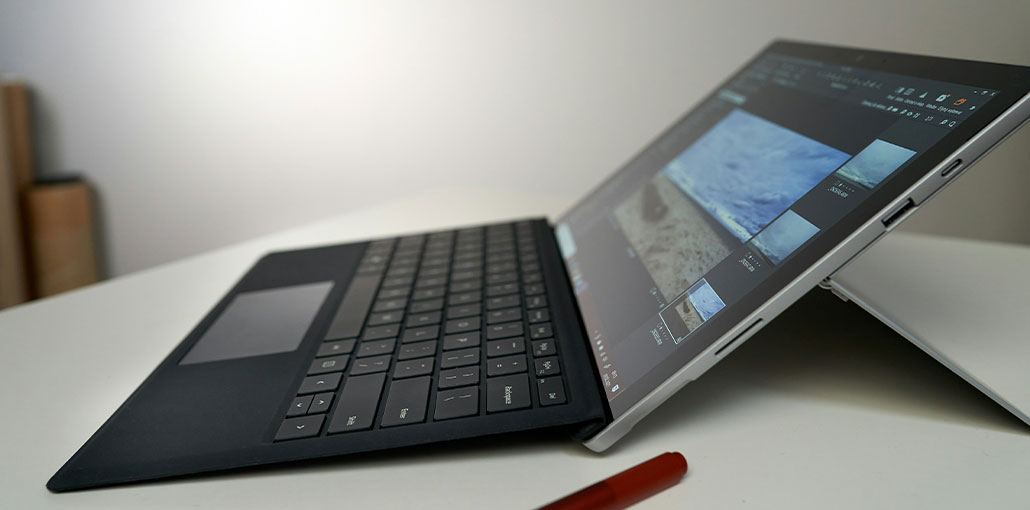
Don’t assume the hardware is faulty if your Microsoft Surface keyboard not working. The problem can be as simple as dust on the interface or an update that is not installed smoothly. The result is that your keyboard, which was so convenient at first, suddenly stops working. This interrupts you while you’re taking notes or managing projects.
In most cases, these problems can be resolved by simple adjustments and checks, without requiring complex technical procedures or replacement of equipment. This guide will help you identify the most common issues, explain how they occur, and show you the steps to fix the Surface Pro keyboard not working issues.
Common Causes of Surface Keyboard Not Working
A surface keyboard not working can be caused by many factors. From the connection to the state and condition of the system. We can only find the right solution if we know the exact surface keyboard issues.
Interface Issue
Surface Pro keyboards rely on magnetic interfaces to connect. If the interface is not fully absorbed in place or the contact points are covered with cotton wool, dust, and other debris, the keyboard may be unresponsive, or even bad. You can clean contacts with a soft, clean cloth. Then realign the interface so that it clicks securely.
System Driver
A device may not recognize the keyboard correctly if the drivers are outdated or the system patch is out of date. Microsoft releases updates regularly to fix compatibility problems. The keyboard could temporarily stop working if the update isn’t installed. You can try rolling the update back in Device Manager or reinstalling the driver if the update fails.
The keyboard
The Type Cover can also become worn out or malfunction internally with prolonged use. Circuits are more susceptible to failure if they have been damaged by liquid and moisture. You can test the keyboard on another Surface device if you suspect it is damaged. If the surface keyboard not working, you will need to replace it.
Also read: Windows Search Bar Not Working: Complete Guide to Fix It
System settings
Sometimes, the solution is in the Settings. The keyboard may be disabled in Device Manager, or the accessibility settings overwrite the physical keyboard. In energy-saving modes, power management may disable the keyboard functions. Often, troubleshooting can be done quickly by checking and resetting the relevant settings.
Hardware damage
The contacts may be damaged, or the internal structure could become loose if the device is dropped or twisted. These situations are usually not fixable by software and require professional maintenance or hardware replacement.
How to Fix Surface Keyboard Not Working
1. Check out the Surface App
The Surface App allows for quick diagnosis. It will tell you if your device is recognizing the keyboard and if any driver or firmware updates are required. The app also has an input test to confirm that the keyboard is working. If you cannot detect the keyboard here, this is often a sign of a hardware or connection fault.
2. Connect the interface after cleaning it.
The most common reason the Microsoft Surface keyboard not working is magnetic attraction interfaces. Dust or cotton lint can cause the contacts to make poor contact, resulting in the keyboard not responding. Clean the contacts gently with compressed air or a lint-free cloth. Then tighten the keyboard again. This will usually fix the problem. Preventing damage to your surfaces when cleaning without liquid.
3. Restart your device
Restarting can fix many temporary problems. Restarting the device can usually solve most problems. Holding down the power button on the device for 20 seconds will force it to restart. This will allow the system to reload and the drivers.
4. Remove the keyboard and reinstall it.
The keyboard may appear to be fully connected, but it is actually not. Reinstall the keyboard and listen for a click. Ensure the magnets have full contact with the contacts.
5. Test in UEFI Mode
Entering UEFI helps distinguish between hardware and software issues. Press the volume up and power keys simultaneously after powering down to enter. If you can use the keyboard normally on the UEFI display, then there is no hardware problem. The Windows operating system or driver is the main cause of this problem. If there’s still no response when using UEFI, then it could be a hardware problem.
6. Update or reset your system
Many compatibility problems can be resolved by installing the latest update through Windows Update. You can reset Windows if the problem persists. You can restore the operating system to fix deep-seated software conflicts. Personal files can be kept, or you can reset the system to its default settings.
7. Update your keyboard firmware
Incompatible or unstable firmware can cause compatibility issues. Installing the latest firmware via system updates will improve performance and reliability and prevent problems from occurring again.
Also read: How to Fix Windows Update Errors in Windows 10
8. Check the auxiliary functions Settings
The input experience can be affected by certain auxiliary functions, such as sticky keys and filter keys. In Settings > Accessibility, select Keyboard and disable any unnecessary features. Normal input can usually be restored.
9. Microsoft Support
If none of these methods works, the problem that the surface keyboard not working likely lies in the hardware. It is best to contact Microsoft to check the warranty status and to apply for repair or replacement. Avoid further damage by not disassembling or repairing blindly.
When to Replace Your Surface Keyboard
Consider replacement if:
- The keyboard doesn’t work on any device
- Connector pins are damaged
- Liquid damage occurred
It’s out of warranty, and repairs cost more than replacement
Conclusion
These 9 quick fixes can resolve your Microsoft Surface keyboard not working problems. These fixes, which range from verifying connections to performing a hard reset to fix typical issues, will bring your device back to normal and working condition.
FAQs: Surface keyboard not working
Why is my Surface keyboard not working?
Your Surface keyboard may stop working due to loose connections, outdated drivers, Windows update bugs, dirty connectors, or hardware damage.
How do I update Surface keyboard drivers?
Open Device Manager, expand Keyboards, right-click the Surface keyboard, and select Update driver, then restart your device.
Does the Surface keyboard stop working after updates?
Yes, some Windows updates can temporarily break keyboard drivers.
How do I reset my Surface keyboard?
Detach the keyboard, shut down your Surface completely, wait 30 seconds, reconnect the keyboard, and then power the device back on.
Will using an external keyboard help diagnose the issue?
Yes. If an external USB or Bluetooth keyboard works, the problem is likely with the Surface keyboard hardware, not Windows.






Leave a comment