

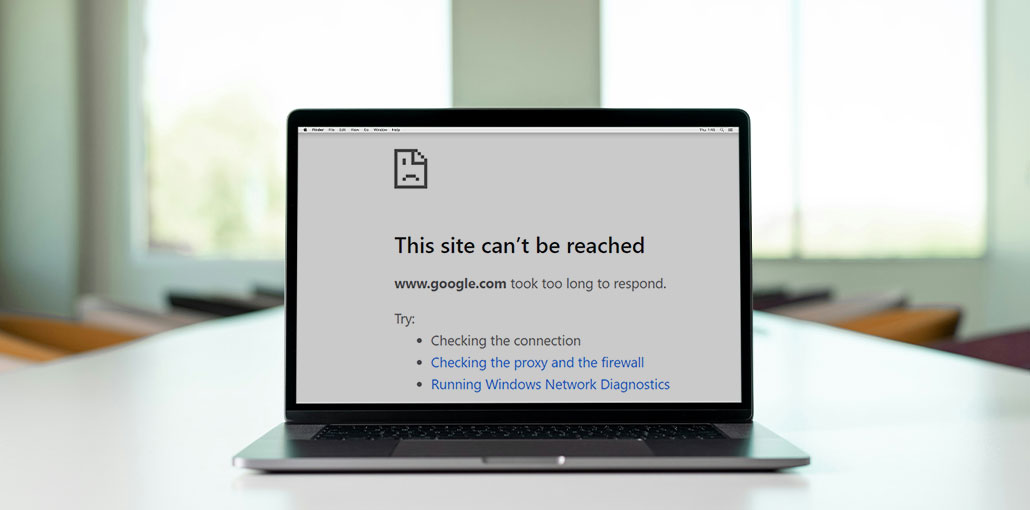
Google Chrome is the most popular browser for getting the details you need at your fingertips. It will, however, provide you with more than 100 various errors whenever something goes wrong. Certain errors are simple to recognize with a concise description; however, the majority of errors will be accompanied by a phrase like “This Site Can’t Be Reached”. If you’re stuck with this error message in Google Chrome, here are some suggestions on how to fix the this site can’t be reached error in Google Chrome.
What Does “This Site Can’t Be Reached” Mean in Chrome?
Chrome displays this error when the website you’re trying to open isn’t accessible at the moment. Although there may be various reasons behind this issue, the network connectivity is the first issue to check from a troubleshooting standpoint. You’ll see the “This Site Can’t Be Reached” message as well as important details about an error message. As an example, here are some error codes that you could see:
DNS_PROBE_FINISHED_NXDOMAIN
ERR_RESPONSE_HEADERS_TOO_BIG
ERR_CONNECTION_REFUSED
The error code is vital to help you troubleshoot the issue. Alongside the error code, there is an explanation and the details/reload button.
Also read: How to Fix “Not Enough Memory to Open This Page” Error in Chrome
10 Ways to Fix “This Site Can’t Be Reached” in Chrome
Sometimes, you might be trying to access a non-existent site or be unavailable due to server problems. The first step is to ensure that the website address works correctly and is accessible. After that, you can try all options to fix the This Site Can’t Be Reached problem on the network or browser side.
1. Check the Website URL for Typos
You may have entered the address incorrectly when you were in a rush. Chrome is a sophisticated browser that will display an error message such as “Check if there is a typo in website_name”.
In this case, you will see the DNS_PROBE_FINISHED_NXDOMAIN error code as the domain name (site address) does not exist.
What to do:
- Double-check the spelling of the domain
- Remove extra characters
- Try reloading the page
- Wait a few seconds and click Reload
2. Check If the Website Is Down
We utilize Windows and Mac computers to set up local development servers using apps such as MAMP and WAMP. If you are trying to access the development site (localhost) without starting the server, Chrome will show “This Site Can’t Be Reached” error with “ERR_CONNECTION_REFUSED” code.
How to check:
- Open the website on another device
- Try another browser
- Use online website status checker tools
- Ask friends to check from their location
3. Check the Internet and the Site is Up
If you’re visiting live websites (not localhost) and the address is correct, you must determine whether the site is accessible to everyone. There are a few methods to verify this:
- Ensure your internet connection is stable (check router, modem, and cables).
- Reconnect loose cables and restart your network devices.
- Open the website on another device or browser.
- Disable or change your VPN/proxy location.
- Use an online website checker to see if the site is down for everyone.
4. Check Your VPN and Proxy Settings
The real troubleshooting procedure begins if the website is not accessible to you in the Chrome browser. The first step is to verify the settings for your proxy. If you’re not using a proxy, you can skip this step and go to the next step. Open Chrome and go to this “chrome://settings/system” command URL. This will bring up the settings page within Chrome, and then click on the “Open your computer’s proxy settings” option.
On Windows:
- Go to Network & Internet > Proxy
- Turn off Use a proxy server
On Mac:
- Go to System Settings > Network > Advanced > Proxies
- Disable all proxy options
Additionally, turn off your VPN connection in the network settings or the VPN application. Then, test if you can browse the site without having the “This Site Can’t Be Reached” issue.
5. Check Antivirus and Firewall Settings
In most cases, you must allow the applications pass through your Firewall and the antivirus settings. Chrome will also advise you to examine firewall and antivirus settings in case it suspects that the settings prevent access to the network connection via Chrome.
On Windows:
- Open Windows Security
- Go to Firewall & Network Protection
- Click Allow an app through firewall
- Ensure Google Chrome is allowed on Public and Private networks
On Mac:
- Go to System Settings > Security & Privacy > Firewall
- Allow incoming connections for Chrome
6. Delete Chrome Cache
It’s not the reason for a site is not accessible. It could be the result of the owner’s website altering the previously accessed page’s URL. It may be a cause if the owner switched the hosting server to a new location or company. In any case, you can clear your browsing history in Chrome since it will not harm the data.
To clear cache:
- Open Chrome and press Ctrl + Shift + Delete (Windows) or Command + Shift + Delete (Mac).
- Or type chrome://settings/clearBrowserData in the address bar.
- Go to the Advanced tab.
- Select All time as the time range.
- Choose the required options and click Clear data.
- Open the website by entering the URL manually and then check if it loads without a glitch.
7. Flush DNS and Reset Network
Domain Name System or DNS is the core of internet. DNS will allow your browser find the IP address that corresponds to the web address that you entered. As a default feature, Chrome uses the DNS configuration from the ISP, while your PC saves the cache for quicker access. If the owner of the website altered the configuration or cached data on your computer could cause problems such as a Gateway timeout. Similar to deleting browser history, you can delete the DNS cache on your computer and see if it helps resolve the This Site Can’t Be Reached issue.
Flush DNS in Windows:
- Open Command Prompt (Admin) and run:
ipconfig /flushdns
netsh winsock reset
netsh int ip reset
- Restart your PC.
Flush DNS on Mac:
- Open Terminal and run:
- sudo killall -HUP mDNSResponder
- Enter your admin password and restart.
Also read: How to Fix Your Connection Is Not Private Error in Chrome
8. Change DNS Settings to Public DNS
The above options will only delete DNS entries in your system, but not on external servers you connect to through your ISP. While you cannot flush DNS entries from your ISP or additional external server, you can change the default DNS configuration to use public servers such as Google Public DNS. This will allow users to connect to the website with the most current and accurate DNS information. Public DNS servers use 8.8.8.8 along with 8.8.4.4 as the most preferred and alternative IPv4 addresses. You can change the configuration as follows.
On Windows 11:
- Go to Settings > Network & Internet
- Select Wi-Fi or Ethernet
- Edit DNS server assignment
- Choose Manual
- Enter Google DNS IPs
On Mac:
- Go to System Settings > Network
- Select your network
- Click Advanced > DNS
- Replace existing entries with Google DNS
- Save changes and restart your browser.
You can remove the public DNS server information to assign ISP servers as the default ISP servers on autopilot.
9. Disable All Extensions
Chrome will update automatically to the most recent version whenever it connects to the Internet. But it is possible to cause compatibility issues if one of the extensions installed is outdated.
The best way is to go to the “chrome://extensions/” page in Chrome and disable all extensions. It will help to find extension causes problems in the network connection and cause the “This Site Can’t Be Reached” error.
10. Reset Chrome Browser
This is the final option because it will affect your information in the browser. For example, you’ll be unable to access the options you’ve customized on the Settings page. You can go to the “chrome://settings/reset” page in Chrome and reset the browser in a few seconds.
Final Words
In most situations, you can fix the “This Site Can’t Be Reached” error in Chrome by deleting your browsing history and then resetting your internet connection. If not, you must explore more sophisticated troubleshooting strategies, including your firewall and proxy settings, antivirus, and so on. If none of these options will help, then you should reset Chrome as a last resort.
FAQs: This Site Can’t Be Reached
Why does Chrome show “This Site Can’t Be Reached”?
This error appears when Chrome cannot connect to a website due to network issues, incorrect DNS settings, server downtime, or browser-related problems.
Is the “This Site Can’t Be Reached” error caused by server issues?
Yes, if the website server is down or under maintenance, the error will appear until the server becomes available again.
How do I fix the “This Site Can’t Be Reached” error in Chrome?
You can fix it by checking your internet connection, clearing Chrome cache, flushing DNS, disabling VPN or proxy, and restarting your router or browser.
Can changing DNS fix the “This Site Can’t Be Reached” error?
Yes, switching to public DNS like Google DNS (8.8.8.8 and 8.8.4.4) can resolve connection and domain-related issues.





Leave a comment