

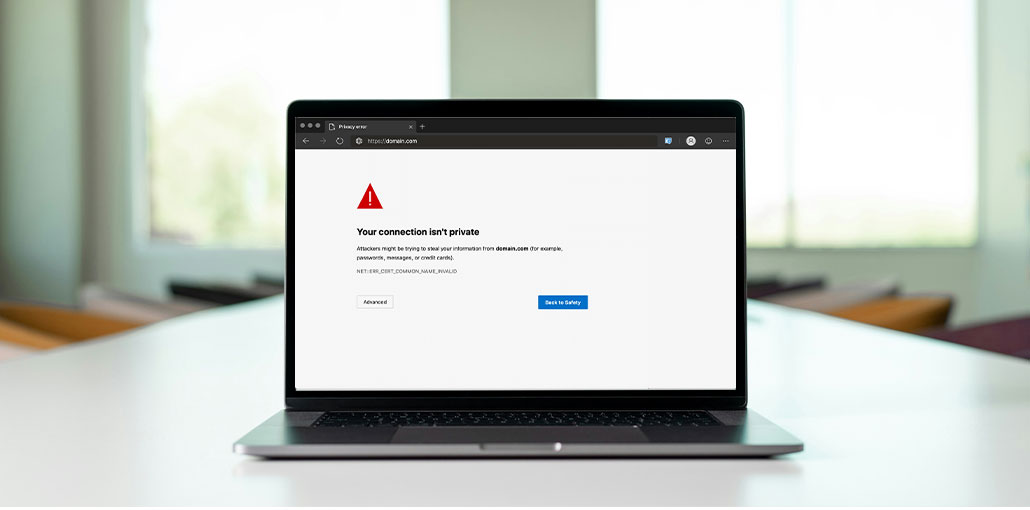
Learn and comprehend the various ways to fix Your Connection Is Not Private Chrome Error in this guide:
Compromised privacy is the most prevalent threat users are facing in the digital age, as one’s digital identity is accessible on any device. This could create various risks, like privacy or data theft.
When surfing the Internet, they must ensure that they’re using a secure network that isn’t being monitored, and their activities aren’t monitored.
In this post, we review a privacy error, Chrome says your connection is not private, and provide various methods to fix it.
What Is Your Connection Is Not Private Chrome Error
Websites come with SSL certificates that indicate that the website is secure for users to visit. The small “lock” icon, which is displayed within the URL bar when the site is loading, means that the website is secure.
Websites that don’t have this certificate are known as “Not Secure” and can be a threat to your computer. This error can also result from some issues within your system. Sometimes, you can fix your connection, not a private Chrome error, by making changes to the system.
Also read: How to Fix “Not Enough Memory to Open This Page” Error in Chrome
Your Connection Is Not Private: Error in Other Browsers
Different browsers suffer the same error, such as your connection is not private error, and a few of them are as follows:
Opera:
Your connection is not private. Opera error is like the error that appears on the Chrome browser. It alerts users that the site doesn’t have a security certificate or an SSL certificate. It also offers the user the “Help me understand” column, which informs users about the risk.
Different error codes available in Opera are as follows:
NET::ERR_CERT_AUTHORITY_INVALID
SSL certificate error
NET::ERR_CERT_INVALID
NET::ERR_CERT_WEAK_SIGNATURE_ALGORITHM
Microsoft Edge
“Your connection is not private” error message in Microsoft Edge is quite similar to the error that appears on Chrome. The message that appears on Edge says that.
“Attackers might be trying to steal your information.”
There are many codes of errors that correspond to those in Chrome:
NET::ERR_CERT_AUTHORITY_INVALID
Error Code: 0
NET::ERR_CERT_COMMON_NAME_INVALID
DLG_FLAGS_INVALID_CA
How to Fix Your Connection is Not Private
There are many methods to resolve the your connection is not private error. A few of them are described below:
1. Reload Page
When the user attempts to load a page in the browser, but the browser fails to load the information packets, it can create an issue in loading the data. Thus, it is to reconnect the connection by pressing the “Refresh button.
2. Avoid Public Wi-Fi
Public Wi-Fi is a wireless network that allows various systems connect to networks without password authentication. Sometimes these networks are vulnerable to attacks and other infiltrations. The browser will warn the user before connecting to these networks. To avoid this issue, it is essential to avoid using public Wi-Fi networks.
3. Clear Browsing Data
The browser gives users only a small amount of memory to store and track websites that they visit. However, if the memory allotted by the browser gets full, it could be an issue in setting up the connection. Thus, the user can clear browsing data before relaunching the browser.
4. Avoid Incognito Mode
The user should avoid Incognito mode because it could cause a connection break with the server. It is recommended to avoid Incognito mode until it is no longer necessary.
5. Check the Computer’s Date and Time
The computer’s date and times are also crucial, as when a browser requests an online site to access data, it then stores the details and logs that the user made. If the date and time of the website and the computer do not match, the browser is unable to establish the connection.
6. Check Antivirus
Antivirus software that searches for viruses and other damaged files within the system. It also permits the user to identify and eliminate infected files. So, users should run an antivirus scan on the system and delete infected files that could disrupt the system’s performance and effectiveness.
Also read: Who is Better For Security: VPNs vs. Firewalls vs. Antivirus
7. Disable VPN
VPN hides the user’s IP address and allows users to browse websites without being watched, but certain websites do not provide access to unregistered IP addresses. The server constantly checks the IP address that requests the data packets, and if the system detects any type of threat, the website will not allow access to the user. So, my suggetion to disable the VPN that can fix your connection is not private error.
8. Restart Router
The router stores the data of the websites visited through the browser. If the browser is unable to connect, then the user needs to restart the router to ensure that it corrects any common glitches or issues in the router.
9. Change DNS Servers
Changing the DNS server will allow users to establish an extremely secure and stable connection. It also allows you to solve this issue.
10. Flush DNS Cache
The DNS cache present on the system could be the reason behind an error when connecting to the internet. Therefore, the user should attempt to flush the DNS cache before launching the browser to correct the issue.
11: Run SSL Server Test
SSL stands for Secure Sockets Layer, which guarantees security on any website. It also signifies the credibility of the site. SSL certificates are granted to websites based on the security and privacy it offers to users’ data. Therefore, ensure that the domain name is protected by having an SSL certificate.
12. Clear SSL State On Your Device
When a user accesses an online site, the system saves its SSL state. When the users attempt to access the same website next time, it will load the previous SSL state. So, it’s advised to erase the SSL state from your device following the steps below:
13. Reset TCP/IP
Resetting the TCP/IP settings of the system can be a successful solution to resolve various networking issues that affect users. It resets that gateway to the default address.
Also read: Top 10 Unblocked Browsers To Access Any Website
14. Re-Install Browser
It is possible that the browser’s file could be damaged or corrupted, which could result in this error. Therefore, the user should attempt to install the browser on the system and then access the site.
15. Run Network Troubleshooter
Windows offers its users an option called Network Troubleshooter, which allows users to locate and fix network issues found in the system.
Final Thoughts
Internet is among the most effective ways to share and access data; the primary issue is whether it’s secure enough to allow access and share data and information. Additionally, the security of the user’s identity information is an issue when accessing data on a huge network.
We talked about a common error, which is known as the “your connection is not private problem with your browser. Additionally, we discuss the security and network privacy issues and solutions to fix the problem.
FAQs: Your Connection Is Not Private Error
What does “Your connection is not private” mean in Chrome?
It means Chrome detected a problem with the website’s SSL certificate and cannot verify that your connection is secure.
Why does Chrome keep saying my connection is not private?
This can happen due to an expired SSL certificate, incorrect date and time settings, antivirus interference, VPN usage, or DNS issues.
Why does this error appear on one website only?
The website may have an invalid, expired, or misconfigured SSL certificate, while other websites remain secure.
Will changing DNS fix the “Your connection is not private” issue?
Yes, switching to trusted DNS servers like Google DNS or Cloudflare DNS often resolves SSL-related errors.
How do I fix this error on Edge or Opera?
The fixes are similar to Chrome—clear cache, check date and time, disable VPN, change DNS, or restart the browser.







Leave a comment