

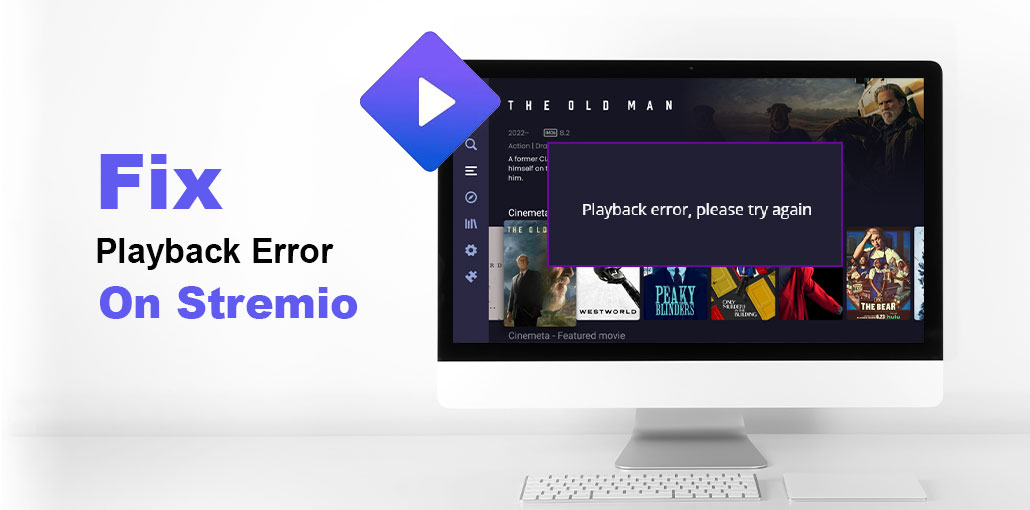
If you are unable to watch videos on Stremio due to a Playback error, please try again. This article is the answer you’ve been searching for to fix Stremio playback error.
Stremio is an online video streaming platform that allows you to stream TV series, films, live TV channels, and more. It’s a cross-platform application that runs on various platforms, including Windows, Android, macOS, and Linux. It’s a great service to stream your favorite media files.
It can be quite annoying when you encounter a Playback error when trying to play or stream video within the application. This issue has been identified on Windows desktops, Web applications, and on other platforms.
Common Causes of Stremio Playback Error
The most common cause for this issue is a slow or unsteady internet connection. There are many other reasons behind this issue, including the cache being corrupted by the app, virus interference, proxy settings, or an outdated software version. If you’re trying to get rid of this error, then follow this step-by-step guide to eliminate this Playback problem on Stremio effortlessly.
Also read: How to Fix YouTube Playback Errors in 2025
How to Fix Stremio Playback Error the right way
If you encounter a Playback error message while streaming content using Stremio, try restarting the PC and Router, and check if the issue has been resolved. If the error remains present, take these steps to fix Stremio playback issue:
1. Check your internet connection
An insufficient internet connection usually causes Playback issues. The internet may be too slow or unresponsive to stream video on Stremio. Before trying any new solutions, ensure your internet connection is stable and reliable.
You can test your internet connection and determine if the speed isn’t fast enough. If so, consider changing your internet plan to enjoy a faster internet connection or switching to a different connection. Additionally, you can resolve other issues with WiFi using Windows and determine whether it is helping.
2. Update the Stremio app
Another thing to ensure is whether you’re using the most recent version of the Stremio application. Even though the desktop application auto-updates itself, it may be unable to update in certain situations. You can search for the latest version of the Stremio website and then download it onto your PC. If this is the case, you can fix the issue.
3. Clear the app cache
A corrupted cache for apps could also trigger the Playback issue on Stremio. Therefore, if this scenario applies, you should clear your Stremio cache on your device and check if the error has been resolved.
4. Install the Community Add-On
Stremio includes several preinstalled Official add-ons that allow you to stream and enjoy various types of content. Certain content may require additional extensions. If that is the scenario, you could try installing community add-ons via Stremio and then verify whether the issue is resolved.
5. Temporarily disable your firewall and antivirus
It could be due to a conflict between your firewall or antivirus software that is causing problems when streaming videos using Stremio and creating Playback errors. To determine if that’s the cause, temporarily disable your firewall and antivirus software and see if the issue is fixed. If so, you can allow the Stremio app through your firewall or antivirus to fix the error.
6. Enable or Disable VPN
If you’re experiencing a Stremio playback error after updating the app due to a network restriction or geo-blocking, try using a Virtual Private Network (VPN) to resolve the issue.
However, if you’re already using a VPN, it could be your VPN that is causing this error in Stremio. Try turning it off and see whether the error has been resolved.
7. Disable proxy
Proxy settings can also interfere with other services, such as Stremio playback errors and problems. So, turn off proxies on your computer and then check whether the error has been fixed.
Also read: How to Fix Steam Disk Write Error in 2025
8. Reinstall Stremio
If the issue persists, it could be due to an app error that is causing the problem. Therefore, you should uninstall and then reinstall the Stremio application on your device to fix the Stremio playback error.
9 Try using Stremio on another platform
Stremio is compatible with various platforms, including Windows, Web, TV, Android, etc. If you encounter an issue with the error on your computer while trying to run the Stremio desktop application, you can switch to a Web browser and open Stremio to stream content. You can also try it on a different platform to see whether the Stremio streaming error issue is fixed.
Final Word
A Stremio Playback Error can cause interruptions in streaming, but it’s generally fixable by following these steps. By examining your internet connection, resetting the app, clearing the cache, and altering the network settings, you can enjoy your most-loved shows and films in the shortest amount of time.
FAQs: Stremio Playback Error
Why does Stremio say Playback error but internet works fine?
Cache corruption, add-on failure, or firewall blocking streams. Clear local storage first—most common fix.
Does VPN cause Stremio Playback error?
Yes — slow or unstable VPN servers, routing issues, or leaks can interrupt streams. Try toggling the VPN off, switching to a different server, or disabling VPN altogether for most content.
Stremio Playback error on Android/Firestick — how to fix?
Clear the app cache/data, force-stop and restart the app, verify router DNS (try 1.1.1.1 or 8.8.8.8), and install reliable community add-ons (e.g., Torrentio) for more source options.
Why do only some streams fail in Stremio?
Some sources are dead (torrent seeds gone) or geo-blocked. Installing community add-ons (puzzle icon) exposes more sources; also try switching to a different resolution or source.
Stremio updated but still Playback error — what next?
Fully uninstall and reinstall the app, disable any proxy settings, and test the web version (stremio.tv). Trying a different device helps identify whether the issue is device-specific.






Leave a comment