

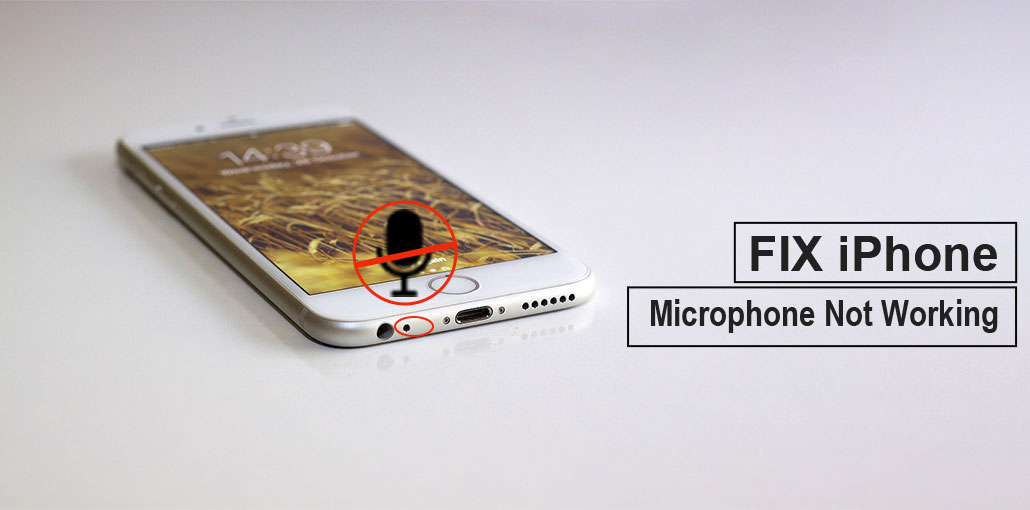
You must be extremely frustrated when your family members don’t understand your voice during FaceTime or phone calls, or Siri doesn’t recognize your voice, or hear the sound when playing an audio recording. No worries. In this post, we provide 9 solutions to resolve the iPhone microphone not working issue.
How to Fix an iPhone Microphone Not Working
If you have tested your device and it is still having problems, you may try the following methods to fix the iPhone Microphone Not Working issue.
1. Test the Microphones on iPhone
Before diving into the in-depth solutions, let’s check those microphones in your iPhone first to determine whether there’s a problem with the mic. As we all know, there are many microphones you can use on your iPhone. You can test them by employing different methods. Be sure that there isn’t anything blocking the microphone, using your fingers or the case when you’re holding the phone or making a video.
Also read: How to Fix iPhone Speaker Not Working: 10-Minute Guide
2. Remove iPhone Case or Protector
Your iPhone case screen protector, case, or film could cover your microphone or iPhone receiver, and could cause the iPhone mic is not working. Try to remove all of them and then test it using the methods.
3. Clean the Microphones
If your microphones have dirt and debris, it could stop their work. Use a dry, clean cloth or a small vacuum cleaner to remove any obstructions from the microphone’s hole and the iPhone receiver. Then it is time to make a phone call to request a test for microphones.
4. Unplug External Devices
External accessories such as earphones or Bluetooth headsets connected to the headphone port can cause your iPhone microphone not working. So, make sure to disconnect any other external device and ensure that you don’t connect it to a wired or wireless headset. If the microphones function normally again, connect the earphones to test.
5. Restart Your Device
Restarting your device to resolve the iPhone mic not working issue is standard advice that everyone provides, since it can solve many problems with the iPhone/iPad.
Hold and press the Power button until you see the turn-off slider. If it does appear, pull the slider until it is off, and then turn off your device.
6. Give Audio Permission for Apps
If your microphone isn’t working when you use certain apps, check your iPhone mic settings and confirm that apps have access to the microphone. Follow the suggestion on how to turn on iPhone mic
- Open on your device, then go to Settings, General, and Privacy. Select Microphone.
- Toggle the option to grant permissions to applications that you want to use with your microphone.
7. Disable Phone Noise Cancellation
iOS can enable noise cancellation to reduce the background noise when people speak on the call. This feature may muff your voice while in a conversation with another.
If you’d like to disable the phone’s noise cancellation to determine whether the iPhone microphone is not working, take these steps:
- Visit the application “Settings”. Select “Accessibility” and then “Audio/Visual.”
- Shut off the “Noise Cancellation toggle.
Also read: iPhone Touch Screen Not Working? Causes + 9 Quick Fixes
8. Update Your iOS
Each new iOS update you receive from your device is intended to resolve any issues you have. There’s a chance that the model you’re using is having issues with the microphone, and upgrading to the latest iOS version will resolve the issue. It’s fairly simple to update your phone to the current iOS version. The steps below will help you do it.
- Go to “Settings. Tap on “General.” Tap on “Software Update.”
- If there is an update on your device, you’ll receive a notification that says “download and install it.”
8. Reset All Settings
If you’ve changed the settings on your iPhone’s microphone settings, it can be a reason the microphone not working. Try this approach in case the above tips don’t resolve the iPhone microphone not working issue.
- Open the Settings app on your iPhone and then go to General > scroll down until you can choose Reset > Reset All Settings.
- Enter your password and then click the “Reset All Settings button to confirm the change.
Final word
A microphone not working on iPhone, iPad, or iPod touch is a major issue for some iOS users. We hope that the solutions above can help you resolve the iPhone microphone not working issue and allow you to enjoy the device using a functioning microphone without problems.
FAQs: iPhone Microphone Not Working
Why is my iPhone microphone not working?
Your iPhone microphone may not be working due to blocked mic ports, disabled app permissions, Bluetooth interference, software glitches, or iOS bugs. Cleaning the microphone, checking permissions, restarting the device, or updating iOS usually fixes the issue.
How do I test my iPhone microphone?
You can test your iPhone microphone by recording audio using Voice Memos, recording videos with the front and rear cameras, or making a phone call on speaker. Each method tests a different microphone on your iPhone.
Why is Siri not recognizing my voice?
Siri may not recognize your voice if the microphone is blocked, permissions are disabled, or “Hey Siri” needs to be re-enabled. Check microphone access, clean the mic, and retrain Siri in Settings.
When should I contact Apple Support for microphone issues?
If your iPhone microphone is not working after cleaning, resetting settings, and updating iOS, it may be a hardware issue. Contact Apple Support or visit an authorized service center for repair.
Why does my iPhone microphone cut out during calls?
Intermittent microphone issues can be caused by weak network signals, software bugs, or failing hardware. Updating iOS and resetting settings often resolves this.






Leave a comment