

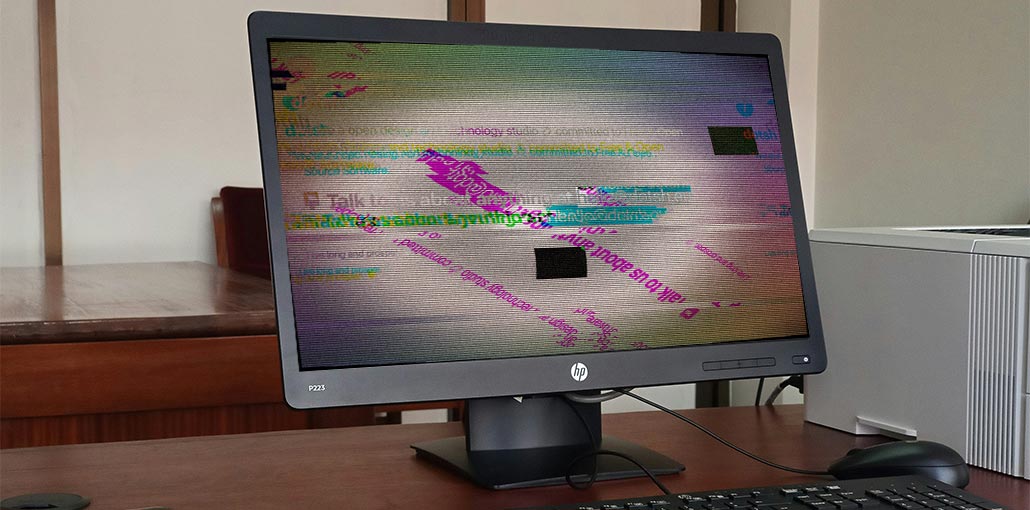
In an age where monitors showcase stunning images, the most important thing to happen is for your visual experience to be marred by a snarling monitor flickering. However, sometimes this issue is due to something easy to address, and we’re here to provide five main causes of why you might be experiencing it.
A common and frustrating issue with displays you may encounter is monitor flickering. Why is my monitor flickering? It is usually triggered when a monitor is old or damaged, but this isn’t always the scenario. The latest LCD or LED panels can be affected by this annoying screen artifact, which reduces overall image quality and immersion.
It’s good to know that fixing monitor flicker is generally a straightforward procedure. In this article, we’ll show you how and provide step-by-step directions on each.
Our experts have researched display issues, and we are here to discuss the most common reasons for monitor flickering. Therefore, we will not waste any more time and get right to the issue.
What is Monitor flickering?
Monitor flickering happens when the image is drawn, erased, and then redrawn faster than the human eye can perceive. Monitor refresh rates have risen dramatically over the past 10 years, with the most efficient high-refresh rate monitors today reaching 360Hz. The monitor refresh rate can have a direct influence on the quality of your visual experience, with higher refresh rates often chosen by top esports professionals.
Also read: 7 Easy Fixes for Screen Tearing to Enhance Gaming Experienc
Common Causes of Monitor Flickering
There are several reasons why your screen is blinking or flickering, and most of the issues can be fixed easily.
Here are a few reasons your screen may be flickering
- Broken or loose cables
- Incorrect Refresh Rate
- Malfunctioning display adapters
- An unrepaired power supply or cord
- Wrong display settings
- GPU drivers are not updated
How to Fix Your Monitor Flickering
1. Check the Display Cable
One of the most common reasons for monitor flickering is the old HDMI or DisplayPort cable. Even the older VGA or DVI cables can cause this problem. Therefore, it’s important to ensure that the cable is secure, but it’s not damaged or faulty. Try using the cable on a different device, or a different cable to connect your monitor.
You’ll be amazed at how this can be the source of the issue.
2. Inspect the Power Cable
As with the video cable, the power cable may be a reason your screen flickering on monitor. Check both ends of your power cable to ensure that it’s not worn out, damaged, torn, or even slightly damaged. Although it’s not common, this has been known to cause monitor flickering in the past. It should be among the first things you look for.
If your monitor has an ordinary kettle plug, just change it out, or try it on a different device to determine if it’s not the issue.
3. Check Display and Refresh Rate Settings
Another reason for monitor flickering is a change to the display settings. Making minor changes to the display settings could cause unpleasant artifacts, one of which is a computer screen flickering.
Simply go to your NVIDIA Control Panel (or AMD Software Adrenaline Edition, if you’re already an AMD customer) and check to see if any changes have been made to the settings. Most importantly, you need to focus on the “Change Resolution” tab “Change Resolution” tab which lets you change display resolution, refresh rates, and screen size.
Make sure your refresh rate is set to its highest setting for the smoothest experience. A lower refresh rate may cause some odd visual artifacts.
You can also visit the Windows Display Settings (right-click the desktop and select the dropdown menu) and ensure that no changes have been made to the settings there as well.
Also read: Black Line on Monitor? Here’s How to Fix It
4. Update Your Graphics Drivers
Another popular cause for monitor flickering is a faulty graphics card. That’s right, keeping your GPU up to date is essential when you’re benefiting from the latest updates.
It’s good to know that updating your GPU drivers is easy – especially when AMD and NVIDIA offer regular updates.
Simply open the appropriate software program and then use the “update driver” wizard to complete the procedure.
5. Check if the Monitor Is Defective
If everything else appears to be working and in perfect order, you can test the monitor. This could only be a problem for older panels, but it’s not always. Even the latest monitors may suffer from defects or glitches that can cause images to flicker.
It is easy to determine if the monitor is malfunctioning by trying a new screen input (HDMI, DisplayPort, DVI, VGA) and seeing whether the issue persists.
Try using a second monitor and then using it with your current setup. It will also let you know fast if your monitor is at fault.
Ending Notes
I hope this guide has returned you to visual perfection! The truth is that every monitor flickers as they try to keep updating the images displayed on the screen. In reality, the more your monitor flickers, the better!
However, we’re not talking about the standard refresh rate of a monitor in this instance – we’re talking about a sluggish flickering screen that’s physically visible when watching movies and playing games, or browsing the web. It’s certainly the reason for some discomfort. Luckily, following the straightforward steps listed above will fix monitor flickering and get visual immersion.
FAQs: Monitor Flickering
Why is my monitor flickering?
Monitor flickering is usually caused by loose or damaged cables, incorrect refresh rate settings, outdated graphics drivers, power issues, or a faulty monitor.
Can a bad HDMI or DisplayPort cable cause monitor flickering?
Yes. A damaged or loose HDMI or DisplayPort cable is one of the most common reasons for screen flickering. Replacing the cable often fixes the issue instantly.
Why does my laptop screen flicker but the external monitor doesn’t?
This usually indicates a laptop display cable, panel issue, or laptop-specific driver problem.
Can FreeSync or G-Sync cause monitor flickering?
Yes. Improperly configured FreeSync or G-Sync settings can cause flickering, especially at lower frame rates.







Leave a comment