

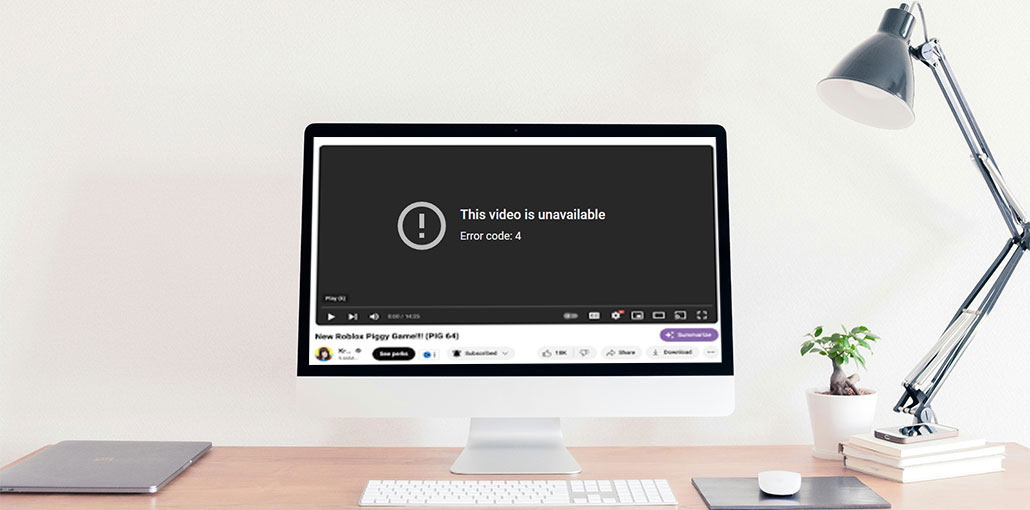
You play the video, and then show! YouTube login code not working or YouTube Error Code 4 and “This video is unavailable” is a slap on the face. There’s no context, no explanation, only a feeling of anger and discontent. If that’s the case on your computer screen, relax. YouTube error code 4 can look frightening. However, 9 out of 10 times, it’s a minor issue with your device or web browser and not a block from the YouTube app.
In this article, we’ll explain what’s happening with YouTube Error Code 4 and how you can do a step-by-step process to get YouTube back.
Common Causes of YouTube Error Code 4
YouTube does not explain it clearly; however, YouTube error code 4 is essentially the player telling you:
“I tried to load this video… and something broke along the way.”
Most of the time, YouTube error 4 can be linked to one (or an amalgam) of the following:
- Browser extensions interfering with YouTube performance (such as ad blockers or script blockers)
Corrupted cookies or cached files in your browser - A weak or unstable internet connection
- An outdated browser or YouTube app
- A temporary issue with YouTube’s server
Therefore, YouTube error code 4 does not usually mean “this video is unavailable.” It’s usually a sign of “your current setup is blocking me.”
Also read: YouTube Audio Renderer Error? 8 Fixes That Actually Work
How to Fix YouTube Error Code 4
Before we dive into the major fixes, let’s first test a few simple and easy fixes. These solutions could fix This video is unavailable error code 4.
1. Refresh the Video Page
Yes, it’s boring advice. But it’s more effective than you imagine.
- Click to refresh the page.
- Close the tab/app, then open it again
If YouTube error code 4 just appeared once and then disappeared after a refresh, it was most likely a minor, one-time glitch.
2. Check Your Internet Connection
If your wifi is slow at the wrong time, YouTube error code 4 may appear instead of the video.
- See if any other apps or websites are working fine
- On Wi-Fi? Turn it off, take a moment, turn on.
- On mobile data? Check to see if you have data and a signal
- Try another YouTube channel, or maybe Netflix, or another website
If all else fails, then fix the internet first. YouTube error code 4 is likely to disappear once your connection is stable again.
3. Disable Ad Blockers or Extensions
The script and ad blockers are usually the main suspects in YouTube error code 4. They’re awesome… up until they don’t.
- Go to your browser’s extensions/add-ons pages.
- Disable ad blockers or YouTube-related extensions
- Refresh the YouTube site and play the same video
If the video suddenly stops loading and the YouTube error code 4 is gone, you have just found the issue. There are a few options:
- Remove YouTube from your blocking software
- Make sure that the extension is disabled while you are watching YouTube
Also read: 10 Best AdBlock VPNs for Fast, Secure, and Ad-Free Browsing
4. Try Incognito or Private Mode
Incognito mode is a fresh test environment where no cookies are stored, without extensions, and in a new session.
- Open an incognito/private/private window.
- You can visit YouTube and play the same video.
If it is playing perfectly here, with no YouTube error code 4, then:
- The connection you are using is probably fine.
- This video in itself is probably okay
- The problem could be in your browser’s main profile (extensions cache, extensions, cookies)
5. Clear Cache and Cookies
Broken or outdated data in your browser could block the YouTube error code 4 from appearing on the screen.
General concept:
- Make sure to change the settings in your browser.
- Find “Privacy & security” or “Clear browsing data.”
- Clear cookies and cache (at least for YouTube and other browsers; in some, you can even select specific sites)
- Completely close the browser and reopen it. Try YouTube again.
You may have to sign back in to certain sites; however, this alone will fix YouTube error 4 for many users.
6. Restart Your Device (and Router)
The most well-known IT technique explanation.
- Restart your phone, computer, or tablet
- If you are still experiencing issues, unplug your router for about 30-60 seconds, then reconnect it
After everything is back online, try the video that gave YouTube error code 4. Sometimes a complete restart eliminates many of the invisible glitches that could trigger a YouTube playback error.
7. Update Your YouTube or Browser
YouTube changes quickly, and if your app or browser is slow to catch up, YouTube error code 4 could be a sign of a problem.
- On desktop: update Chrome/Edge/Firefox/Safari to the latest version
- On iOS and Android: visit the app store and look for YouTube, and then tap Update if available
You can restart your browser or app and verify if the YouTube error code 4 disappears.
8. Sign Out and Sign Back In
Sometimes, it’s not the connection or the app; it’s your session.
- Go to your profile on YouTube and sign in
- Close the browser or close the app
- Reopen it and sign in again.
Try playing the identical video. If YouTube error code 4 stops, then it’s likely to be a strange login token issue.
Also read: YouTube Black Screen? How to Fix YouTube Not Playing Videos Quickly
Quick checklist to fix YouTube error code 4.
If you’re just looking for a quick list to run through:
- Refresh the video page.
- You can also check out other websites/apps
- Disable ad blockers and script extensions
- Try using incognito/private mode
- Clear caches and cookies (especially for YouTube)
- Restart your device, and should you need to, if necessary, your router
- Update your YouTube app or your browser
- Sign out and then sign in again to YouTube
- Check the same video on a different device or network
If you can go through them, you’ll find a solution to the YouTube error code 4 for most real-world scenarios.
Final Thoughts
YouTube Error Code 4 is caused by a network failure or data request. Fixing corrupted or damaged data, script interference, or connectivity issues can be resolved quickly. Apply the above fixes to restore normal YouTube playback.
FAQs: YouTube Error Code 4
What is YouTube Error Code 4?
YouTube Error Code 4 is a playback error that occurs when the video player fails to load a video due to browser issues, network problems, or corrupted cache files.
Why does YouTube show Error Code 4?
This error usually appears because of conflicting browser extensions, corrupted cookies, a weak internet connection, or an outdated browser or app.
Can a slow internet connection cause YouTube Error Code 4?
A slow or unstable internet connection can interrupt video playback and trigger YouTube Error Code 4.
Is YouTube Error Code 4 a server issue?
Sometimes the error may occur due to temporary YouTube server problems, but most cases are related to browser or network issues.





Leave a comment