

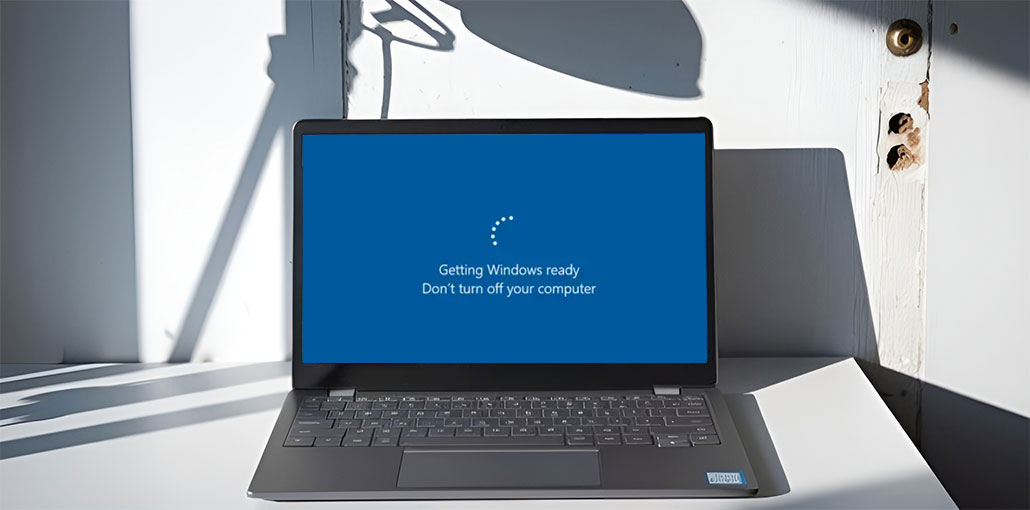
Sometimes, you might find yourself stuck at your “getting Windows ready, don’t turn off your computer” screen for a long period of time. This blog explains the causes of getting Windows ready stuck issue and offers six solutions.
Why Does “Getting Windows Ready” Get Stuck?
Many users report that Windows gets stuck on Windows getting ready and running for a long time (approximately 2/3 hour). This problem occurs when PCs are restarted to update Windows or boot up Windows after a factory reset.
What is the reason for getting Windows ready stuck? Possible reasons include:
- Interrupted Windows updates
- Slow or unstable internet connection
- Corrupted system files
- Slow hard drives or insufficient storage
- Power interruptions during update installation
- Software conflicts or driver issues
Also read: How to Fix Windows Update Errors in Windows 10
How to Fix the Getting Windows Ready Stuck Issue
To fix getting Windows ready stuck on Windows 10/11. Explore the following options.
Just Wait For Some Time
If you get an error message “Getting Windows ready, don’t turn off your computer”, your computer may be performing various tasks in the background, like downloading and installing a file, launching a Windows 10 update, and altering settings for modules and applications, etc.
It may take some time to complete these tasks, based on the number of applications installed on your PC. Additionally, if you haven’t updated your PC in several years, many updates are required to download and install. If your computer is old, then your Windows update installation will be slow.
So it is recommended to wait 2 to 3 hours. After a certain period, if getting Windows ready stuck is still, you can stop and move to the next troubleshooting option.
Press Ctrl + Alt + Del to Cancel Updates
This method, suggested by a Reddit user, will effectively resolve the getting Windows ready stuck issue.
Try it by following the steps to press Ctrl, Alt, and Delete on your keyboard, then select Cancel on the new interface. This will help to stop the Windows update for a short time.
Based on user feedback, Windows displays the percentage of updates when you press the keys Ctrl+Alt + Remove.
But, if there’s no Cancel button or if nothing happens when you press the keys, then the system is in a state of hang. You can try different solutions.
Check Your Internet Connection
A strong network is essential for downloading Windows Update files. If your Internet connection is slow, the download will be slow, and you will be Windows update stuck on getting Windows ready.
Therefore, you must examine the status of your Internet connection. You can restart the router or connect your device via Ethernet cable. After that, verify whether the problem has been solved.
Turn Off Your Computer and Power Reset It
If none of the methods above work, I would suggest trying this method. However, be aware that when your Windows is getting updated, shutting down abruptly could lead to corrupted system files. If you’re aware of the possibility but still would like to try it, follow the steps:
- Turn off your PC.
- Connect all peripheral devices, such as USB flash drives, external hard drives, keyboards, headphones, mice, printers, webcams, and SD cards.
- Unplug your power cord. Some laptops have a removable battery, so you must remove the battery.
- Hold and press the power button until you have held it for about 15-20 seconds to draw out any remaining power.
- Connect the battery to the power cable and connect the power cord.
- Restart your computer to determine whether the issue has been resolved.
Also read: Windows Script Host Error: Proven Fixes for Windows 10 or 11
Repair Windows in WinRE
Sometimes, the reason for the “Windows stuck on getting ready issue is the corruption of system files, particularly when you’ve performed incorrect procedures. For instance, you may have canceled the factory reset process when the process was completed at more than 50 percent, or you suddenly slowed the computer while you were updating Windows.
In short, Windows system files may be corrupted, and you can fix the issue using the following methods.
- Run Startup Repair or SFC Commands. This will attempt to repair Windows. However, if there were Windows updates, you’ll need to install them again later.
- Perform a System Restore. This option will reset your computer’s status to an earlier time. The concept is that the protection feature isn’t shut down, and system restore points are created.
- Factory Reset the PC. This resets the PC back to its original state.
Upgrade or Reinstall Windows
Many people prefer this method to fix the getting Windows ready stuck issue because they cannot access WinRE. Additionally, if your Windows system is corrupted, the method will repair it instantly and update Windows to the latest version.
Bottom Line
This article explains reason for getting Windows ready stuck and how to fix it. If you have another solution to this issue, you can share a comment in the area below.
FAQs: Getting Windows Ready Stuck
What does “Getting Windows Ready” mean?
“Getting Windows Ready” means that Windows is installing updates, configuring system settings, or preparing apps and services before the system starts. This process usually appears after Windows updates or system resets.
Why is my PC stuck on “Getting Windows Ready” for hours?
Your PC may be stuck because of slow internet, large Windows updates, corrupted system files, or a slow hard drive. If the screen stays for more than 2–3 hours, the update process may have encountered an error.
Does reinstalling Windows fix the 'Getting Windows Ready stuck” problem?
Yes. Reinstalling Windows can fix the issue if it is caused by corrupted updates or damaged system files. A fresh installation installs the latest Windows version and removes errors.
Can a slow hard drive cause 'Getting Windows Ready” to get stuck?
Yes. Computers using older HDD drives may take longer to install updates. Upgrading to an SSD can significantly improve update and boot speeds.









Leave a comment