

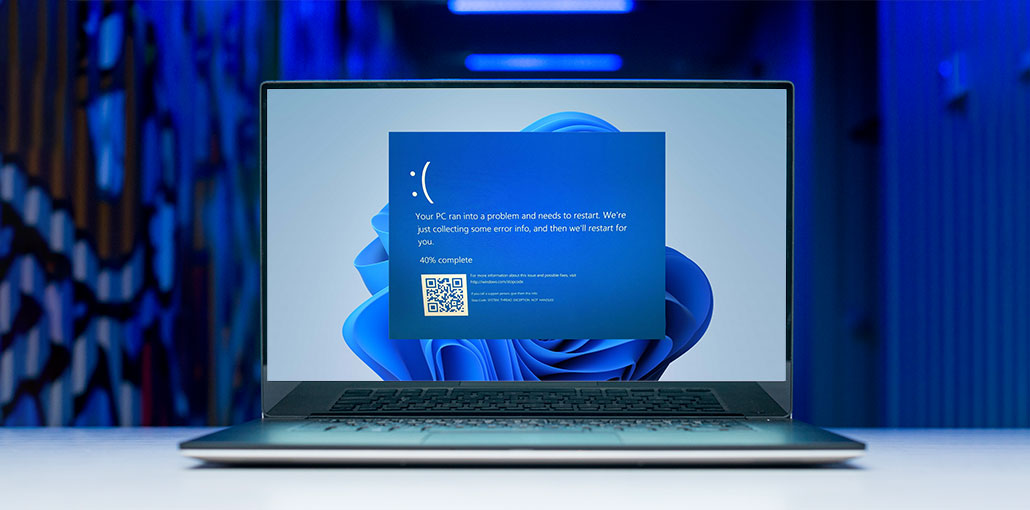
If you experience a System Thread Exception not handled blue screen frequently, or it stops your PC from starting, try the 8 possible solutions in this article.
SYSTEM_THREAD_EXCEPTION_NOT_HANDLED is a BSOD stop code in Windows indicating that a system thread encountered an error that it couldn’t manage. It may occur while starting or restarting the PC and playing games.
Why Does This Error Occur?
The issue is usually caused by a corrupted or outdated device driver, corrupted system files or scattered paging files (virtual memory issue), or overclocking, a defective CPU, and so on.
How to Fix System Thread Exception Not Handled Error
If you are experiencing this error, don’t worry. Below are some solutions to solve the system thread exception not handled error.
1. Uninstall Recently Installed Programs
If you enter Windows 10 after the system thread exception not handled blue screen, then remove the program you’ve just installed. If you’re unsure which service, program, or startup causes this blue screen, run a clean boot to find the culprit.
2. Check and Repair Disk Errors (CHKDSK)
Corrupted system files can also result in System_thread_exception_not_handled blue screen error and many other issues. You can utilize the CHKDSK command line to determine and fix the damaged system files:
- Utilize Windows shortcut keys, Win + X, to open the Jump List, after which you can choose Command Prompt (Admin).
- Enter your commands, the line CHKDSK C: /F/R, and click Enter.
- Follow the steps on the screen. Windows 10 will restart and detect corrupted files on the system. You can wait until it completes the task.
Also read: How to Fix Windows Update Errors in Windows 10
3. Run System File Checker (SFC)
This solution is similar to Solution 2, but a scan over Windows 10 is really necessary to resolve the system_thread_exception_not_handled error.
- Launch Command Prompt (Admin) in Windows 10.
- Enter SFC/scannow into the dialog box and press the key “Enter”.
- Windows will run the command. If there are errors, Windows will correct them by itself. Once it’s finished the process then restart your computer.
4. Boot into Safe Mode
If you’re able to sign into Windows 10, enter safe mode just like normal. If your window is stuck on the blue screen, and you are unable to access Windows 10, or if it keeps restarting every time Try these suggestions:
NOTE: In this case, you aren’t able to enter safe mode through the sign-in screen or on the desktop. However, if your system fail load the configuration for an extended period, Windows RE (Recovery Environment) will appear on the screen. With this, you can enter safe mode. If you don’t see a Recovery screen, you can try:
- Start your laptop and press and hold the power button to shut down your computer. Repeat the process 3 times until you are on your Recovery screen.
- Start the computer and then hold Shift and press F8 often.
5. Update Drivers
Most of the time, a system thread exception not handled in Windows 10/11 is caused by the device driver (especially the mouse, keyboard, and dedicated GPU device drivers). The driver is outdated or corrupt; it doesn’t proceed through the computer booting process, so update the driver.
Steps to follow
- Use the Windows logo key + x and then click the Device Manager to open it.
- Expand the device directory according to the driver in question ( Display adapters, Keyboards, Mice, and other devices that point, and the list goes on).
- Right-click the device, and select Upgrade driver.
- Select search automatically for drivers.
6. Disable Fast Startup
Fast Startup is generally a reason for the system thread exception not handled error. This is one of the Windows 10 features reducing the time required for the system to boot up. Disabling this feature could help address this issue. Here are the steps you can take to do this:
- Use the keyboard shortcut Windows +R together to launch Run. Run Dialog box.
- Enter Control Panel. Click Enter.
- Choose the Power Options option here.
- Select the choice. Select the power buttons and then click select change settings that are not currently unavailable.
- Select the option Turn on Fast startup (recommended) and untick the box next to it.
- Click the tab Save Changes.
7. Run DISM Command
If corrupt or missing files are discovered to be the cause of the BSOD errors, for instance, the system thread exception not handled, then SFC commands can be utilized to correct the issue. However, if SFC commands fail to accomplish the job, you may use the DISM command to fix the problem. What steps to follow:
- Press your keystrokes Windows + R to open the jump list.
- Set Command Prompt as the Admin.
- Enter this command :
DISM/online/Cleanup-Image/CheckHealth
- Enter this command:
DISM/online/Cleanup-Image/ScanHealth
- If there is a problem that appears to be present on any of the Windows 10, it can be resolved using the following code:
DISM/online/Cleanup-Image/RestoreHealth
This will perform the advanced scan and repair the files promptly.
Also read: Kernel Data Inpage Error: 7 Effective Ways to Fix This Error
8. Reset the Windows
If nothing has been working to your advantage to fix the system thread exceptions not handled error, the final option you will be required to do is perform a Windows reset. Follow these steps to do it:
- Click on the Start tab and then click Settings.
- Click on the option Update and Security. Choose an option called Reset in the left-hand panel.
- Choose the option to start and then select the option Save My Files.
- Click Next, followed by Reset, and finally click Continue.
After a certain period, the Windows reset is completed. After that, you can restart your PC, after which the BSOD error will be gone.
Summing Up
This article explains why an exception to the System Thread not handled BSOD error occurs, and provides possible solutions. The solutions are explained thoroughly with steps listed.
FAQs: System Thread Exception Not Handled
What is the System Thread Exception Not Handled error?
The System Thread Exception Not Handled error is a Windows BSOD (Blue Screen of Death) that occurs when a system thread encounters an exception it cannot handle.
Why does System Thread Exception Not Handled keep appearing?
This happens due to driver conflicts, recent Windows updates, newly installed software, or hardware issues like faulty RAM or GPU. It often appears as a restart loop or crashes shortly after login.
Does resetting Windows fix System Thread Exception Not Handled?
Yes. If other solutions fail, resetting Windows 10/11 while keeping your files often resolves the issue completely.
How long does it take to fix System Thread Exception Not Handled?
It depends on the cause. Simple driver updates or SFC scans may take 10–30 minutes, while full Windows reset may take 1–2 hours.




Leave a comment