

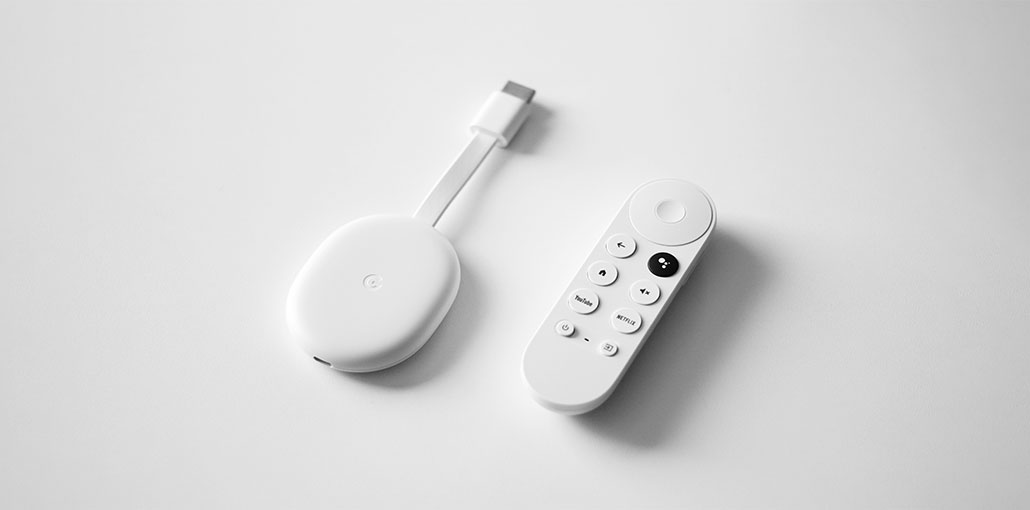
You are sitting down to watch your favorite film. However, Chromecast not working. The screen remains blank, or your phone does not connect. It’s frustrating! It could be due to a variety of issues, including Wi-Fi issues, applications that require updates, or power issues. The positive side is that there are simple Chromecast solutions to a lot of its issues that you can fix at home. Here we’re going to discuss easy solutions for Chromecast not working. Take these actions to resolve the problem and restore your streaming.
What is the reason Chromecast Not Working?
If you understand the reason behind Chromecast not working, the issue is usually related to network, software, or power settings rather than hardware failure.
Most common reasons include:
- Weak or unstable WiFi connection
- Router or mesh network conflicts
- VPN blocking device discovery
- Outdated Chromecast firmware
- Google Home app issues
- Power or HDMI connection problems
Understanding the root cause is the first step toward fixing the issue quickly.
Also read: Screen Mirroring Not Working? 10 Easy Fixes for All Devices
How to Fix Chromecast Not Working?
Let’s take a closer review of the most effective ways to resolve Chromecast not working.
1. Check Your WiFi Connection
An unstable or weak Wi-Fi connection could result in Chromecast issues. Relocate the router or use other devices to make sure your internet is working. To check Wi-Fi connection:
- Restart your WiFi router
- Check if other devices are connected
- Open any website on your phone to confirm internet is working
If the internet is slow or not working, restart your router and reconnect.
2. Ensure Both Devices Use the Same Network
Make sure that your Chromecast and the device you are using, like a smartphone, tablet, or computer is connected to the same WiFi network. If not, it won’t function. This is how:
Check on different devices:
On TV (if available):
- Go to Settings → Network & Internet
- Confirm WiFi connection
On Windows:
- Settings → Network & Internet → WiFi
- Connect to the correct network
On Mac:
- Apple Menu → System Settings → Network
On Mobile:
- Settings → WiFi → Connect to same network
If networks are different, Chromecast will not work.
3. Try a Different Power Supply
Try an alternative power adapter if Chromecast isn’t turning on, or it keeps disconnecting. Search for “accessories” in a nearby retailer or in the Google Store. Review the specs for the accessories on Google Support for your Chromecast device. Always double-check your device’s specifications, as the incorrect adapter could cause more problems. A reliable Chromecast connection is guaranteed with a high-quality power supply.
4. Reboot your Tablet, Phone, or Computer.
Restarting the device may solve Chromecast issues. This can help refresh the system and can resolve any issues that may hinder Chromecast’s performance.
5. Reboot Your Chromecast Device
To fix small issues and refresh the connection, disconnect the Chromecast in 30-second intervals, then plug it back in if the Google Chromecast will not work. To start it again:
6. Use a Chromecast Extender
Sometimes, your Chromecast won’t receive an internet connection. It’s because older Chromecasts had the HDMI extender. the latest models don’t. You’ll get a better signal when you connect the extender to the first-generation model. Once Chromecast connects to an HDMI extender, you can plug it into your TV. For better Wi-Fi signals, put it closer to the router.
7. Reset Your Wi-Fi Router or Modem
The quickest way to fix any Chromecast issues, like loss of connectivity or device recognition, is to turn off your Wi-Fi. Unplug your modem or router, or switch off your power switch until the lights are off. Give it 30 seconds and reconnect it. After restarting, it takes a while to reconnect. The new Wi-Fi connection could resolve Chromecast casting issues and allow seamless streaming.
Also read: Best Modem Router Combo (2026 Buyer’s Guide)
8. Update Your Chrome Browser
A slow or frozen Chrome browser could cause casting issues. To boost streaming, check your browser’s settings for updates available, install them, and restart Chrome. For updates:
- Launch Google Chrome on your personal computer.
- Click the three dots at the top right corner and then select ” Settings.”
- Click on ” About Chrome”. Look for updates. If there is an update available Install it.
9. Update the Google Home App
The Google Home app controls Chromecast, so keeping it updated is essential. A newer version can solve bugs and enhance Chromecast performance. Here are the steps you can apply:
Update Google Home on Android
- Open the ” Play Store” application.
- Tap the search bar and enter ” Google Home”.
- If you see ” Update,” tap it to install the latest version.
Update Google Home on iPhone.
- Open the ” App Store”.
- Tap the search icon and enter ” Google Home”.
- If ” Update” appears, tap it to update the app.
10. Perform a Factory Reset on Chromecast
If all else fails, A factory reset may be your only option. It will reset Chromecast to its initial settings and will erase all data. Press your reset switch until its light turns white, and then release while remaining connected. Once it has had time to turn off, then start it up again. This will fix most problems and bring back normal operation.
How to Prevent Chromecast Problems in the Future
To avoid issues in the future:
- Keep firmware updated regularly
- Avoid using a VPN during casting
- Use stable WiFi (prefer mesh with proper setup)
- Avoid guest networks
- Use a proper power adapter (not TV USB power)
Wrap Up: Solve Chromecast not working issue
If you find solutions to fix the Google Chromecast not working, try restarting the device. Check that Chromecast and the phone/computer are connected to an identical network. Clearing the caches or resetting Chromecast may also help resolve the issue.
FAQs: Chromecast Not Working
Why is my Chromecast not working after update?
Software updates may introduce temporary bugs or compatibility issues. Restarting the device, updating apps, or resetting Chromecast usually fixes it.
Do I need to reset Chromecast if it is not working?
Factory reset is only needed when all other fixes fail. It restores Chromecast to default settings and resolves persistent issues.
Why is Chromecast not showing up in Google Home app?
This usually happens when your phone and Chromecast are not on the same network, or the Google Home app has cache or permission issues.
How do I fix Chromecast not working?
Restart Chromecast, router, update apps, and ensure same WiFi network.









Leave a comment