

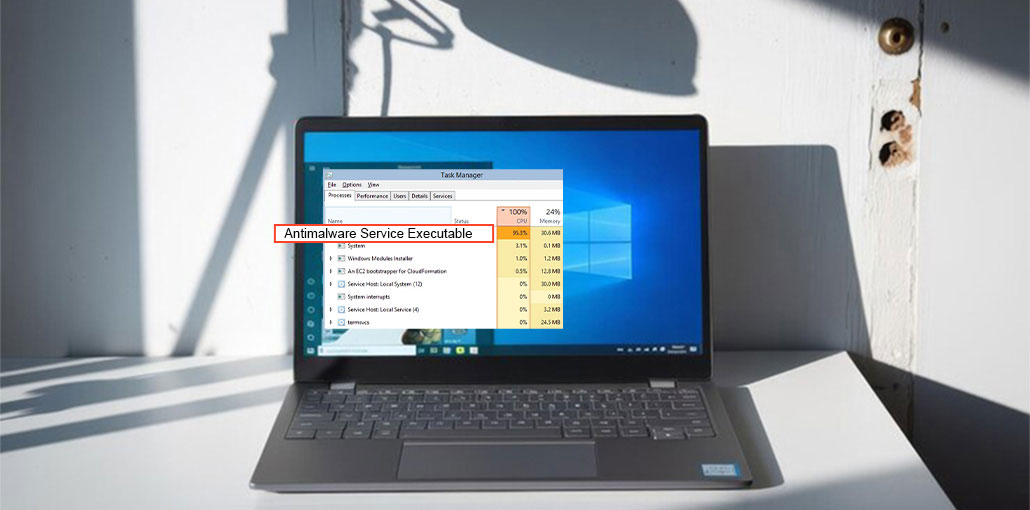
If you’ve found that Antimalware Service Executable’s high disk usage is a problem in Windows 11/10, then take your time, you’re not the only one. A lot of Windows users are experiencing Antimalware Service Executable high memory problems.
This article will discuss everything about Antimalware Service Executable and the best way to resolve the Antimalware Service Executable high CPU issue.
What is Antimalware Service Executable?
A Windows Security process is called Antimalware Service Executable. It is a continuous defense against malware. Also known as msmpeng.exe, the antimalware executable runs in the background to scan documents and other projects now and then.
Why Is Antimalware Service Executable Using High CPU or Memory?
The Antimalware Service Executable high CPU usage issue usually occurs due to:
- Continuous real-time protection scanning
- Scheduled full system scans
- Large files or multiple processes being scanned
- Limited system RAM or CPU power
- Background security checks are running frequently
In most cases, high usage is temporary and happens when your system is actively being protected.
Also read: How to Fix Windows Modules Installer Worker High CPU Usage (2026 Guide)
Should I Disable the Antimalware Service Executable?
It is best to block the antimalware executable from filtering its directory to reduce CPU usage. We don’t advise users to disable Microsoft Defender antivirus software if they do not have an antivirus program.
How to Fix Antimalware Service Executable High CPU Usage
1. Change Windows Defender Scheduling Options
Modifying the scheduling options for Windows Defender is a powerful approach since continuous protection creates the issue. Here are the steps on what to do to disable this Antimalware Service executable
- Press Win + R, type taskschd.msc, and press Enter
- Open Task Scheduler Library
- Go to: Microsoft > Windows > Windows Defender
- Double-click Windows Defender Scheduled Scan
- Uncheck Run with highest privileges
- Go to the Conditions tab and uncheck all options
2. Disable Real-Time Protection (Temporary Fix)
An antimalware service executable high memory usage is an enormous problem for real-time protection checks on your Windows PC, regardless of what you do. It performs its task quickly and lots of CPU, leading to high memory and CPU usage.
The best solution for the antimalware service executable’s high CPU usage issue is to disable protection. After this, Windows Defender won’t work, and your PC will be defenseless. To do this, you must apply the following settings to be put in place:
- Open Settings
- Go to Update & Security > Windows Security
- Click Virus & threat protection
- Select Manage settings
- Turn off Real-time protection
3. Add Antimalware Service Executable to Exclusion List
Prevent Windows Defender from scanning its own process.
- Press Win + I to open Settings
- Go to Update & Security → Windows Security
- Click Virus & threat protection
- Scroll down and select Manage settings
- Find the Exclusions section and click Add or remove exclusions
- Click Add an exclusion → Select Process
- Type MsMpEng.exe and click Add
4. Disable Windows Defender
If Windows Defender gets overwhelmed by exhaustion due to constant record checking, the Antimalware Service Executable experiences high CPU usage. The problem can be resolved by deactivating Windows Defender.
- Press Win + R, type regedit, and press Enter
- Navigate to:
HKEY_LOCAL_MACHINE\SOFTWARE\Policies\Microsoft\Windows Defender - Create or edit DisableAntiSpyware
- Set its value to 1
5. Update All Device Drivers
Are you experiencing mouse lagging problems as mentioned previously? You can refresh all your device drivers. The latest drivers will help ensure your PC runs stably and speedily.
You can refresh your drivers by visiting the official website and searching for the device’s latest driver. Make sure you choose drivers compatible with your Windows software version.
6. Run System File Checker (SFC Scan)
In the same way, corrupted system documents result in high system usage, for instance, antimalware executables that cause large disk usage, msmpeng.exe high CPU use, and other examples. We suggest running the System File Checker (SFC) tool, which helps filter corrupted system files. What’s more, if the SFC utility finds any such files, it will recover them from %WinDir%\System32\dllcache.
Also read: Is Windows Update Stuck? 7 Easy Fixes for Windows Users
7. Scan Your PC for Malware
We recommend conducting a security scan to ensure that your system isn’t impacted by malware. We’ll employ Windows Defender to lead a system scan; updating your antivirus software could be more effective. Follow the steps below to check your computer for any malware:
- Press Windows + S and search for Windows Security
- Open Virus & threat protection
- Select Full scan
- Click Scan now
Final Thoughts
An Antimalware service Executable high CPU usage problem is quite common, but it can be managed. Instead of removing it completely, try the solutions above to improve performance, while also ensuring your system is secure.
FAQs: Antimalware Service Executable
Is Antimalware Service Executable a virus or safe?
No, it is not a virus. It is a legitimate Windows process (MsMpEng.exe) that protects your PC from malware and security threats.
Why does MsMpEng.exe cause high disk usage in Windows 11?
High disk usage occurs when the system is scanning files in real-time or running scheduled scans, especially on slower hard drives.
Is it safe to end Antimalware Service Executable in Task Manager?
No, ending the task is not recommended. It may temporarily stop protection and the process will restart automatically.
Should I use third-party antivirus instead of Windows Defender?
If you need lighter performance, some third-party antivirus tools may use fewer resources. However, Windows Defender is sufficient for most users.









Leave a comment