

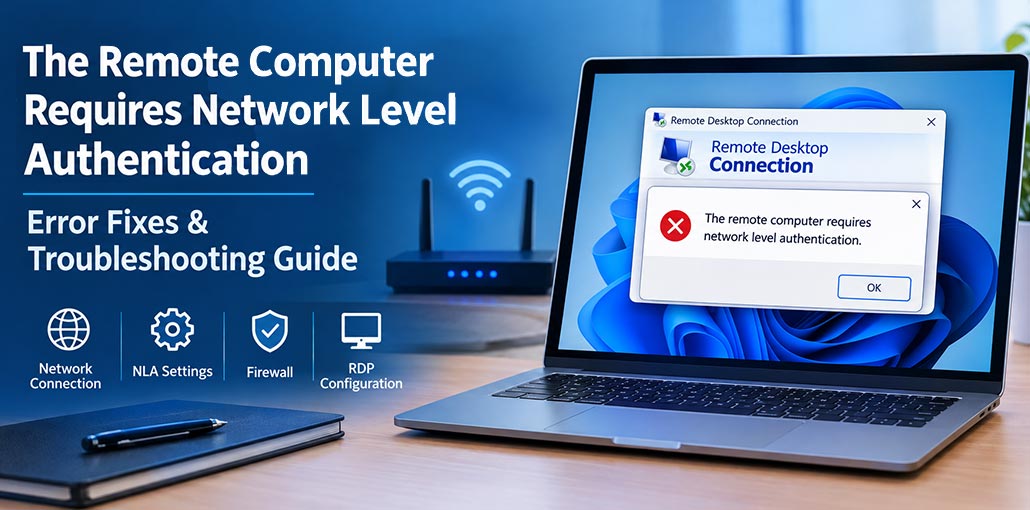
If you see the ” The Remote Computer Requires Network Level Authentication error when using Windows Remote Desktop, you may not be able to connect to the other PC. This problem can happen because of NLA settings, network issues, account permissions, or Remote Desktop settings.
The good news is that you can usually fix this Network Level Authentication error with a few simple steps. Below, we explain each solution in an easy way.
What Does “The Remote Computer Requires Network Level Authentication” Mean?
The remote computer requires network level authentication message means that the remote PC wants to verify your identity before starting an RDP session. This security check is called Network Level Authentication, or NLA.
You may see this Remote Desktop NLA error because of an outdated RDP client, incorrect settings, network problems, user permissions, or Group Policy restrictions. Before turning off NLA, try the basic fixes below.
9 Ways to Fix The Remote Computer Requires Network Level Authentication
1. Check Your Internet and Network Connection
Start with your network connection. Both computers need to be connected properly.
If both PCs are on the same network, make sure they are connected properly. If you are connecting from a different network, check your Wi-Fi, VPN, router, and firewall settings.
Also, make sure you are using the correct computer name or IP address. A wrong address can cause an RDP connection error.
After checking the connection, try Remote Desktop again.
Also read: Can’t Connect to This Network Error: 13 Quick Fixes to Restore Wi-Fi
2. Update the Remote Desktop Client
An old Remote Desktop client may not work correctly with newer NLA settings. Updating Windows and the Remote Desktop client can fix compatibility problems.
Try these steps:
- Install any available Windows updates.
- Update the Remote Desktop client or Windows App.
- Restart your computer.
- Try the connection again.
This is especially helpful if you are connecting from an older Windows PC.
3. Make Sure Remote Desktop Is Enabled
Remote Desktop must be turned on before another computer can connect to it.
On the remote PC:
- Open Settings.
- Select System > Remote Desktop.
- Turn on Remote Desktop.
- Check that your account has permission to connect.
- Try connecting again.
If Remote Desktop is turned off, changing NLA settings will not fix the problem.
4. Check Remote Desktop User Permissions
Your Windows account must have permission to use Remote Desktop. If it does not, Windows may reject the connection.
To check your account:
- Press Windows + R.
- Type lusrmgr.msc.
- Press Enter.
- Select Groups.
- Open Remote Desktop Users.
- Check if your account is listed.
If a company or school manages the PC, an administrator may control these settings through Group Policy.
5. Temporarily Disable Network Level Authentication
If the previous fixes don’t work, you can temporarily disable NLA to see whether it is causing the problem.
On the remote computer:
- Press Windows + R.
- Type sysdm.cpl.
- Press Enter.
- Open the Remote tab.
- Find Allow connections only from computers running Remote Desktop with Network Level Authentication.
- Clear the checkbox.
- Click Apply and then OK.
- Try connecting again.
If the connection works after this change, NLA is likely related to the problem.
However, do not leave NLA turned off unless you have a good reason. NLA adds an important security layer to Remote Desktop.
6. Check NLA Settings in Group Policy
Sometimes Group Policy controls the NLA setting. This can happen on business or school computers.
To check it:
- Press Windows + R.
- Type gpedit.msc.
- Press Enter.
- Go to:
Computer Configuration > Administrative Templates > Windows Components > Remote Desktop Services > Remote Desktop Session Host > Security
Find Require user authentication for remote connections by using Network Level Authentication.
Check its current setting.
If your organization manages the computer, ask the administrator before changing this setting.
7. Check Windows Firewall
Your firewall may block Remote Desktop and cause an RDP connection error.
On the remote computer, make sure Windows Firewall allows Remote Desktop. If you use third-party security software, check its firewall settings too.
Remote Desktop commonly uses TCP port 3389, but an administrator can change the port.
After checking the firewall, restart Remote Desktop and try again.
Also read: Who is Better For Security: VPNs vs. Firewalls vs. Antivirus
8. Reset Network Settings
A damaged or incorrect network configuration can also cause connection problems.
To reset your network:
- Open Settings.
- Go to Network & Internet.
- Select Advanced network settings.
- Choose Network reset.
- Follow the instructions.
- Restart your computer.
A network reset can remove saved network settings and reinstall network adapters. You may need to reconnect to Wi-Fi or set up your VPN again.
9. Check Domain and Login Settings
If the remote PC is connected to a Windows domain, NLA may need to contact the domain controller to verify your account.
Check these settings:
- Make sure the PC is connected to the correct network or VPN.
- Check your username and password.
- Make sure the date and time are correct.
- Confirm that your account can use Remote Desktop.
- Make sure required domain services are available.
After checking these settings, try the Remote Desktop connection again.
Should You Disable Network Level Authentication?
Turning off NLA can help you find the cause of a Network Level Authentication error, but it should usually be a temporary fix.
NLA checks your identity before Windows starts a full Remote Desktop session. This adds extra protection to your computer.
If turning off NLA fixes the Remote Computer Requires Network Level Authentication problem, try to find and fix the real authentication or configuration issue. Once you have fixed it, turn NLA back on.
Final Thoughts
The Remote Computer Requires Network Level Authentication error is often caused by network problems, outdated Remote Desktop software, account permissions, firewall settings, or NLA configuration.
Start with simple fixes such as checking your network and Remote Desktop settings. If those do not work, check NLA and Group Policy settings. Keep NLA enabled whenever possible to maintain better security.
FAQs: The Remote Computer Requires Network Level Authentication
What is Network Level Authentication in Remote Desktop?
Network Level Authentication (NLA) is a Windows security feature that verifies a user's identity before starting a Remote Desktop session. It helps protect the computer from unauthorized connections.
Why am I getting a Remote Desktop NLA error?
A Remote Desktop NLA error can happen because of network problems, incorrect login details, disabled Remote Desktop settings, firewall restrictions, or NLA configuration issues.
What causes an RDP connection error?
An RDP connection error can be caused by network issues, blocked firewall ports, incorrect credentials, disabled Remote Desktop, permission problems, or incorrect Windows NLA settings.
Is it safe to disable Network Level Authentication?
NLA adds an extra layer of security to Remote Desktop. Disabling it can make your PC less secure, so it is better to keep NLA enabled when possible. Only disable it temporarily when troubleshooting or when required by your setup.




Leave a comment