

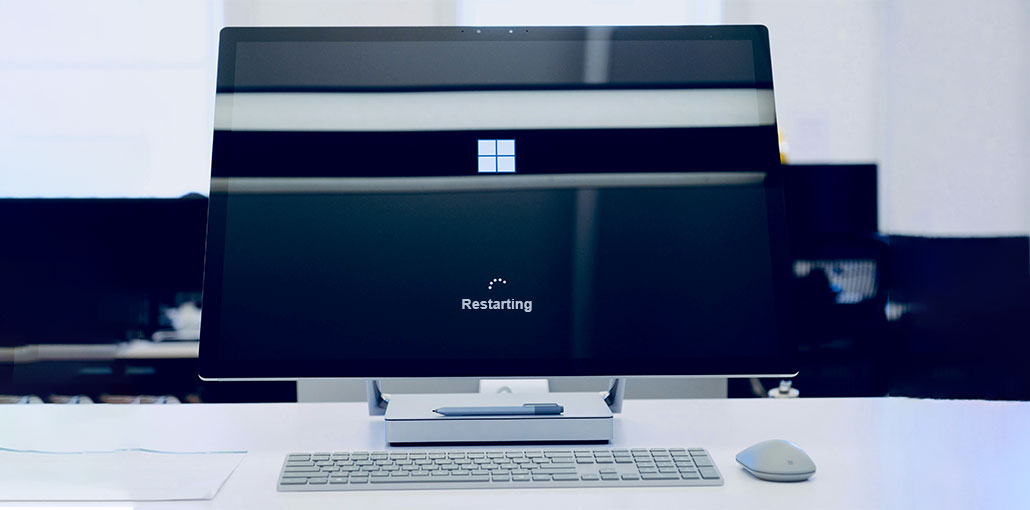
It’s frustrating to find yourself in a loop where your computer keeps restarting or takes forever to reboot in Windows 10/11. Don’t fret, as this article is there to help. You can quickly solve the issue of the “computer stuck on restarting” with this straightforward guide.
If you’re having trouble with being stuck in a boot loop in the course of or following a Windows update, you will get the answer in this article.
Why is My Computer Stuck on Restarting?
Here are a few reasons that can be causing your system to restart:
- Windows update failure
- Corrupted system files
- Driver conflicts
- Power interruption during shutdown/restart
- Startup programs errors
- Hardware issues (rare but possible)
Whatever is causing the Windows PC stuck on restarting screen, there is a solution to fix it.
How to Fix a Computer Stuck on Restarting Issue
This section provides 11 solutions to fix the computer stuck on restarting issue. If you can pinpoint the root of the issue and you know the cause, then jump right to the solution:
Quick Fixes to Fix a Computer Stuck on Restarting
1. Remove External Devices
A computer’s restart can be hindered by external devices such as USBs, printers, drives, and external hard disks. Connecting these devices is essential to fix this “computer stuck on restarting” issue.
- Eject any linked devices, for example, USB drives.
- Shut off the computer.
- Unplug any external devices and then reboot your computer.
If you experience other issues while fixing your computer, for instance, Windows 11/10 cannot diagnose your computer.
Also read: Acer Loading Screen Stuck? 6 Easy Fixes to Try Before Repair
2. Perform a Hard Reboot
A hard reboot is a method for forcing a fresh startup on your PC by turning off the power. This is a way to restart your computer and thereby end the cycle of a stuck restart.
- Hold the power button for 5-10 secs to shut down.
- Wait for a few minutes.
- Power on your computer. Make sure that the computer restarts without problems.
3. Use the Boot Repair Tool
This Boot Repair tool is useful when your PC fails to start up. In helping you resolve several hard boot and system issues, it ensures that your system is running correctly.
Boot Repair Tool
- EaseUS WindowsRescuer
- Windows Startup Repair
- Hiren’s BootCD
Advanced Fixes to Fix a Computer Stuck on Restarting
1. Run Windows Startup Repair
Windows has a repair startup feature that can help you fix simple problems that cannot be booted. The method does require that you create Windows 11 installation media. Follow the steps below:
- Press and hold F2/F10/Del until you enter BIOS. Select your Windows installation media to be the initial boot order.
- Boot Windows from USB and then set the language, etc.
- Click “Repair your computer.”
- Choose an option, select Startup Repair, and start repairing automatically.
2. Boot into Safe Mode
Here is another option to consider if the first strategy failed to solve the issue. One option to overcome the underlying causes behind restart issues is to start your computer in safe mode. Take these steps to follow:
- When your computer is restarted, press the F8 key during startup.
- The Advanced Boot Options menu will open. Choose “Safe Mode” to allow your system to boot up minimally.
Also read: 6 Easy Ways to Fix BIOS ID Check Error During a BIOS Update
3. Run SFC and CHKDSK Commands
System stability could be improved using the Check Disk Utility and System File Checker (SFC). The computer stuck on restarting issue could be solved with these built-in tools.
- Access the Command Prompt in WinRE.
- Enter the command: “sfc /scannow /offbootdir=C:\ /offwindir=D:\Windows” and press Enter to launch the System File Checker.
- Type in the command: “chkdsk D: /R” to test Disk Utility.
4. Run System Restore
If your computer keeps restarting, System Restore might help. This method lets you restore your PC to an earlier time, when it was operating without issues, when you’ve got System Restore installed.
- In WinRE, select System Restore.
- Select a restore point and follow the on-screen instructions.
5. Run Windows Troubleshooting
Utilizing Windows Troubleshooting can help you solve the issue of your PC restarting constantly. This feature can aid in identifying many maintenance-related issues.
Here is how you can do it:
- Press Windows + S and then enter “Control Panel” and Enter.
- Navigate through “System and Security” and select it.
- Under “Maintenance,” select “Start maintenance,” and then follow the prompts on screen.
6. Disable Fast Startup
Fast Startup may shorten the duration it takes for your computer to start from a cold shutdown, but it can also cause issues. The computer stuck on restarting is fixable by deactivating it. Here is the procedure to follow:
- Go through the Control Panel and select “Hardware and Sound,” then go to “Power Options,” and “Change what the power buttons do.”
- Select “Change settings that are currently available.”
- Deleting “Fast startup (recommended).”
Also read: Is Windows Update Stuck? 7 Easy Fixes for Windows Users
7. Roll Back Drivers
If you’re having restart problems after updating a driver for your device, you might want to try reverting to an older version. Take these steps to resolve “computer stuck on restarting” by rolling back the driver:
- Click the Start button, then right-click to select “Device Manager.”
- Right-click the device driver (e.g., your video card) and then select “Properties.”
- Under the “Driver” menu, choose “Roll Back Driver.”
8. Perform a Clean Boot
This “Computer stuck on restarting” problem can be solved by identifying the cause of conflicting startup apps and third-party applications through a clean boot.
- Enter “services.msc” into the Run box, and then select “OK.”
- Select “Disable all” after you check the “Hide all Microsoft services” box, and then select “OK.”
- To access Task Manager, press “Ctrl + Alt + Esc.”
- Select the “Startup” tab, and then turn off all processes.
- To check whether it is booting normally, restart your computer. If not, slowly restart startup programs and third-party services to pinpoint the cause of the issue.
Wrap Up
This article solved the issue of the “computer stuck on restarting” in Windows 10/11 and offered you practical solutions. You can handle this task with the information you need.
FAQs: Computer Stuck on Restarting
How long should a computer take to restart?
A normal restart usually takes 1–3 minutes. If your computer is stuck on restarting for more than 10–15 minutes, it is likely facing a system issue.
Can a Windows update cause restart loop issues?
Yes, a failed or incomplete Windows update is one of the most common reasons for a computer getting stuck on restarting. Booting into Safe Mode or uninstalling recent updates can fix the issue.
Why does my computer restart again and again without warning?
This can happen due to overheating, hardware faults, driver conflicts, or system crashes. Checking hardware and updating drivers can help resolve it.
Can I fix the computer stuck on restarting without losing data?
Yes, most methods to fix a computer stuck on restarting—like Startup Repair or System Restore—do not delete your personal files.
How do I stop my computer stuck on restarting loop?
To fix a computer stuck on restarting loop, disable automatic restart, update drivers, and run system repair tools like SFC or Startup Repair.








Leave a comment