

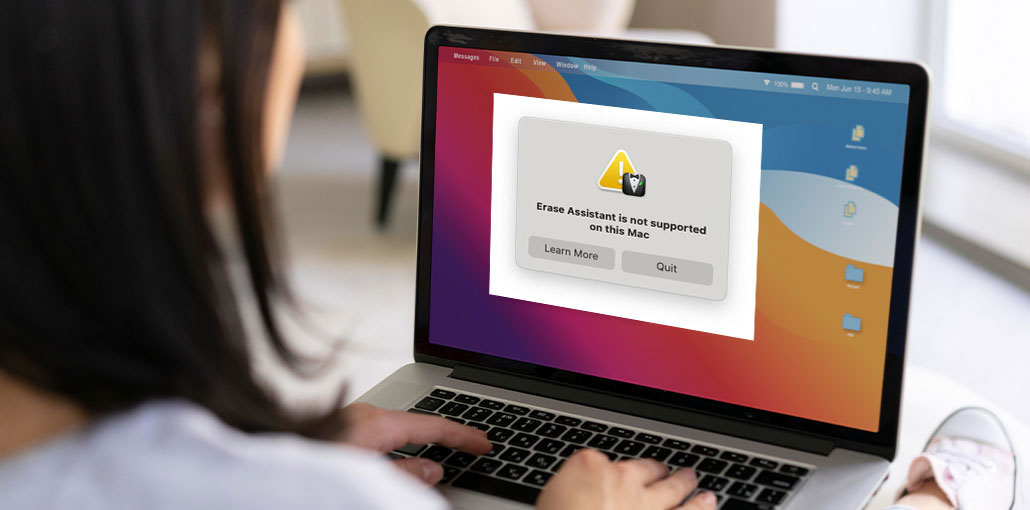
There have been numerous reports of users getting the error message “Erase Assistant is not supported on this Mac.” These users were trying to use the Erase Assistant to prepare for a factory reset or restart of their Mac. If you’ve experienced similar issues and you’re wondering the cause, there could be a variety of culprits. Let’s discuss the Erase Assistant tool, which is available to anyone, when you can use it, and the best way to solve the “Erase Assistant is not supported on this Mac” error.
What Is Erase Assistant and Who Can Use It?
Erase Assistant is a new feature that Apple launched in macOS Monterey. If you’re familiar with the ” Erase all content and Settings feature in iOS Erase Assistant, it performs the same thing, only for your Mac. It allows you to securely erase your Mac’s settings, data, and apps without removing the current macOS. In simple terms, it factory resets your Mac.
Why Am I Seeing “Erase Assistant Is Not Supported on This Mac”?
It is important to remember that the Erase Assistant only supports Apple Silicon and Macs officially with the T2 security chip. Users who own these Mac models can use Erase Assistant to restore their computer to factory settings. However, owners of Intel-based Macs with the T2 Security Chip won’t be able to use this feature. You’ll need to utilize Disk Utility to wipe the contents and settings from your Mac.
Also read: MacBook Won’t Turn On? 7 Powerful Methods to Start It Again
How Does Erase Assistant Work and Why Do I Need to Use It?
If you are going to sell your Mac or transfer it to someone, you must erase all the data on the computer so the next owner can’t access or use it. It could be your bank account information, personal data, Apple ID, Touch ID, and other accessories that you’ve used, Apple Wallet information, and Find My activation lock. After using the Erase Assistant feature on your Mac, the machine will be in an uninstalled state, with no sensitive information remaining.
How To Use Erase Assistant
Before you use Erase Assistant or erase any content or settings on your Mac, be sure to back up your data before doing. You can use Apple’s Time Machine or Acronis to accomplish this. However, there are other backup solutions you can count on. Follow the instructions below to wipe the entire contents and settings of your Mac.
To use the Erase Assistant application, you must follow these steps.
- Click Settings > System Settings and then General. If your Mac runs macOS Monterey or earlier, this is located within the System Preferences.
- Click Transfer or Reset > Erase All Content and Settings.
- You may want to use Migration Assistant to help transfer your data to another computer. Migration Assistant will help you transfer your data onto a new Mac, a Windows PC, a Time Machine backup, or an external disk.
- Enter your Administrator Password to unlock Erase Assistant. Then click to unlock.
- Select Proceed to confirm the removal of any settings, media, or data.
- If you are asked to log out, sign off of the Apple ID account and choose to continue.
- Click Erase All Contents and Settings to continue.
Following these steps, the Mac will start up and display the black screen. It is then possible to turn off your Mac and leave it in its default state without registering it. This is recommended if you sell or give away your Mac. If you’re just beginning with your Mac, follow the on-screen instructions to set up your computer.
Also read: 10 Best File Recovery Software for Mac: Recover Deleted or Lost Files
How to Fix “Erase Assistant Is Not Supported on This Mac”
If your Mac doesn’t support Erase Assistant, there isn’t a direct way to enable it. However, you can still achieve the same result using alternative methods.
Option 1: Use macOS Recovery Mode
This is the most reliable workaround:
- Restart your Mac and press Command (⌘) + R (for Intel Macs)
- Open Disk Utility
- Erase your startup disk
- Reinstall macOS
Option 2: Use Disk Utility Manually
You can manually wipe your drive and reinstall macOS, which effectively performs a factory reset.
Option 3: Follow Apple’s Official Reset Process
Apple provides official guidelines for preparing your Mac before selling or giving it away, including steps to sign out of accounts and erase your data securely.
Wrap Up: Solve ‘Erase Assistant Is Not Supported on This Mac’
What happens if, even though you are experienced with macOS basics, you come across an error message that says “Erase Assistant is not supported on this Mac”? If you’re using an Intel-based Mac with no T2 security chip, there’s no way to fix the issue.
But you could still erase all your preferences and files on your Mac. We hope this article has shown the possibility of fixing this issue and also how to use the Erase Assistant.
FAQs: Erase Assistant Is Not Supported on This Mac
Will Erase Assistant delete everything on my Mac?
Yes, it removes all apps, settings, and personal data, returning your Mac to factory settings while keeping the macOS installed.
Is it safe to use Erase Assistant?
Yes, it is a secure and official Apple feature designed to completely wipe your data before selling or giving away your Mac.
What macOS version supports Erase Assistant?
Erase Assistant is available on macOS Monterey (12) and later versions. Older versions do not include this feature.
Is Disk Utility a good alternative to Erase Assistant?
Yes, Disk Utility is a reliable alternative that allows you to erase your disk and reinstall macOS for a complete reset.
How do I fix “Erase Assistant Is Not Supported on This Mac”?
There is no direct fix if your Mac is unsupported. However, you can still erase your Mac by using Disk Utility in Recovery Mode and reinstalling macOS.








Leave a comment