

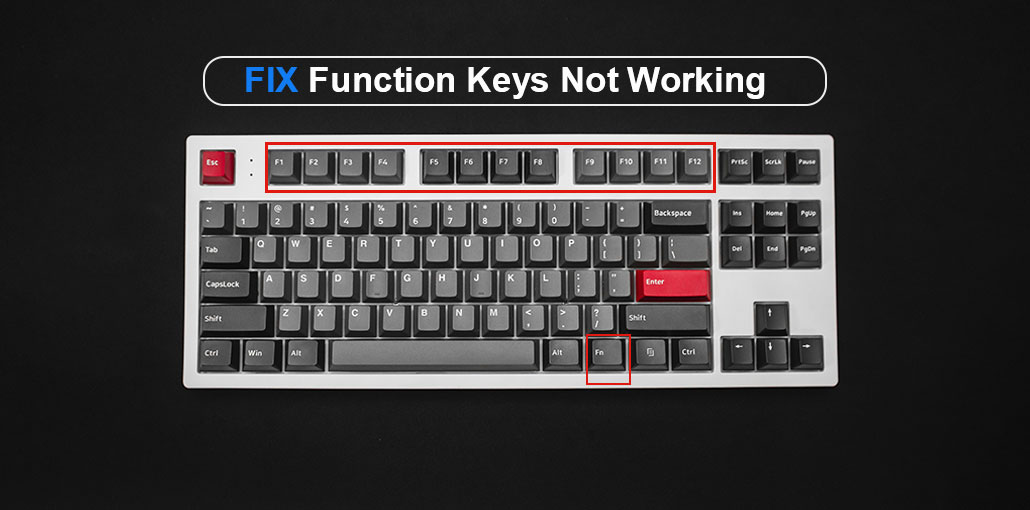
The function keys on laptops, or the FN key, are extremely simple to perform tasks such as turning off the sound, changing the brightness settings, and several other tasks. Without function keys, carrying out these tasks will require several steps. If you find that the Windows 10 function keys not working, it can be a very stressful experience. In this article, we’ll share some quick solutions for the function button not working.
It is crucial to determine why the Fn keys not working properly on your Windows 10 device before we discuss the fixes. If you can identify the source of the issue, this issue can be fixed. Therefore, we will list the sources.
Why Are Function Keys Not Working?
Before jumping into solutions, it’s important to understand what may be causing the issue. Common reasons include:
- Hardware or keyboard issues
- Outdated or corrupted drivers
- Synaptics or hotkey driver conflicts
- Filter Keys is being enabled in Windows settings
- BIOS settings misconfiguration
Once you identify the cause, fixing the issue becomes much easier.
Also read: Windows Key Not Working? 9 Easy Fixes to Try (2025 Guide)
How to Fix Function Keys Not Working Issue
Here are the most straightforward options to fix your Windows 10 function keys not working issue in 10 minutes.
1. Check If Function Keys Are Locked
Most often, the reason the function keys not working is that you accidentally clicked the F key lock. However, don’t worry about it. We’re here to guide you on how to unlock Fn key on a Windows PC.
We suggest looking for an Fn Lock(F Lock) or Fn Mode(F Mode) key on your keyboard. If there is one, then try pressing it and then verify whether the Fn keys are working.
2. Run Hardware and Device Troubleshooter
Hardware issues are among the main reasons the Windows 10 function key does not work. It is necessary to use the troubleshooter to solve the issues. Follow these steps to accomplish this without difficult effort.
- Press Windows + I to open Settings
- Go to Update & Security
- Click Troubleshoot from the left panel
- Select Hardware and Devices
- Click Run the troubleshooter
3. Uninstall Synaptics Pointing Device Driver
As previously mentioned, the driver for Synaptics’ pointing device could be the reason the function key not working. Try uninstalling it, and see if the function key is working after uninstalling the Synaptics pointing device driver. Here’s how to uninstall the driver.
- Press Windows + R and type devmgmt.msc
- Open Device Manager
- Expand Mice and other pointing devices
- Right-click the Synaptics device
- Select Uninstall device
- Restart your laptop
4. Uninstall Hotkey Driver
Uninstalling the hotkey driver can solve issues with the Windows 10 Fn button not working. Thus, you can uninstall it by following the steps below.
- Open Device Manager
- Locate the Hotkey driver
- Right-click it and select Uninstall device
- Confirm the action
- Restart your computer
5. Disable Filter Keys
Windows includes filter keys that can block repeated key presses. This could be a reason why the Fn key not working on Windows 10. So, you should disable the filter keys to solve the problem.
- Search Control Panel in the Start menu
- Open Ease of Access Center
- Click Change how your keyboard works
- Uncheck Turn on Filter Keys
- Click Apply and then OK
Also read: Mouse Not Working? Step-by-Step Troubleshooting Guide
6. Update Keyboard Drivers
Incorrect drivers can cause problems like Windows 10 function keys not working and other fatal issues. So, updating your drivers is the best solution for nearly all problems that plague your PC. To fix the function key issue, upgrade the keyboard drivers. Manually updating drivers can be tiring and can be dangerous to your PC. When you perform the driver update manually, follow the steps
- Open Device Manager
- Expand Keyboards
- Right-click your keyboard
- Select Update driver
Tip: You can also use automatic driver update tools to avoid manual errors.
Summing Up
In conclusion, when encountering the function keys not working issue, users can use these techniques to fix the problem. Through careful examination and application of the suggestions above, users can gain control of these keys, providing a smoother and more efficient computer experience.
FAQs: Function Keys Not Working
Why are my function keys not working after a Windows update?
Sometimes updates change system settings or drivers. Try restarting your PC, updating keyboard drivers, or checking Fn Lock settings.
How do I enable function keys without pressing Fn?
You can disable Action Keys Mode in BIOS/UEFI settings so F1–F12 work without pressing the Fn key.
Do all laptops use the same Fn key shortcuts?
No, shortcuts can vary depending on the laptop brand (HP, Dell, Lenovo, ASUS, etc.).
How do I fix function keys not working quickly?
The fastest fix is to press Fn + Esc to toggle the Fn Lock and restore normal functionality.








Leave a comment