

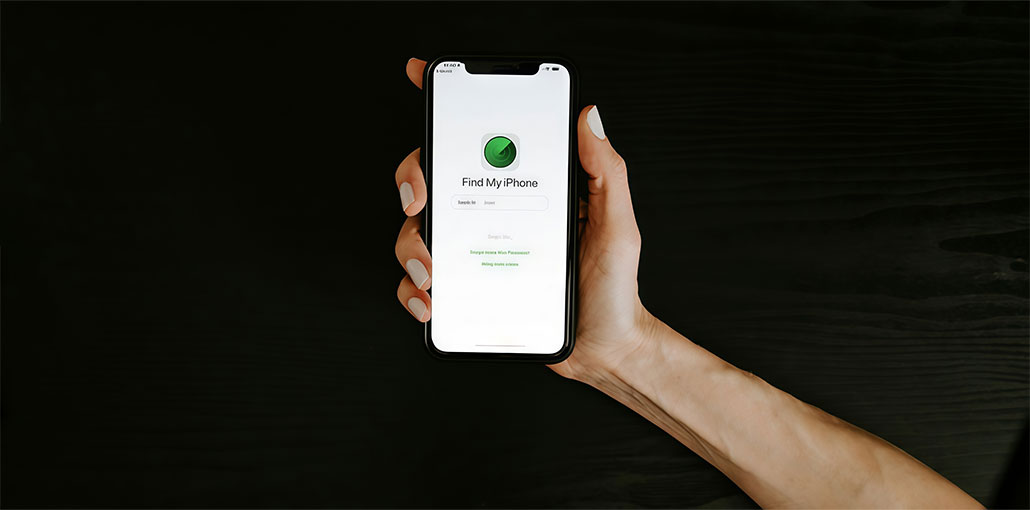
Find My iPhone is definitely one of the most impressive features of the iPhone because it helps you locate lost or stolen iPhones. It can be a harrowing and frustrating experience when Find My iPhone not working if you have lost your device.
As someone who has been through this before, I can appreciate how frustrating it can be. So, I’ve put together the most effective and tested solutions to help you fix Find My iPhone not working.
Why Is Find My iPhone Not Working?
The Find My iPhone is a safety feature that lets you track your phone. iPhone, iPad, and Mac all have access to this feature. It is extremely effective when the device is stolen, misplaced, or damaged. You can find your Apple devices using iCloud service, and this function works with the phone’s built-in GPS.
Find My not working correctly for various reasons. Examples:
- iCloud services are not connected correctly
- Find My iPhone is disabled
- Weak internet connectivity
- Incorrect date and time settings
- Outdated iOS software
- Software bugs or hardware issues
- Location Services are turned off
Fortunately, most of these problems can be fixed with simple troubleshooting steps.
Also read: No Location Found on iPhone? 8 Easy Fixes That Actually Work
How to Fix Find My iPhone Not Working
If you notice that Find My iPhone not working after iOS update, you must identify the root cause and fix it as quickly as possible. Here are all possible solutions to this issue. You can fix the Find My iPhone feature by using these suggestions.
1. Make Sure Location Services Are Enabled
If the location service is disabled on your iPhone, Find My iPhone not working. Find My iPhone can show the device’s online status, but it will not show its location if the service is not enabled. Making sure location services are on for the iOS phone is the initial step to correct Find My Phone not updating its location. Instead, you need to turn on Location Services, go to Settings > Privacy > Location Services.
2. Activate Your iCloud Account
If you’re not logged in to your iCloud ID, the error message Find My Phone not sharing locations may occur. You need to be logged in to iCloud to share your location since Find My iPhone uses iCloud to find a device. You can sign in with your iCloud ID Settings > (your username) iCloud, and then enter your Apple ID and password.
3. Verify Your Apple ID
Make sure to use the same Apple ID for the device you wish to monitor. If you want to use another device or visit the website, use Find My iPhone to find your lost phone. It is important to note that the Find My feature can only precisely locate your iPhone with this method. If you’re not sure, then try entering all the information you need to know about the Apple ID the missing device is using.
4. Turn On “Share My Location”
Make sure that location sharing is disabled on your device after verifying that you’re signed in to the iCloud account.
Go to Settings> iCloud > Share My Location and then tap it to enable it. Also, you can turn on location sharing by selecting “This Device” from the “From” option next to the Share My Location toggle.
5. Allow Location Permission for Find My
You can also decide which apps will receive location data from location services and block access to other applications. Find My iPhone will be unable to locate it if you don’t allow it to use location services.
To grant permission:
- Go to Settings
- Tap Privacy & Security
- Select Location Services
- Tap Find My
- Choose Always or While Using the App
6. Check Your Internet Connection
Its Find My function can report the current location when the internet is connected. If Find My iPhone not working, try turning off cellular data or switching on Airplane Mode, or moving the WiFi range. Resolving these issues will enable the Find My function. Making sure that Find My iPhone has a cellular data connection is ideal. If your device isn’t within range of WiFi, it can still be tracked. To determine whether Airplane Mode is on:
Try the following:
- Connect to a stable Wi-Fi network
- Enable mobile data
- Turn Airplane Mode off
- Restart your router if necessary
7. Check Battery Levels
It goes without saying that it’s important to know that the Find My feature will no longer be able to determine your device location if it has run out of battery. Instead, charge your device when the battery is dead or is low. The great thing is that your phone is already set up to provide the last location when the battery is at a critical level, when you follow the setup procedures in the above section.
8. Set Date and Time Automatically
Most people don’t think of it as essential. However, incorrect date and time settings stop Find My iPhone from functioning. But the app does not provide accurate tracking signals. So the time and date have to be updated to show the exact time in real time.
To fix this:
- Open Settings
- Tap General
- Select Date & Time
- Turn ON Set Automatically
9. Update Your iPhone
To resolve the Find My iPhone not working issue, updating the iOS system is another option, since each new iOS version can include bug fixes people long for. If the issue has nothing to do with other settings, it is worth checking this issue.
Update your iPhone:
- Open Settings
- Tap General
- Select Software Update
- Install any available updates
Also read: How to Fix GPS Not Working on iPhone: 8 Quick Fixes for GPS Issues
10. Perform a Restart on Your iPhone
Don’t lose interest in this method, as it’s been a reliable method to fix numerous iPhone issues. If you’ve tried other methods but cannot solve the Find My iPhone not working problem, a simple restart could help without knowing. It’s not a bad idea to test it.
To restart your iPhone:
- Press and hold the power button
- Slide to power off
- Wait a few seconds
- Turn the device back on
Tips to Prevent Future Find My iPhone Not Working Issues
To avoid future problems:
- Keep iOS updated
- Always enable Find My iPhone
- Turn on Find My Network
- Enable Send Last Location
- Use a strong Apple ID password
- Keep Location Services active
These simple precautions can save you significant stress later.
Finally, Solve Find My iPhone Not Working Issues
You’ve just learned about the various solutions for Find My iPhone not working. It is highly recommended to keep regular backups with all verified methods. Check that the required settings are in place for you and your loved ones. Visit the Apple Store nearby and contact a tech support representative if nothing works.
FAQs About Find My iPhone Not Working
Why does Find My iPhone say “No Location Found”?
The “No Location Found” error usually appears when the device is turned off, offline, in Airplane Mode, or unable to access GPS and internet services.
How do I fix Find My iPhone not updating location?
You can fix this issue by enabling Location Services, checking your internet connection, updating iOS, restarting your device, and turning on Share My Location.
Does Find My iPhone work when the phone is off?
If the device supports Apple’s Find My Network feature, it may still show the last known location even after the phone is turned off or the battery is low.
Can I track my lost iPhone from another device?
Yes, you can use the Find My app on another Apple device or log in to iCloud using a browser to track your lost iPhone.







Leave a comment