

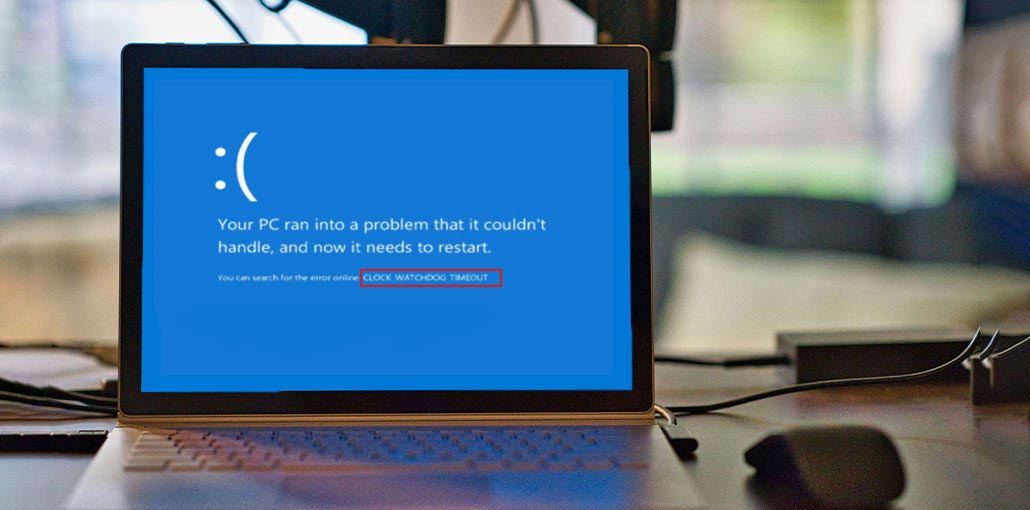
Are you facing issues with the system or other devices and looking for a solution to fix the CLOCK_WATCHDOG_TIMEOUT error? There are several errors faced, particularly when we access the system. BSOD Error Stop Code 0x00000101 is the most harmful and must be fixed.
Common Causes of Clock Watchdog Timeout Error
There are many possible causes for the clock watchdog timeout error on Windows 10.
- Outdated or corrupted drivers
- CPU overclocking issues
- Faulty RAM or hardware failure
- Corrupted Windows system files
- Outdated BIOS version
- Windows update conflicts
- Overheating processor
Understanding the root cause of the Clock Watchdog Timeout Error can help you apply the correct solution quickly.
Also read: KMODE Exception Not Handled Error in Windows 11/10: Ultimate Fix Guide
How to Fix Clock Watchdog Timeout Error
1. Restart Your Computer
If you’ve been having the same Clock WatchDog Timeout error for a long time and you want to resolve it, restarting Windows 10 or 11 is the first step. It’s also believed to be crucial to rectify and fix the issue. It is essential to recognize that this isn’t an issue that can cause your system to fail slowly, but a problem that can be solved.
Yes, it is possible to sort with a restart. Try this method and verify that the issue is resolved. If you are still looking for the best solution, follow the steps below to fix the issue. The way to solve the problem will be experienced in general.
2. Update Drivers
Have you downloaded and re-updated drivers? To fix the Clock WatchDog Timeout error, update the system drivers. If, for instance, the drivers are corrupt for different reasons, there is a possibility of experiencing a watchdog timeout error. There will also be an error message on the system’s screen.
Step 1. Download the driver from the OEM’s site and save it to your computer.
Step 2. Open Device Manager. Then find the device you want to repair. Right-click to remove it.
Step 3. Start the Driver installer you downloaded in step 1, and then run the installer. It will install the driver for your specific devices.
3. Updating BIOS
If you require assistance by following the steps above, but you are still searching for a solution, make sure you check if the BIOS version is outdated. If the version you are using is outdated, there is a reason that could be causing the issue. If you’re looking to improve the speed of your experience, ensure that you download the most recent Version of BIOS.
BIOS and UEFI updates are accessible through the OEM’s website. Every motherboard has its own method to upgrade it. Be sure to read the instruction manual thoroughly and follow the instructions.
4. Reset BIOS Settings
Many PCs today allow users to overclock to enhance gaming performance. But sometimes, this can cause problems with time-outs. If you’re unable to connect to the computer and switch off overclocking through your software, then you could do so via your BIOS and UEFI.
Press the keys DEL, F2, or any other key similar to those mentioned on the boot-up screen to enter BIOS. When you are inside, look for the configuration screen, and then select “Restore Defaults”. Then, select “Yes”.
5. Run Windows Memory Diagnostic
RAM is an integral part of the physical, and if it is faulty hardware, it can result in this error. You can use this Windows Memory Diagnostic tool if your computer does not make a beeping sound. It’s a built-in tool in Windows that allow to check your computer’s memory errors.
Steps to run Windows Memory Diagnostic in Windows:
Step 1. Press the Windows key and”R” on the keyboard to launch the Run dialog box.
Step 2. Enter “mdsched.exe” and press Enter.
Step 3. There are two choices: “Restart now and check for problems (recommended)” and “Check for problems the next time I start my computer.” If you choose the latter, you can check immediately.
Step 4. The PC will reboot, and the memory diagnostic tool will begin to run. The tool will display the blue screen, with a progress bar. Then, the tool will begin testing your memory for any errors.
Step 5. Following the test, the PC will reboot, and you’ll see the results in the Windows Notification Center. If the test reveals issues, it will inform the type of error and the memory module at risk. If you find a hardware issue, upgrade the RAM with a new one.
6. Repair Corrupted Windows System Files
Windows System files are core files that are used by all programs, either directly or indirectly. When problems arise, it’s always recommended to check for errors and fix them. Fortunately, Windows offers a built-in tool that administrators can utilize to fix the issue.
Step 1. Select the Start Menu, then select Windows Terminal (Admin) Command Prompt (Admin).
Step 2. To run the SFC scannow command line, type SFC /SCANNOW into the terminal, then hit Enter. Enter key.
Step 3. Complete the process. The process will then be corrected if there’s an error, i.e., damaged system data.
Windows contains an unofficial backup of all system files. Tools like these copy the backup file and then replace the corrupted one.
7. Restore Windows to a Previous Version
It’s also one of the methods to check out and fix the error further. System restore is believed to be Windows’s integrated backup system overall. System Restore is a tool you can use to restore your computer to an earlier date.
Step 1. Open Command Prompt or Windows Terminal with elevated privileges.
Step 2. Type rstrui.exe and then press Enter. Enter the key to launch the System Restore Wizard.
Step 3. Select the restore option, and then select the date you want to restore.
Step 4. Allow the wizard to complete the process. Hopefully, your issue will be resolved following this.
Also read: Is Windows Update Stuck? 7 Easy Fixes for Windows Users
8. Update Windows to the Latest Version
If you encounter this issue for the first time and are looking at fixing it, make sure all Windows Update patches are correctly installed. It is important to follow the steps to try to force an upgrade to Windows 11.
Step 1. Open Windows Settings.
Step 2. Go to Windows Update and then click to check for updates.
Step 3. Then, you’ll see Windows begin looking for updates to your system. If any updates are available, Windows will install them automatically. You must hold off until the process has completed.
Finally, you have to restart your computer after the update has finished. You can now check whether the blue screen is displayed or has gone.
Final Thoughts
Those who have been struggling to deal with the Clock WatchDog Timeout error for an extended period should check out these solutions. There are many ways to fix the Clock WatchDog Timeout error, and be sure to follow the steps provided without missing.
The techniques mentioned above are easy to implement and provide the right solution, like solving the issue without any problems.
FAQs About Clock Watchdog Timeout Error
What does CLOCK_WATCHDOG_TIMEOUT mean?
It means the CPU is not responding to system interrupts in time, causing Windows to crash.
Can faulty RAM cause Clock Watchdog Timeout Error?
Yes, damaged or unstable RAM can trigger the Clock Watchdog Timeout BSOD error in Windows 10 and Windows 11.
Is Clock Watchdog Timeout a Hardware Problem?
Sometimes. The issue can result from either software or hardware instability.
How do I stop Clock Watchdog Timeout from coming back?
Keep drivers updated, avoid overclocking, and maintain proper hardware health.









Leave a comment