

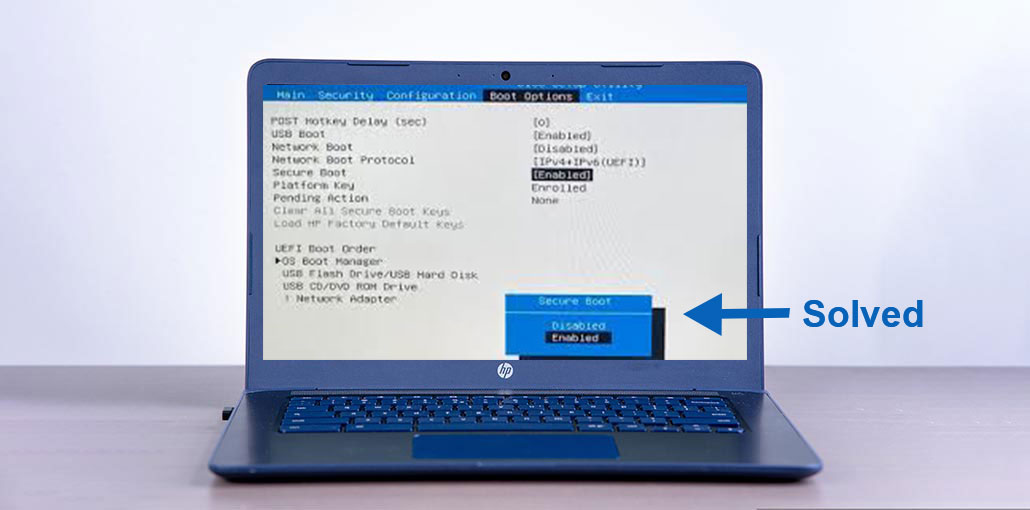
Secure Boot is a feature introduced by Microsoft in Windows 8 to ensure users’ security. This feature ensures that the OS on the computer is secure and that no unauthorized software is causing problems while activating your device.
Simply put, this feature creates an additional security layer to ensure the user’s safety. However, it has been reported by numerous users that ” Secure Boot Enabled but not Active ” appears in their devices. This issue becomes frequent when people install Windows.
If you’re also facing an issue using the secure boot feature, you should take a look at this blog till the close. In this blog, we will provide effective solutions to solve the secure boot enabled but not active issue and make your system run efficiently.
Why Is Secure Boot Enabled But Not Active?
The most frequent reason behind this problem could be “Secure Boot Disabled” in UEFI firmware settings. It is possible that this feature isn’t enabled in this setting, but it is enabled in your Windows. Be aware that this feature will not work even if you’ve activated it in a technical way.
Another reason that is commonly cited is activation on your computer’s CSM (Compatibility Support Module). This means that the CSM option is turned on by default in UEFI settings and causes this error. You must change the settings with a couple of steps we’ll discuss in this blog.
Last but not least is that If you BIOS isn’t updated, there are various issues like “secure boot enabled but not active.” This is the reason why you might be confronted with these issues and searching for solutions. Keep in mind that regardless of whether you own either a Dell model or an ASUS model, you might encounter the same issue due to these reasons.
Also read: How to Fix No Bootable Image Found Error on Windows
How to Fix Secure Boot Enabled But Not Active Step By Step
Secure Boot ensures that your system is only running secure software during the initial start-up. This is an essential requirement for some contemporary games, like Battlefield 6, which will not play when Secure Boot is disabled or incorrectly configured.
The reasons mentioned above are the primary reasons for this issue related to secure boot. We have listed some fixes for secure boot enabled but not active that could aid you in a specific circumstance involving these problems.
1. Disable Compatibility Support Module
CSM (Compatibility Support Module) is a feature that allows a computer system to run functions smoothly even if your device does not support the UEFI setting. However, it could be a reason to secure boot enabled but not active on your system.
Here are the steps you should follow in order to disable this option in your system.
- Open the ” Settings” of your system.
- Search for the “System” option and tap ” Recovery” under the new tab.
- Select the” Restart Now” option before ” Advanced Startup.”
- Select ” Troubleshoot” from the new screen.
- Tap on ” Advanced Options.”
- Select ” UEFI Firmware Settings.”
- Click ” Boot” in BIOS, and then click on ” CSM” settings.
- Choose the ” Disable” option from the menu.
- Click on ” Save Changes & Reset”.
Restart your computer and check whether the issue has been resolved or not. It could be that you’ve resolved the issue and are able to utilize your computer without issue.
2. Booting without CSM
Before you change Secure Boot settings, ensure the boot is successful using CSM disabled.
- Disable CSM with several keys to open the BIOS, typically DEL, F2, or F10.
- Go to the Boot or Security tab, look for the Secure Boot menu, and then select the CSM option.
- Turn off the booting CSM, select Reset and save changes, so that your PC will begin to boot without CSM.
3. Enable Secure Boot
The first suggestion we recommend is to use the first option, ” Enable Secure Boot.” This means you need to restart your computer and enable the feature manually. Here are the steps you need to follow to enable this feature.
- Click on ” Settings” and find the ” System” option.
- Under the ” System” tab, click the “Recovery” option.
- Choose the “Restart Now” option and seletct to the ” Advanced Startup.”
- In that mode, search for the ” Troubleshoot” option, and then click it.
- Select ” Advanced Options” and then click ” Restart” after selecting ” UEFI Firmware Settings.”
- It will start up in the UEFI BIOS.
- Search for ” BIOS Setup” and click it.
- Select the “Secure Boot” as your option
- Check the box next to ” Enable Secure Boot.”
These are easy steps you can follow to ensure secure booting for your system in a matter of minutes. It’s a simple task when you follow our step-by-step guide.
Also read: 6 Easy Ways to Fix BIOS ID Check Error During a BIOS Update
4. Change Platform
Another way to solve problems with secure boot is to change the operating system. There is a good possibility of resolving the secure boot issue. Let’s look at how to implement this modification on your system.
- Enter the BIOS on your computer.
- Look for ” System Mode.”
- If it’s assigned for ” Setup,” Change to ” User.”
- Open ” Secure Boot Mode” and change the mode to ” Custom” from ” Standard.”
- Change it back to the ” Standard” option and select the “Factory Defaults” option.
Your system will reboot and will alter the operating system to fix the problem. Numerous users have stated that they have solved problems related to secure booting using this simple procedure.
Conclusion
In the previous guide, we provided how to fix the issue that you have with secure boot enabled but not active. You can test all of these options one by one to determine which one works best to fix the issue.
FAQs: Secure Boot Enabled But Not Active
Does Secure Boot require UEFI mode?
Yes. Secure Boot only works in UEFI mode. It will not function if your system is using Legacy BIOS or CSM mode.
Can CSM cause the “Secure Boot Enabled But Not Active” issue?
Yes. If CSM is enabled, Secure Boot may appear enabled in BIOS but remain inactive in Windows.
Will enabling Secure Boot delete my files?
No. Enabling Secure Boot does not delete your personal files or installed applications.
How do I fix Secure Boot Enabled But Not Active quickly?
Disable CSM in BIOS, switch your system to UEFI mode, and re-enable Secure Boot. Then save the changes and restart your PC. If the issue continues, update your BIOS or restore default Secure Boot keys.









Leave a comment