

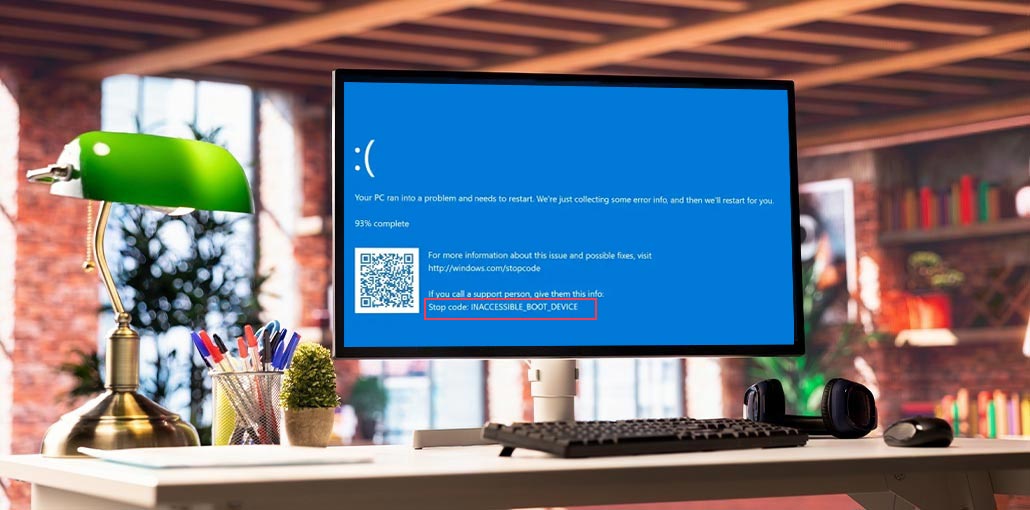
Due to an inaccessible boot device in Windows 10, your PC isn’t restarting properly. If your Windows is experiencing this issue, you will see an error that says “Your pc needs to be restarted”. Sometimes, it will also inform you that your PC is experiencing various errors, and it will start at a given time. If you are facing a stop code inaccessible boot device, read this article.
What is Inaccessible Boot Device Error in Windows?
In simple terms, the operating system is loaded from the boot device, which includes your local drive, floppy drive, USB, and other external drives.
This inaccessible boot device error occurs when Windows fails to access the system partition during startup. This error is responsible for restarting Windows. Numerous users have complained about this error. The most frequent time for the error to appear on your computer is when the following information is provided:
- Starting or restarting the PC
- Performing a Windows upgrade or update
- Installing major updates like the Windows 10
- Resetting or restoring Windows
Similar to other BSOD errors, such as “Cannot find operating system,” an Inaccessible boot error can have several causes.
- Faulty or outdated storage drivers
- Windows update issues
- BIOS/UEFI configuration changes
- Corrupted system files
- Failing HDD or SSD
- Loose or damaged hardware connections
- Malware or virus infection
Also read: How to Fix Secure Boot Enabled But Not Active in Windows 11
How to Fix Inaccessible Boot Device
An inaccessible boot device is not difficult to fix. A few users are not experienced in using computers. They are afraid to resolve the issue on their own. There are a variety of (but efficient) solutions to the problem of an inaccessible boot device in Windows 10. The most effective ones are described below:
1. Restart Your PC
To remove inaccessible boot device after BIOS update, you can easily restart your system.
Click the Windows icon in the bottom left of the screen. Then choose the Power option. After that, click on the “Restart” option, and your PC will restart within a few minutes.
2. Boot into Safe Mode
Safe mode is a diagnostic mode that runs only the minimum number of drivers and essential services. It is used to start some required applications and to troubleshoot issues. This means you can put your computer in safe mode to see if you can fix the issue.
- Open the Start menu on your computer and click the “Power” icon. Press the “Shift” key on your keyboard and then click Restart.
- When it is restarted, it will display an option on the screen. Choose Troubleshoot > Advanced options.
- Choose Startup Settings from the subsequent page. Click the “Restart” button on the bottom right side of the display.
- The computer will show the screen. You can press the number 4 to select “Enable safe mode”. You can also press 5 to select “Enable safe mode with networking”. You are now safely in mode.
3. Update or Uninstall Storage Drivers
Drivers are crucial to ensure that your hardware runs effectively. Many issues (Windows Blue Screen 10 inaccessible boot device) are caused by drivers in your Windows that are obsolete, incompatible, or damaged.
- Press the Windows + R key on your keyboard simultaneously.
- Type devmgmt.msc in the run box that appears on the screen. Now press enter.
- You’ll enter your Device Manager. You will see “IDE ATA/SATA controller” on the left side of the screen. Click on it, and you’ll see several choices. Choose “update drivers” or “uninstall drivers”.
The program will automatically check and update any obsolete drivers for you.
4. Run Windows Troubleshooter
As we mentioned earlier, Windows 10 blue screen inaccessible boot device might occur due to hardware malfunctions. To prevent this issue, you can run the Windows Troubleshooter on your PC to look for it.
- GO to Settings and select Update and Security option. After that, click Troubleshoot >> Hardware and Devices.
- Run Troubleshooter and wait until the system tells you of any issues. If there is, it will show on the screen, then you can check the issue and correct it.
5. Enable AHCI Mode in BIOS
Different manufacturers, such as Dell, HP, Lenovo, or Acer, have their own BIOS settings. The appearance of this system could differ. So, you can usually enable AHCI mode from the BIOS settings, which is another way to fix inaccessible boot devices on Lenovo or Dell. The steps are as follows:
- Restart your computer. Once the first screen appears, begin pressing the F2 key quickly.
- The blue display will pop up, and you need to find the SATA Configuration. After that, you will need to select the mode for your hard drives.
- Change the setting to AHCI. Save the settings. After that, restart your computer.
- When the system is restarted, Windows will install a few SATA drivers. Reboot your computer, and your AHCI mode will be enabled.
Also read: 6 Easy Ways to Fix BIOS ID Check Error During a BIOS Update
6. Repair System Files Using Command Prompt
Corrupted system files could prevent an operating system from accessing the boot drive. Minor damage can usually be fixed with the built-in tools of WinRE.
- Open the Command Prompt from the Advanced Options menu in WinRE.
- Execute the following commands one at a time, while pressing Enter following each:
SFC /scannow – Validates and fixes damaged files
Chkdsk/F /R – Fixes and scans disk errors and bad sectors - Wait for the completion of these tasks
- Restart your computer to apply the repair and see whether the issue is fixed.
How to Prevent This Error in the Future
A few habits can reduce the risk:
- Avoid forced shutdowns
- Keep drivers updated (but stable versions)
- Don’t interrupt Windows updates
- Regularly back up your system
- Monitor disk health using tools like SMART diagnostics
Final Summary
The Inaccessible boot device error is very common among Windows users. Most users have stated that resolving this issue isn’t significant. The methods mentioned above have been highly effective in solving all kinds of BSOD problems. Therefore, you can choose the one that works for you.
FAQs: Inaccessible Boot Device error
Why does Inaccessible Boot Device error occur?
This error usually happens due to corrupted drivers, Windows update issues, BIOS changes, faulty hard drives, or damaged system files.
Can I fix Inaccessible Boot Device error without reinstalling Windows?
Yes, in most cases you can fix it using Safe Mode, driver updates, CHKDSK, SFC scan, or Startup Repair without reinstalling Windows.
Is Inaccessible Boot Device a serious error?
Yes, it is a serious boot error, but it is often fixable without data loss if troubleshooting is done correctly.
Will I lose data if this error occurs?
Not always. If fixed early, data remains safe. However, severe disk failure may risk data loss.









Leave a comment